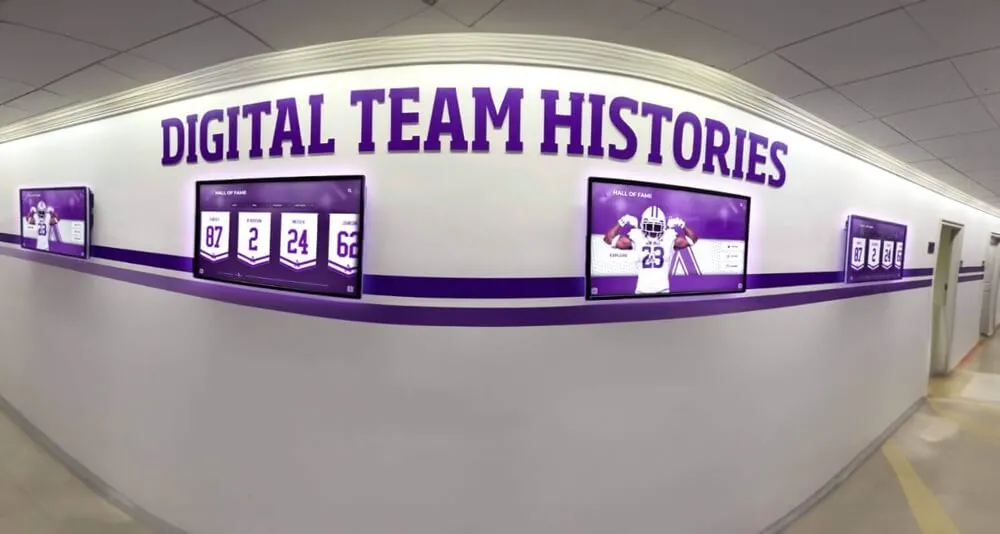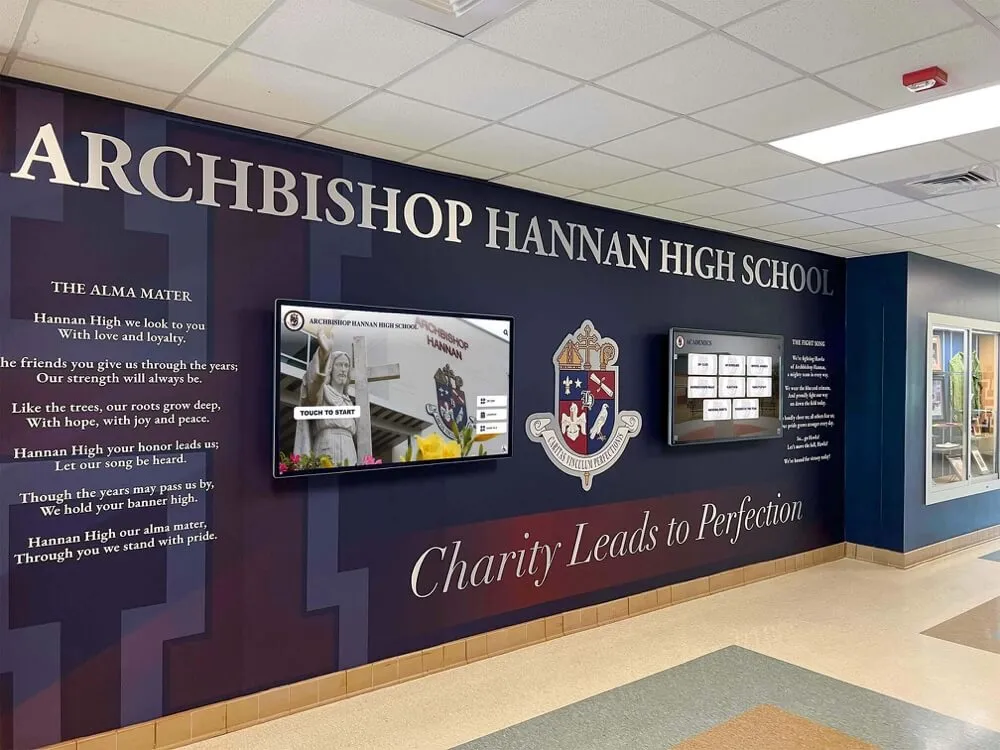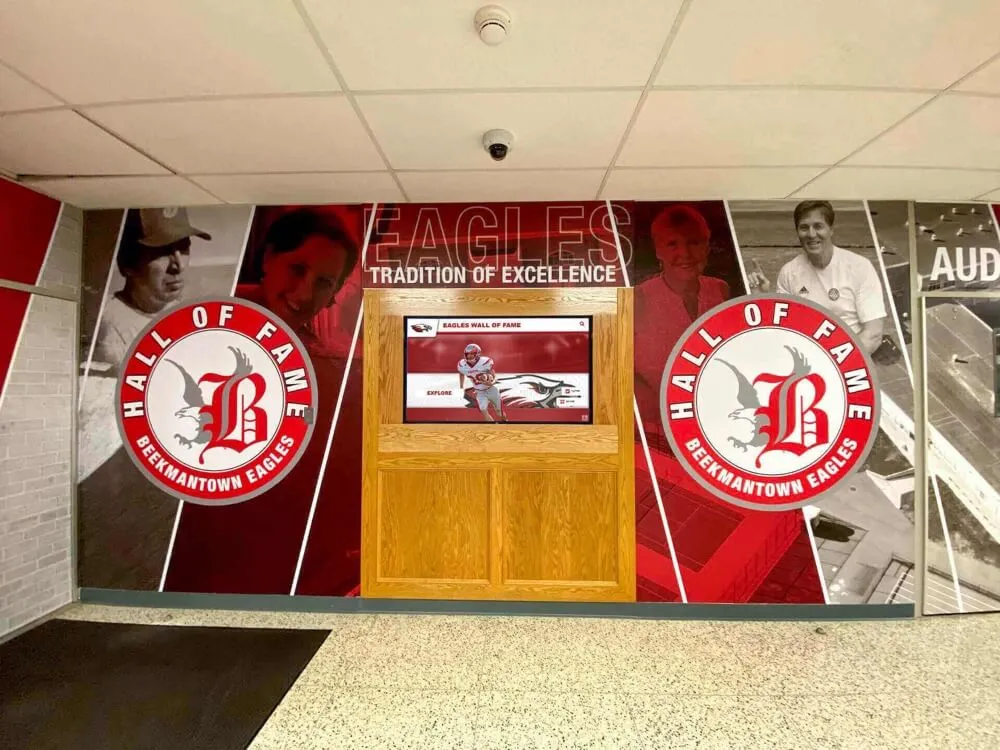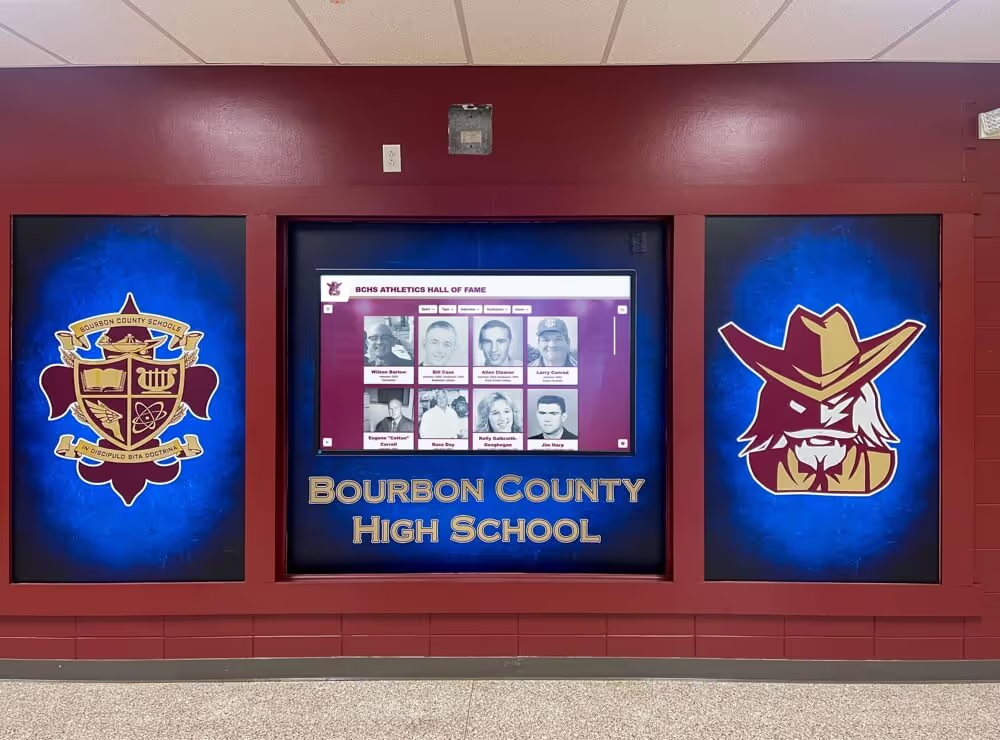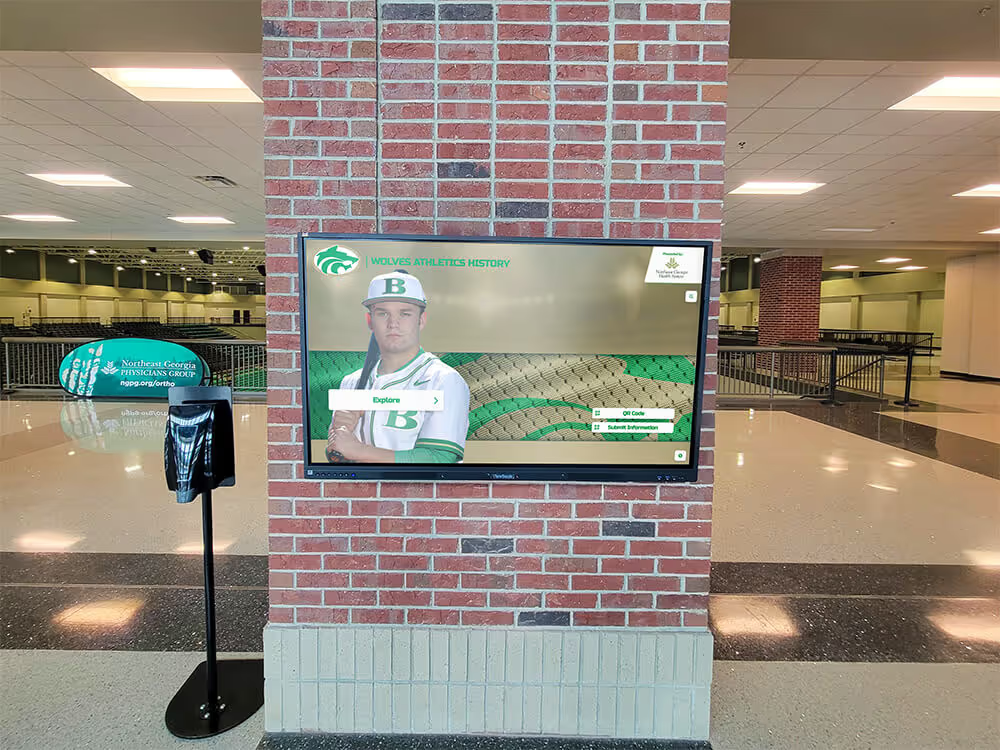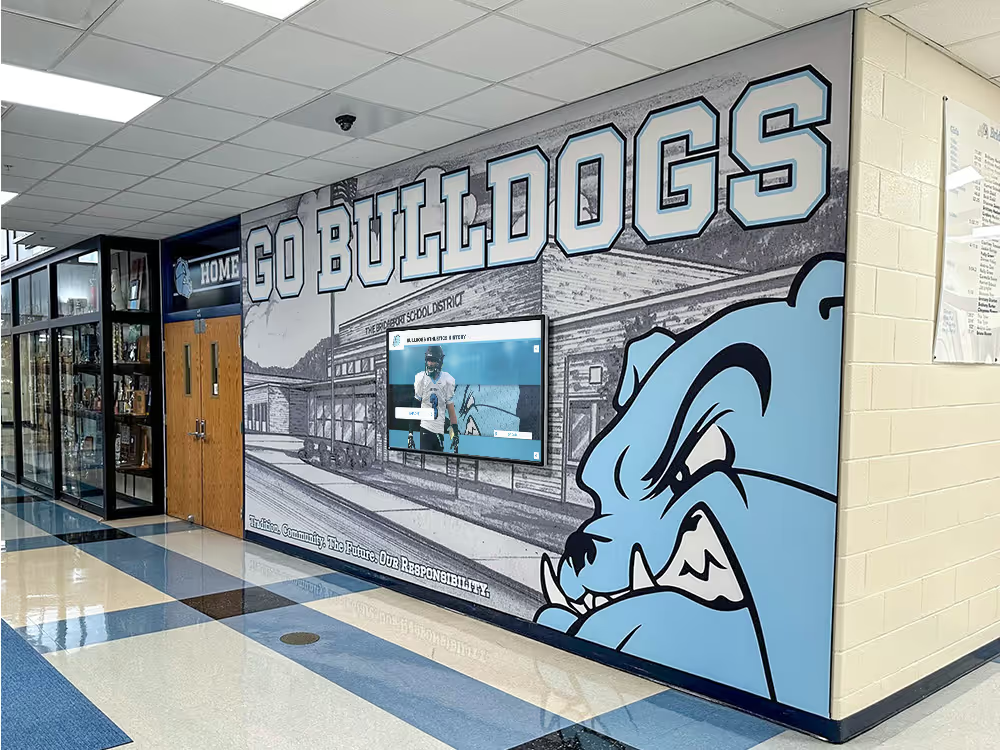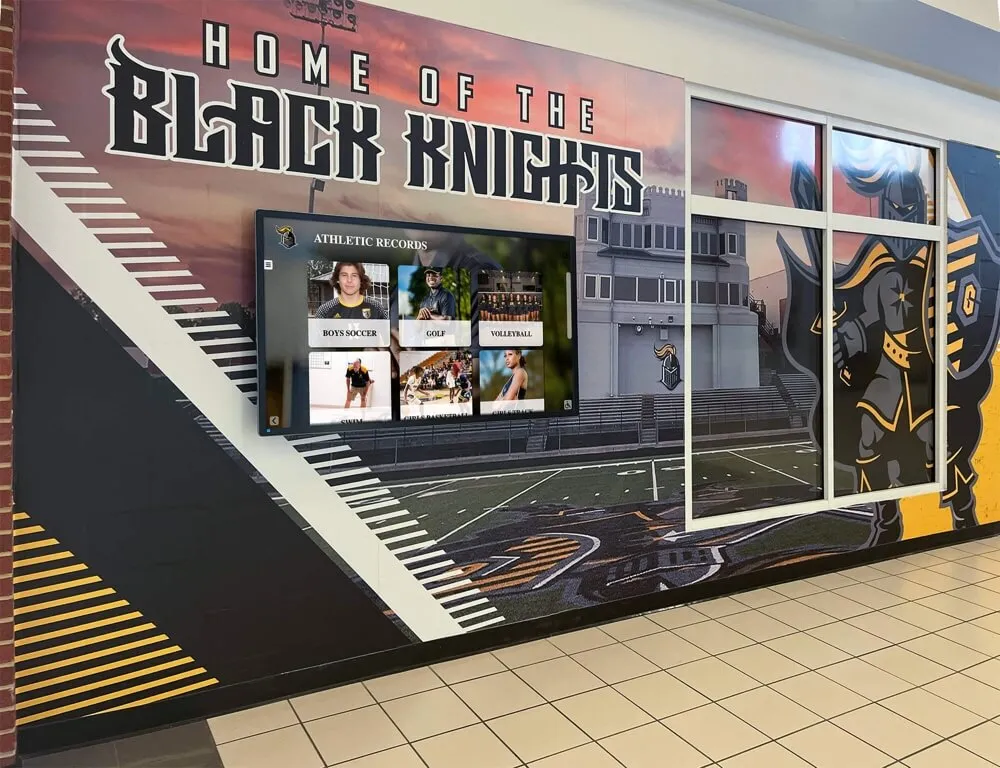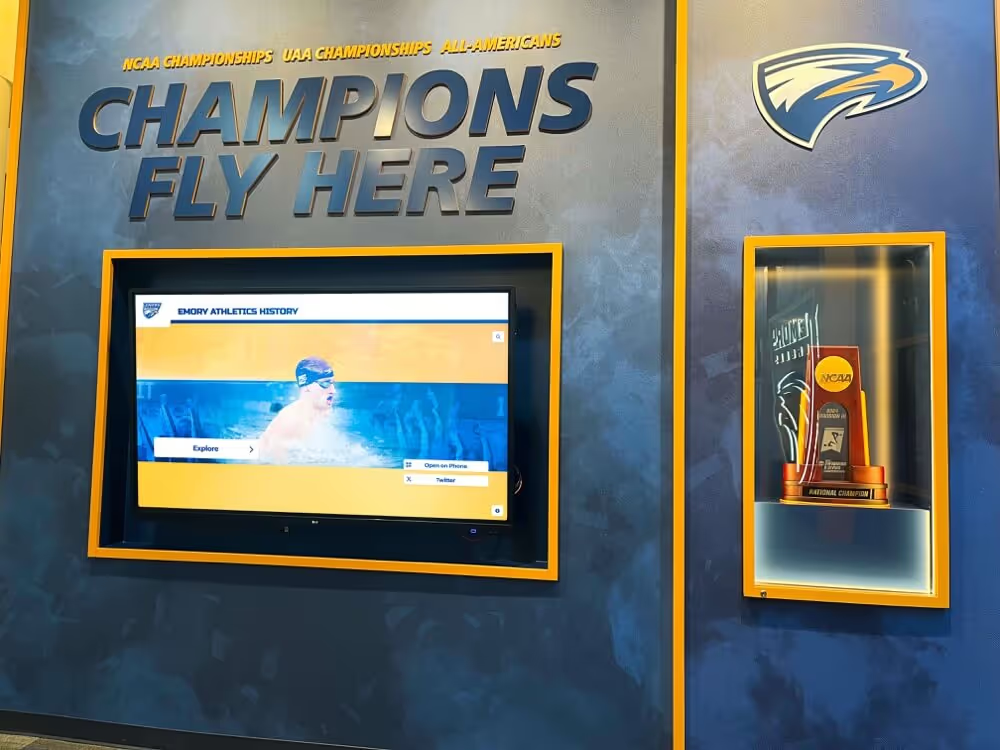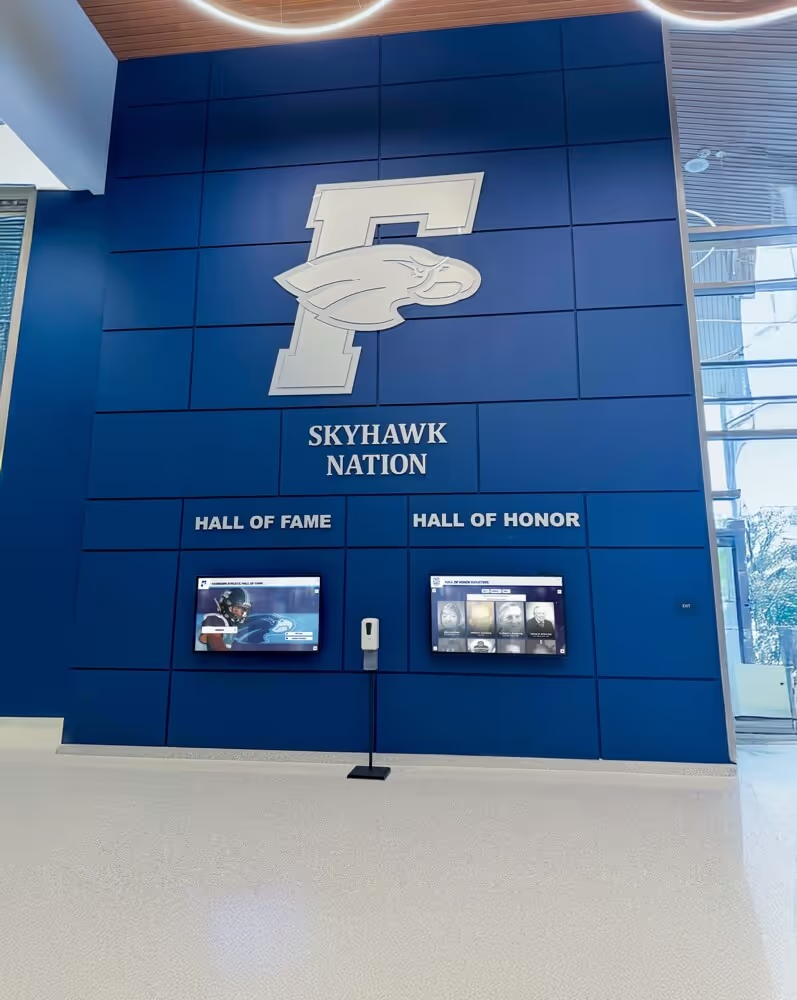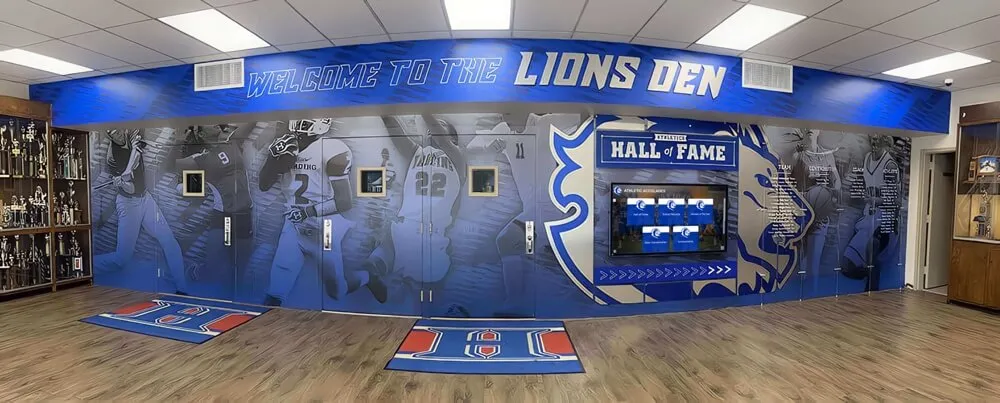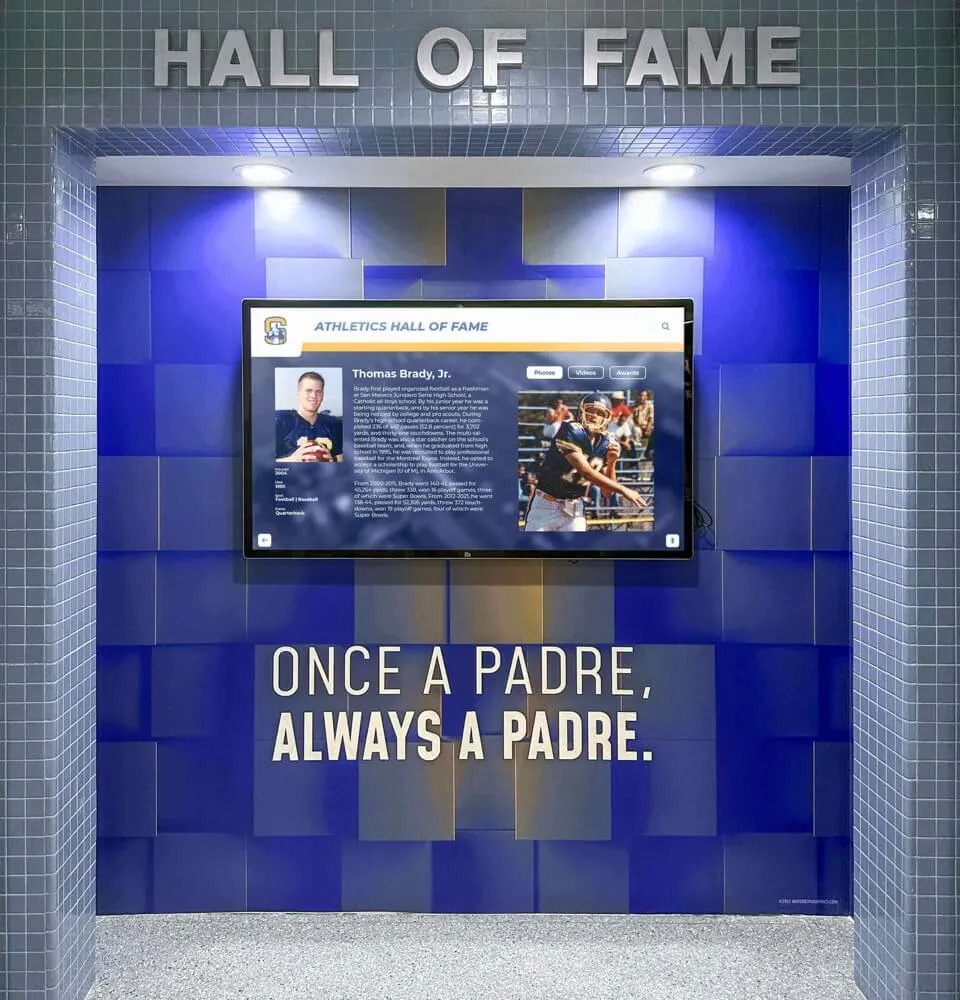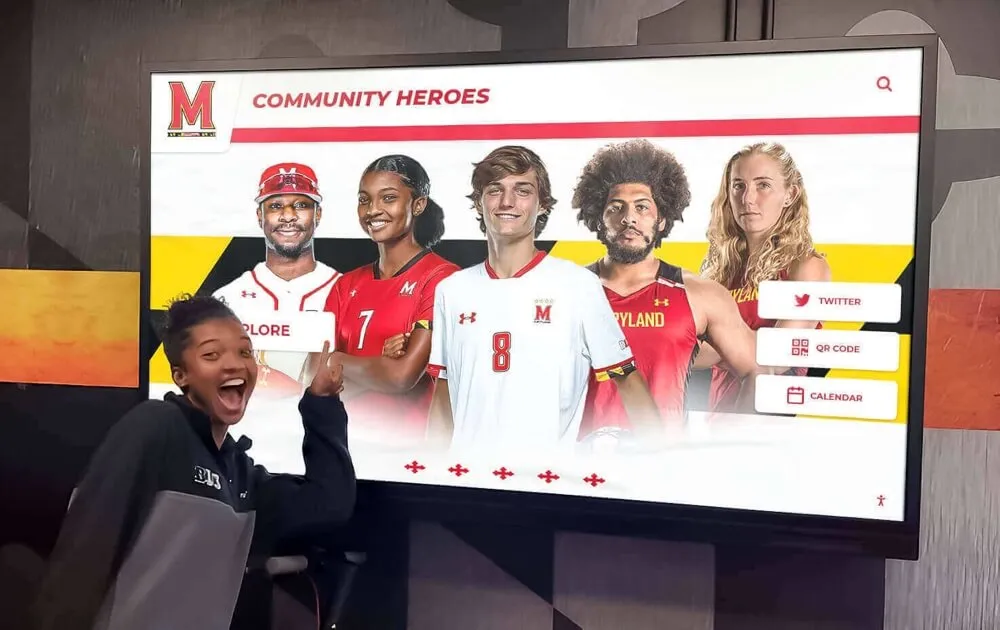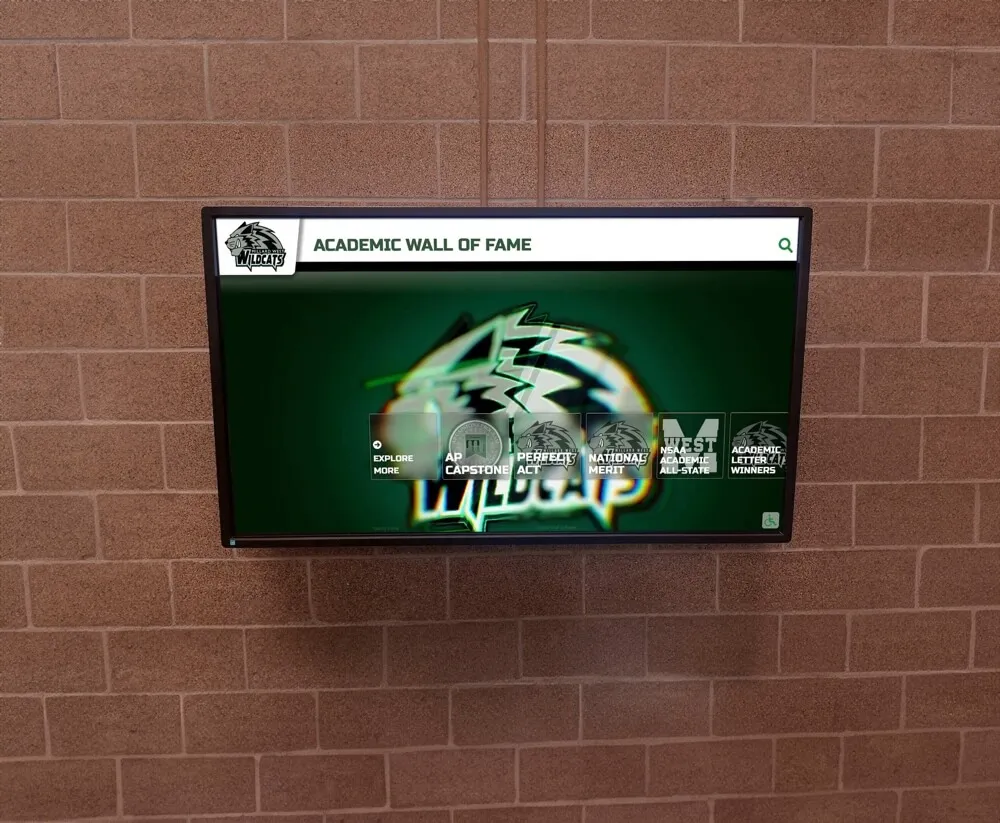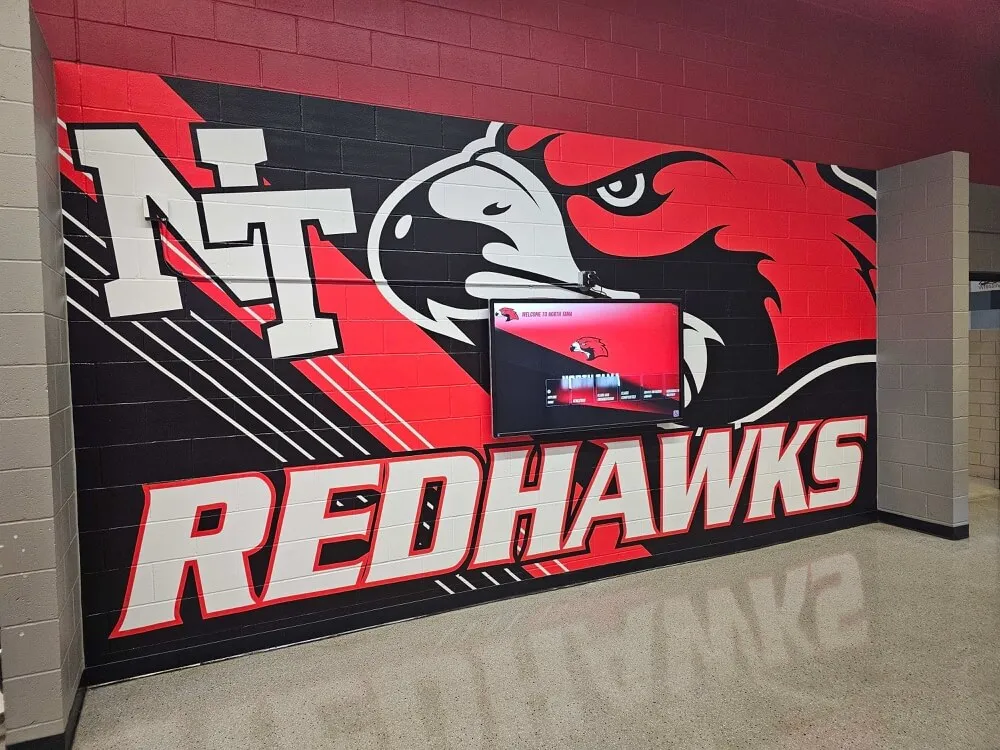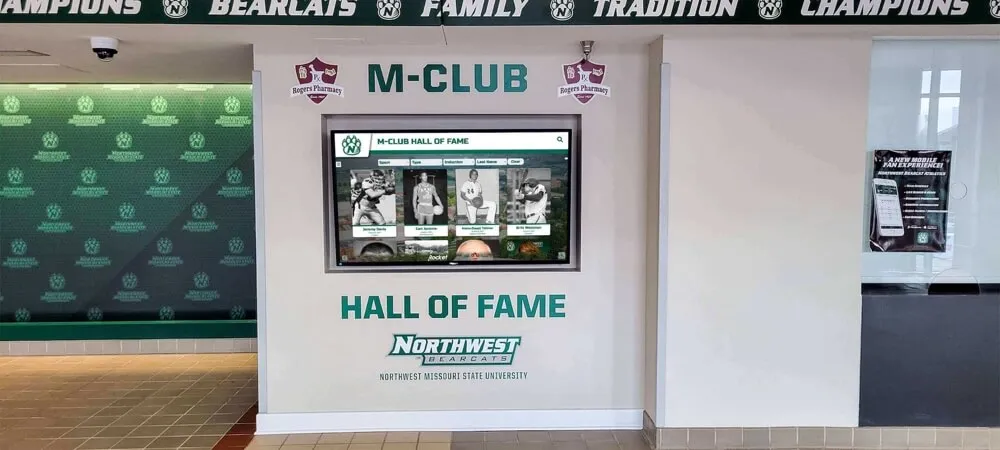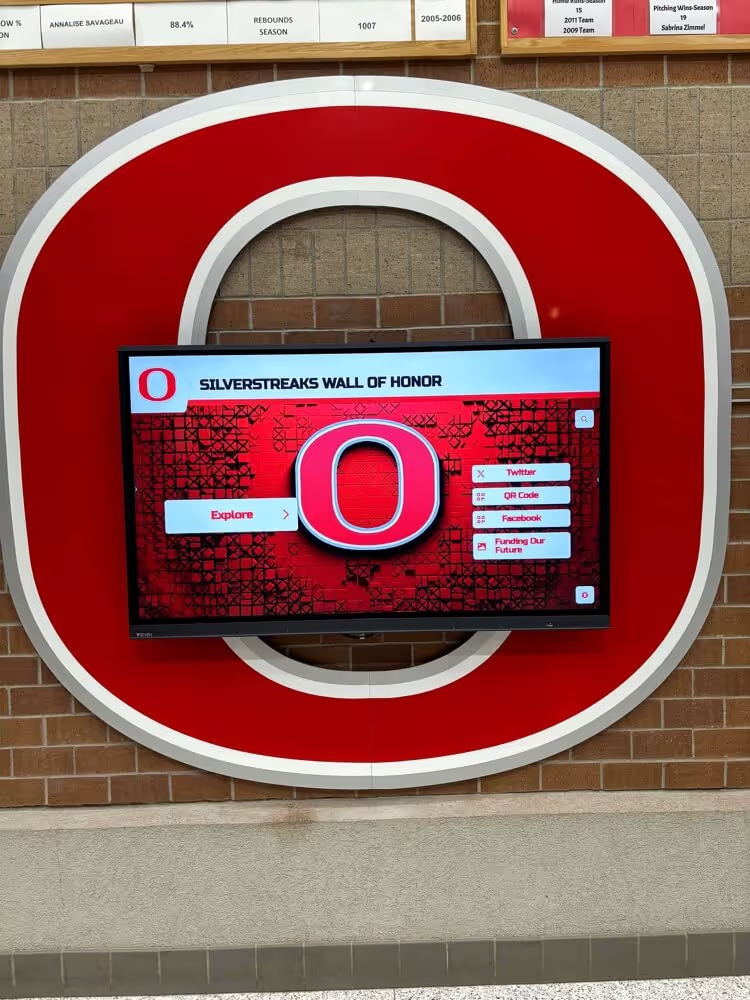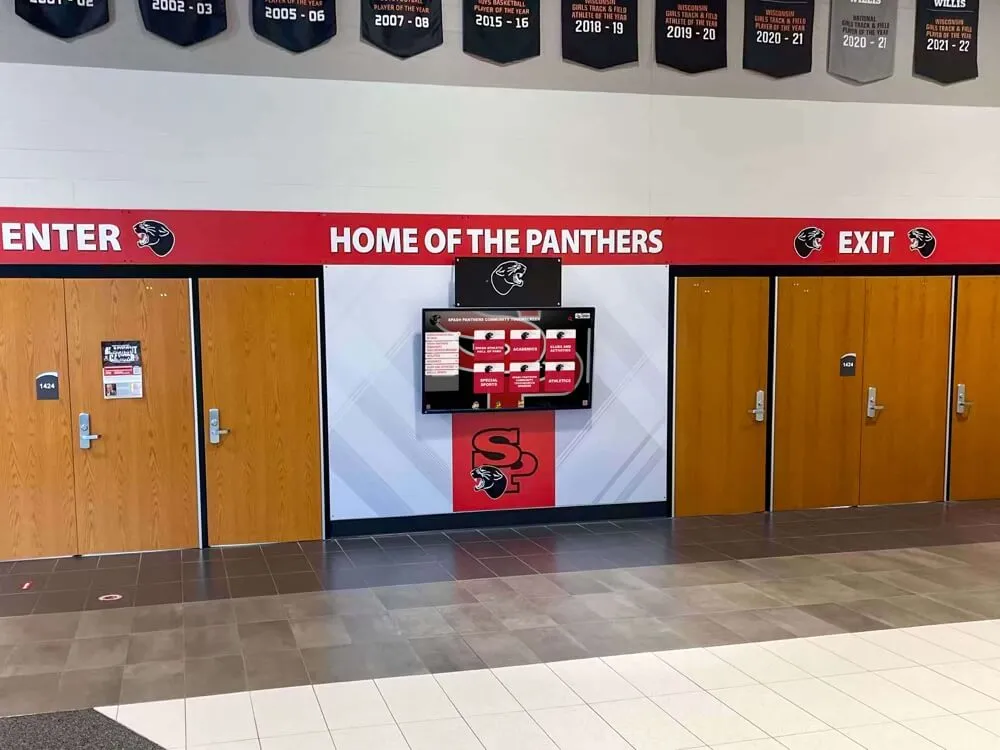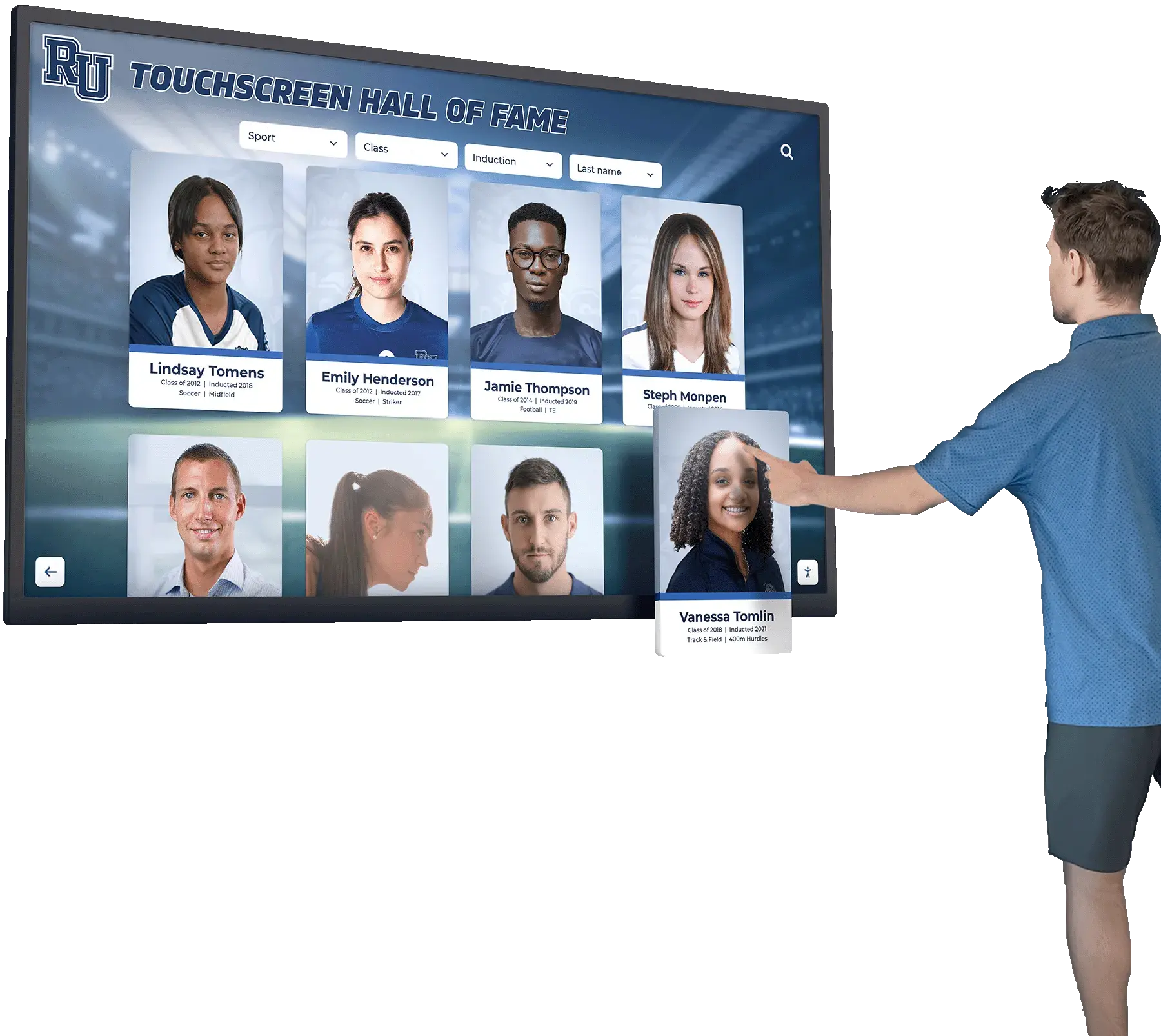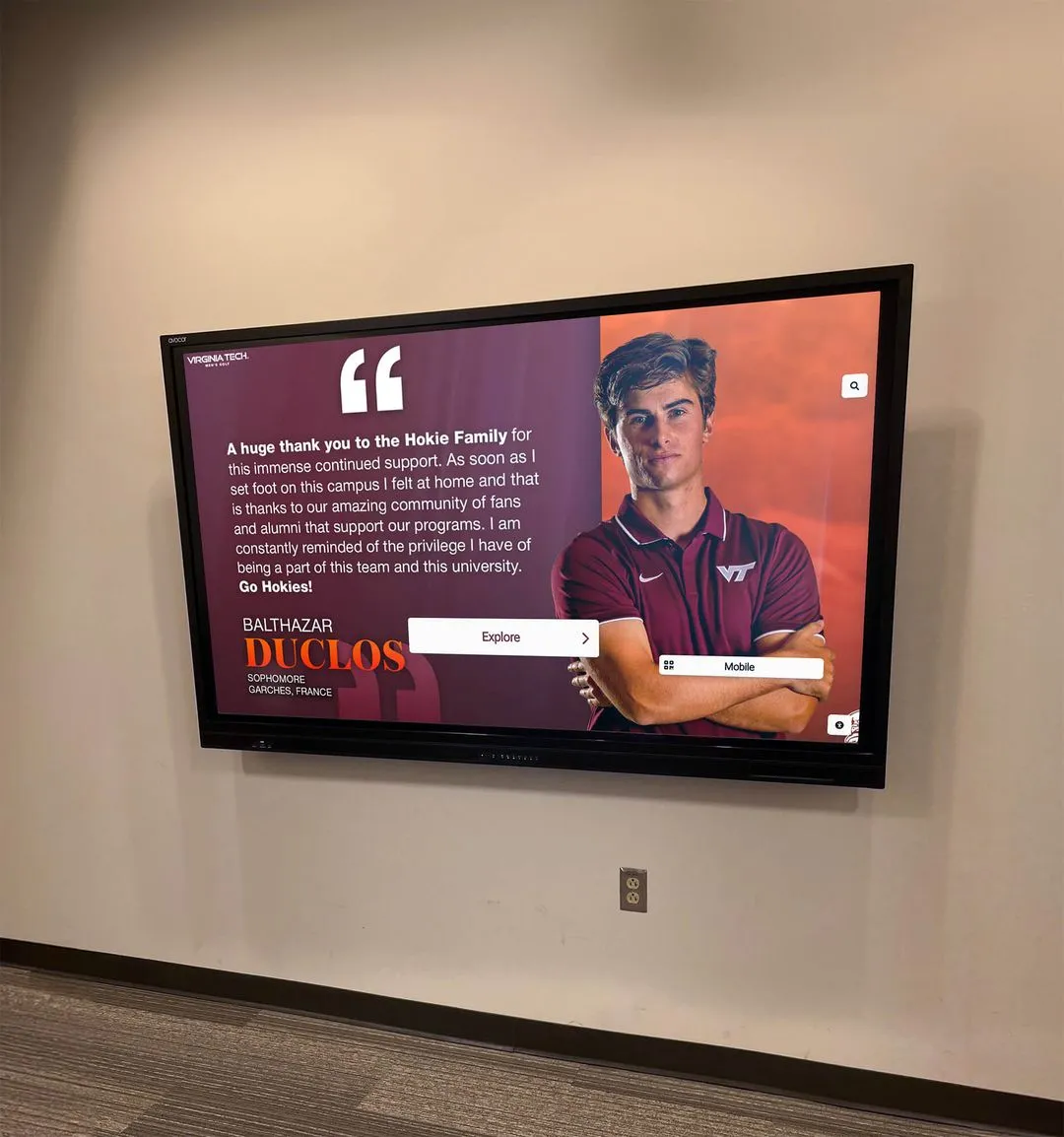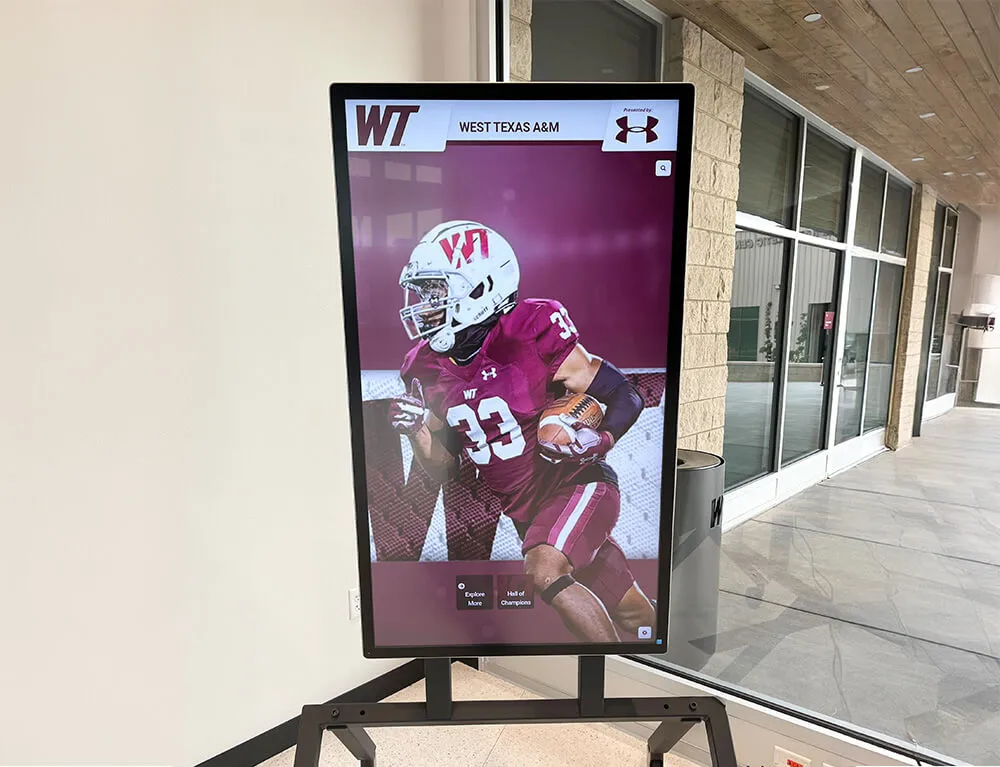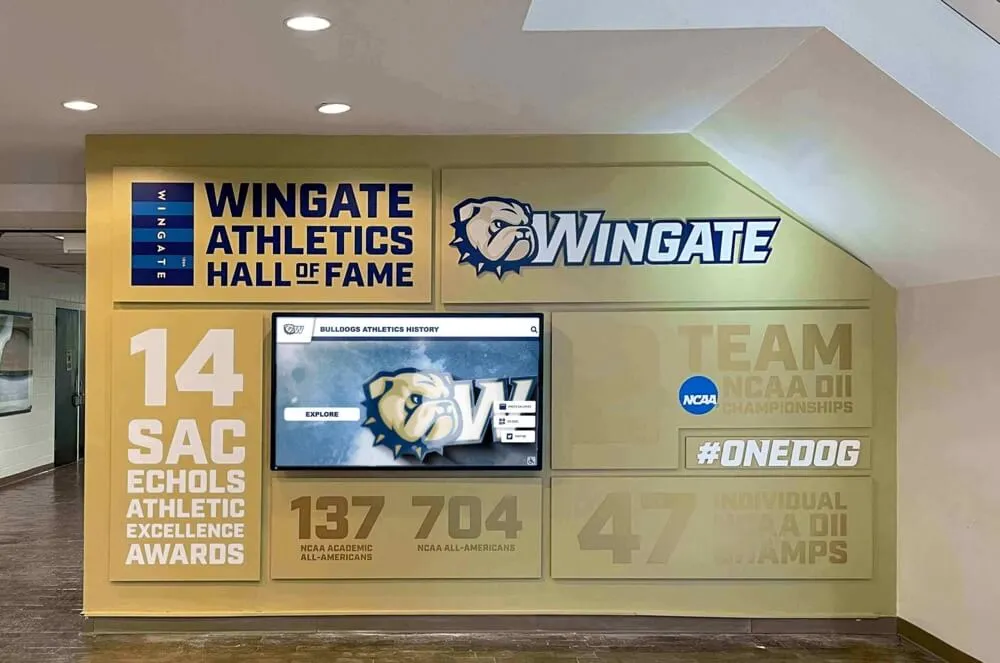




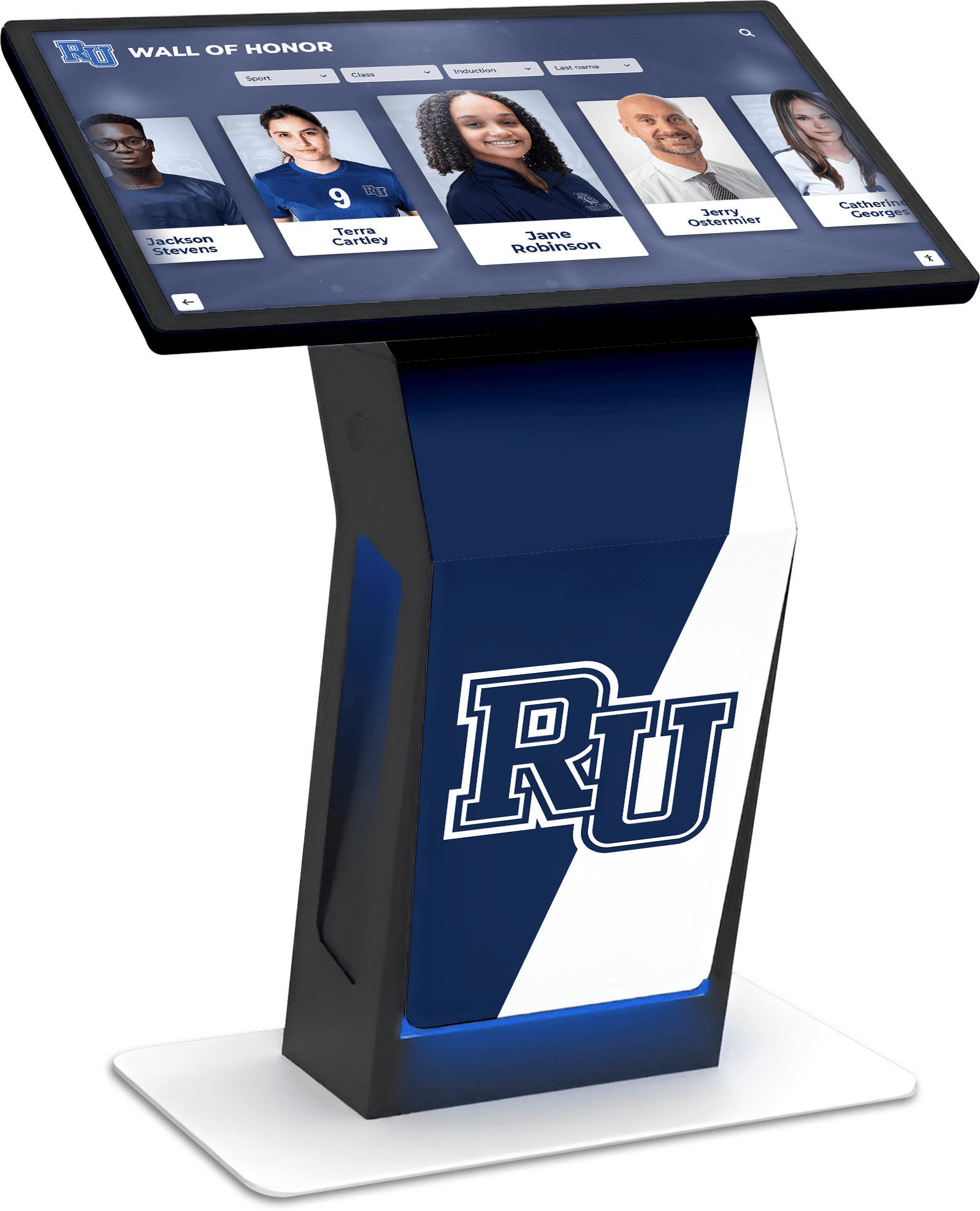
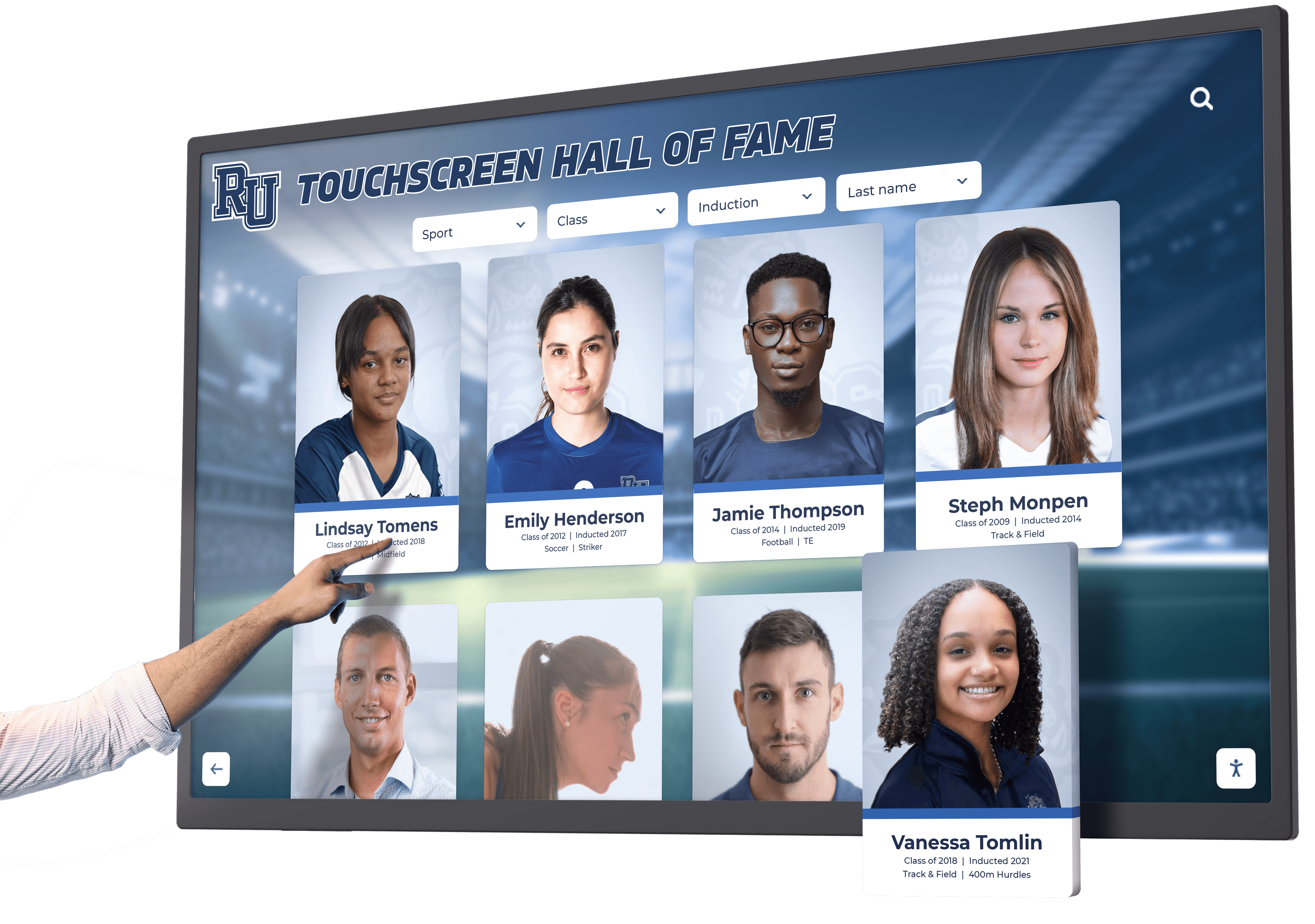
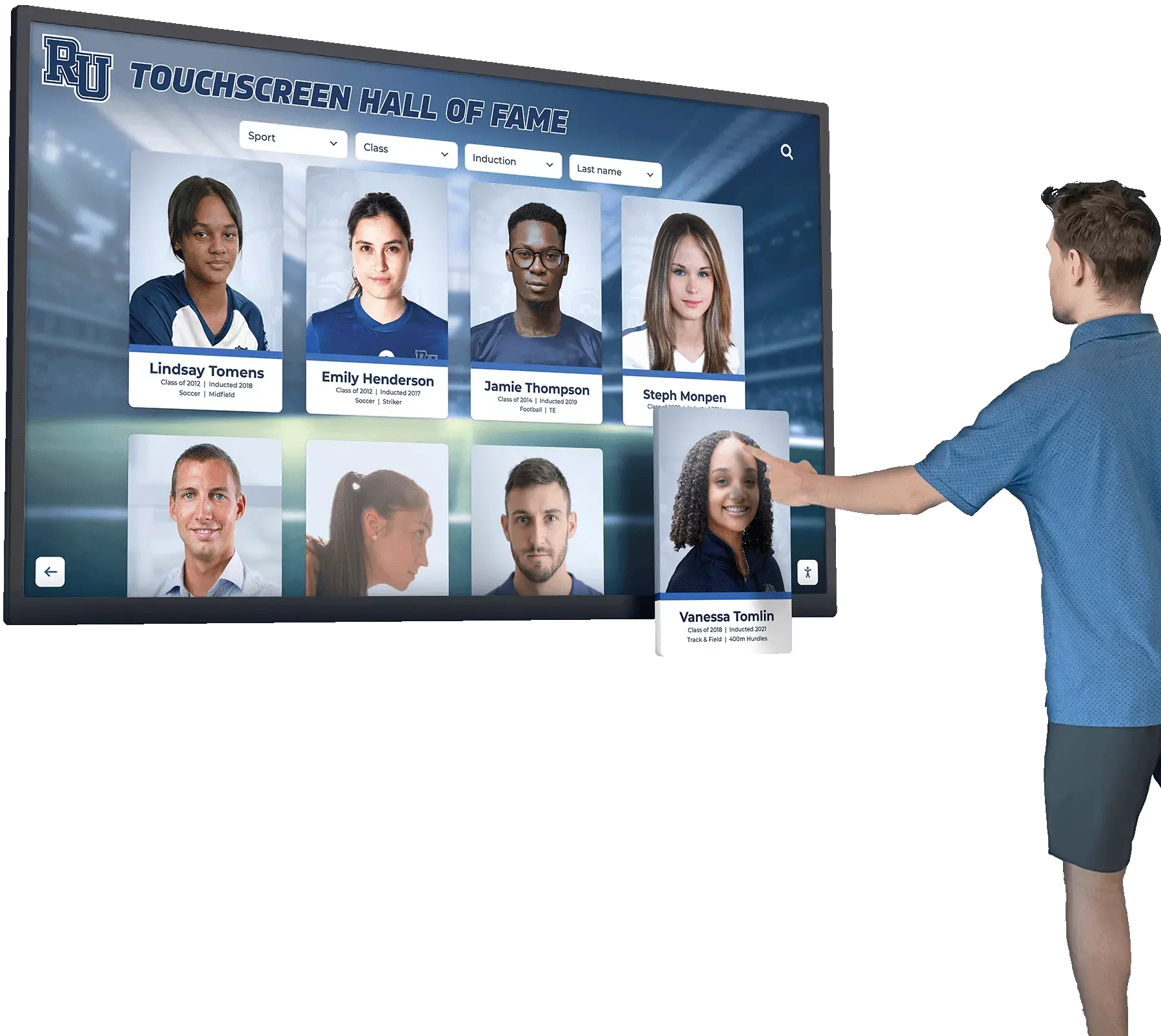
Schools invest substantial resources in digital recognition displays—interactive touchscreens showcasing athletic records, academic achievements, alumni profiles, and institutional history. These installations create engaging experiences for students, families, and visitors while preserving achievements that physical trophy cases cannot accommodate. Yet many institutions overlook a fundamental requirement that affects every person interacting with these systems: accessibility.
The Web Content Accessibility Guidelines (WCAG) 2.2 Level AA represents the internationally recognized standard for digital accessibility, establishing clear technical requirements that ensure technology works for everyone, including people with disabilities. Schools implementing digital displays without considering WCAG compliance create systems that exclude significant portions of their communities—students with visual impairments who cannot read small text, visitors with motor disabilities who struggle with touch interactions, or alumni with cognitive differences who find navigation confusing.
Federal law, state regulations, and institutional ethics require educational institutions to provide equal access to information and services. Digital displays presenting school records, recognition, and community information fall directly under these obligations. Compliance protects schools from legal liability while demonstrating institutional commitment to inclusion and equitable access.
This comprehensive guide examines WCAG 2.2 Level A and AA success criteria, explaining the practical importance of each requirement and how schools can ensure their digital recognition displays meet accessibility standards. Whether implementing new systems or evaluating existing installations, understanding these guidelines helps schools create inclusive technology serving entire communities rather than inadvertently excluding people with disabilities.
Understanding WCAG 2.2 and Accessibility Levels
The Web Content Accessibility Guidelines (WCAG) provide technical standards ensuring digital content works for people with diverse abilities, including visual, auditory, motor, and cognitive disabilities. Published by the World Wide Web Consortium (W3C), these guidelines apply to websites, mobile applications, and interactive displays including the touchscreen systems schools install for recognition and information purposes.
The Three Conformance Levels
WCAG organizes requirements into three progressive levels:
Level A (Minimum): The most basic accessibility features. Failure to meet Level A criteria creates severe barriers excluding many people with disabilities from accessing content. All digital systems should meet at least Level A requirements.
Level AA (Target Standard): The recommended conformance level for most organizations, including educational institutions. Level AA addresses major accessibility barriers while remaining technically and economically feasible. Federal agencies, many state governments, and accessibility advocates consider Level AA the appropriate target for public-facing digital systems.
Level AAA (Enhanced): The highest conformance level, addressing the widest range of accessibility needs. While Level AAA provides optimal access, these requirements may not be achievable for all content types. Organizations typically pursue Level AAA for specific content rather than entire systems.
Schools implementing digital recognition displays should target WCAG 2.2 Level AA conformance, as this level addresses substantial accessibility barriers while remaining practical for typical educational technology budgets and technical capabilities. Educational institutions can explore comprehensive information about interactive touchscreen solutions for museums and galleries that apply equally well to school recognition displays.
Why WCAG 2.2 Matters for Schools
Educational institutions face multiple compelling reasons to ensure digital displays meet WCAG 2.2 Level AA standards:
Legal Compliance: The Americans with Disabilities Act (ADA), Section 504 of the Rehabilitation Act, and Section 508 of the Rehabilitation Act require equal access to information and services for people with disabilities. Courts increasingly interpret these laws to cover digital content including interactive displays in public spaces. Schools failing to provide accessible digital systems face legal liability and potential complaints.
Educational Mission: Schools exist to serve all students, families, and community members. Digital displays showcasing achievements and information must work for everyone, including people with disabilities. Inaccessible systems contradict fundamental educational values of inclusion and equity.
Student Rights: Students with disabilities have legal rights to equal access to school facilities, information, and recognition. When schools honor student achievements through digital displays, accessibility ensures students with disabilities can view their own recognition and explore their peers’ accomplishments.
Community Inclusion: Schools serve diverse communities including alumni, families, and visitors with varying abilities. Accessible digital displays demonstrate institutional commitment to welcoming everyone rather than inadvertently excluding people with disabilities. Modern donor recognition walls and digital displays increasingly prioritize accessibility as core design requirements.
Technical Excellence: WCAG compliance correlates with overall system quality. Platforms designed with accessibility in mind typically offer superior usability for everyone, not just people with disabilities. Clear navigation, readable text, and intuitive interfaces benefit all users.
Future-Proofing: Accessibility requirements continue expanding. Systems meeting current WCAG 2.2 Level AA standards position schools favorably for future regulatory changes while avoiding costly retrofits of inaccessible systems.
WCAG 2.2 Level A Success Criteria: Foundational Accessibility
Level A criteria establish fundamental accessibility baselines. Digital displays failing to meet these requirements create severe barriers preventing many people with disabilities from accessing content. Schools must address all Level A criteria as minimum compliance.
Principle 1: Perceivable (Users Must Be Able to Perceive Information)
1.1.1 Non-text Content (Level A)
Requirement: Provide text alternatives for non-text content including images, icons, graphics, and controls.
Importance for Schools: Digital recognition displays rely heavily on photographs, logos, and graphical elements. Students with visual impairments using screen readers cannot access images without text descriptions. This criterion ensures that championship photos, athlete portraits, and achievement icons remain accessible through descriptive text alternatives that assistive technology can read aloud.
Practical Implementation: Every image on the display needs alternative text describing its content and purpose. An athlete photo might have alt text reading “Maria Rodriguez, Class of 2023, state champion in 100-meter dash, crossing finish line.” Icons indicating sports or achievement types need labels like “basketball trophy icon” or “academic excellence symbol.”
1.2.1 Audio-only and Video-only (Prerecorded) (Level A)
Requirement: Provide alternatives for prerecorded audio-only or video-only content.
Importance for Schools: Recognition displays often include video highlights or audio interviews. Visitors who are deaf or hard of hearing cannot access audio content without text alternatives, while those with visual impairments need audio descriptions for silent video.
Practical Implementation: Audio interviews with alumni require text transcripts. Silent video highlights showing game footage need audio descriptions narrating visual action. These alternatives ensure everyone can experience recognition content regardless of sensory abilities.
1.2.2 Captions (Prerecorded) (Level A)
Requirement: Provide synchronized captions for prerecorded video with audio.
Importance for Schools: Championship game highlights, athlete interviews, and ceremonial videos require captions enabling students who are deaf or hard of hearing to access spoken content. Captions also benefit students watching videos in noisy environments or those learning English.
Practical Implementation: All videos on recognition displays need accurate synchronized captions. Professional captioning services provide quality results, though many video platforms now offer automatic captioning that requires editing for accuracy.
1.2.3 Audio Description or Media Alternative (Prerecorded) (Level A)
Requirement: Provide audio description or full text alternative for prerecorded video content.
Importance for Schools: Students with visual impairments need audio descriptions for video content that conveys information visually. Championship game highlights showing key plays require narration describing visual action that captions alone do not convey.
Practical Implementation: Videos on recognition displays should include either audio description tracks narrating important visual information or complete text transcripts describing all visual and audio content. Audio descriptions fill pauses in dialogue or narration with descriptions of visual action.
1.3.1 Info and Relationships (Level A)
Requirement: Information, structure, and relationships conveyed through presentation must be programmatically determinable.
Importance for Schools: Screen readers and assistive technology rely on proper content structure to navigate displays. When displays use visual formatting like headings, lists, or tables to organize information, that structure must exist in the underlying code so assistive technology can communicate it.
Practical Implementation: Record boards showing statistics must use proper table markup. Navigation menus need semantic structure indicating hierarchical relationships. Headings organizing content sections require proper heading levels enabling screen reader users to navigate by headings.
1.3.2 Meaningful Sequence (Level A)
Requirement: When content sequence affects meaning, ensure correct reading order is programmatically determined.
Importance for Schools: Content must be presented in logical order for assistive technology users. Athletic records should progress logically (by sport, then year, then individual records) rather than jumping between unrelated categories. Biography sections should follow chronological or thematic order that makes sense when read sequentially.
Practical Implementation: Content creators must structure information in logical sequences reflecting how people naturally process information. Testing with screen readers verifies that content reads in sensible order matching visual presentation intent.
1.3.3 Sensory Characteristics (Level A)
Requirement: Instructions for understanding and operating content do not rely solely on sensory characteristics like shape, size, visual location, orientation, or sound.
Importance for Schools: Phrases like “Click the blue button on the right” or “Listen for the beep” exclude people who cannot perceive those characteristics. People with visual impairments cannot see colors or positions, while those who are deaf cannot hear audio cues.
Practical Implementation: Navigation instructions should reference content meaningfully: “Select the Athletes menu” rather than “Touch the circular icon.” Search features should provide text labels: “Use search box” rather than “Type in the magnifying glass area.”
1.4.1 Use of Color (Level A)
Requirement: Color is not used as the only visual means of conveying information, indicating action, prompting response, or distinguishing elements.
Importance for Schools: Students with color blindness cannot distinguish information conveyed solely through color. Record boards showing “red text for school records, blue text for conference records” exclude people unable to perceive those color differences.
Practical Implementation: Use additional indicators beyond color alone. Records might use color plus icons: school records show red text with star icon, conference records show blue text with trophy icon. Links should be underlined or bold, not identified by color alone.
1.4.2 Audio Control (Level A)
Requirement: If audio plays automatically for more than 3 seconds, provide controls to pause, stop, or adjust volume independently from overall system volume.
Importance for Schools: Auto-playing audio interferes with screen readers, creating serious barriers for people with visual impairments who cannot simultaneously hear their assistive technology and unexpected audio. Auto-play audio also disturbs environments and startles visitors.
Practical Implementation: Video and audio content on displays should not auto-play. Visitors should initiate playback through clear controls. If auto-play is necessary for specific reasons, audio must be brief (under 3 seconds) or include prominent pause controls.
Principle 2: Operable (Users Must Be Able to Operate the Interface)
2.1.1 Keyboard (Level A)
Requirement: All functionality available through mouse/touch must also be available through keyboard, except where the specific function requires input that depends on the path of movement (like freehand drawing).
Importance for Schools: Many people with motor disabilities cannot use touchscreens or mice, relying instead on keyboards, switch devices, or other assistive input methods. Recognition displays must work with alternative input methods, not just direct touch.
Practical Implementation: Touchscreen displays should support external keyboard navigation. Users should be able to tab through all interactive elements, activate controls with Enter/Space keys, and navigate menus with arrow keys. Solutions like Rocket Alumni Solutions build keyboard accessibility into their digital recognition platforms from the ground up.
2.1.2 No Keyboard Trap (Level A)
Requirement: Keyboard focus can move to and away from all components. Users must not become “trapped” in sections requiring mouse interaction to escape.
Importance for Schools: Students using keyboard navigation must be able to navigate through entire displays without getting stuck. If focus moves into a video player or menu, users must be able to exit back to main navigation.
Practical Implementation: Test all interactive components ensuring keyboard users can navigate into and out of every area. Document any special key combinations needed (like Escape to close dialogs) and provide instructions.
2.1.4 Character Key Shortcuts (Level A in WCAG 2.1 and 2.2)
Requirement: If keyboard shortcuts use single printable characters, provide mechanisms to turn off, remap, or make active only when specific components have focus.
Importance for Schools: Single-key shortcuts (pressing “S” to search) create problems for people using speech input software. When users speak, inadvertent key commands trigger, disrupting their interaction.
Practical Implementation: Avoid single-character shortcuts, or ensure they only activate when specific components (like search fields) have focus. Multi-key shortcuts (Ctrl+S) avoid this problem.
2.2.1 Timing Adjustable (Level A)
Requirement: For time limits set by content, users can turn off, adjust, or extend time limits before expiration.
Importance for Schools: Students with cognitive or motor disabilities often need more time to read content and complete interactions. Displays that automatically time out and return to attraction screens prevent these users from fully exploring content.
Practical Implementation: Provide generous timeouts (5-10 minutes of inactivity) or allow users to extend time before reset. Display clear warnings before timeout with options to extend session. Some systems allow disabling timeouts entirely in accessibility modes.
2.2.2 Pause, Stop, Hide (Level A)
Requirement: For moving, blinking, scrolling, or auto-updating information that starts automatically and lasts more than 5 seconds, provide controls to pause, stop, or hide.
Importance for Schools: Auto-scrolling achievement lists or rotating photo galleries distract students with attention disabilities and prevent screen reader users from accessing content before it disappears. Movement also distracts from adjacent content.
Practical Implementation: Attraction screens can show movement, but once users begin interacting, auto-advancing content should pause. Provide visible pause controls for carousels, slideshows, and scrolling content. Respect user preferences to keep content static.
2.3.1 Three Flashes or Below Threshold (Level A)
Requirement: Content does not contain anything that flashes more than three times in one second, or flashing is below general flash and red flash thresholds.
Importance for Schools: Flashing content triggers seizures in people with photosensitive epilepsy. Schools have legal and ethical obligations to avoid creating content that could cause medical harm to students or visitors.
Practical Implementation: Avoid flashing, blinking, or strobing effects in digital displays. Subtle fade transitions are safe. Athletic highlight videos containing camera flashes or other bright flashing require review to ensure they remain below threshold limits.
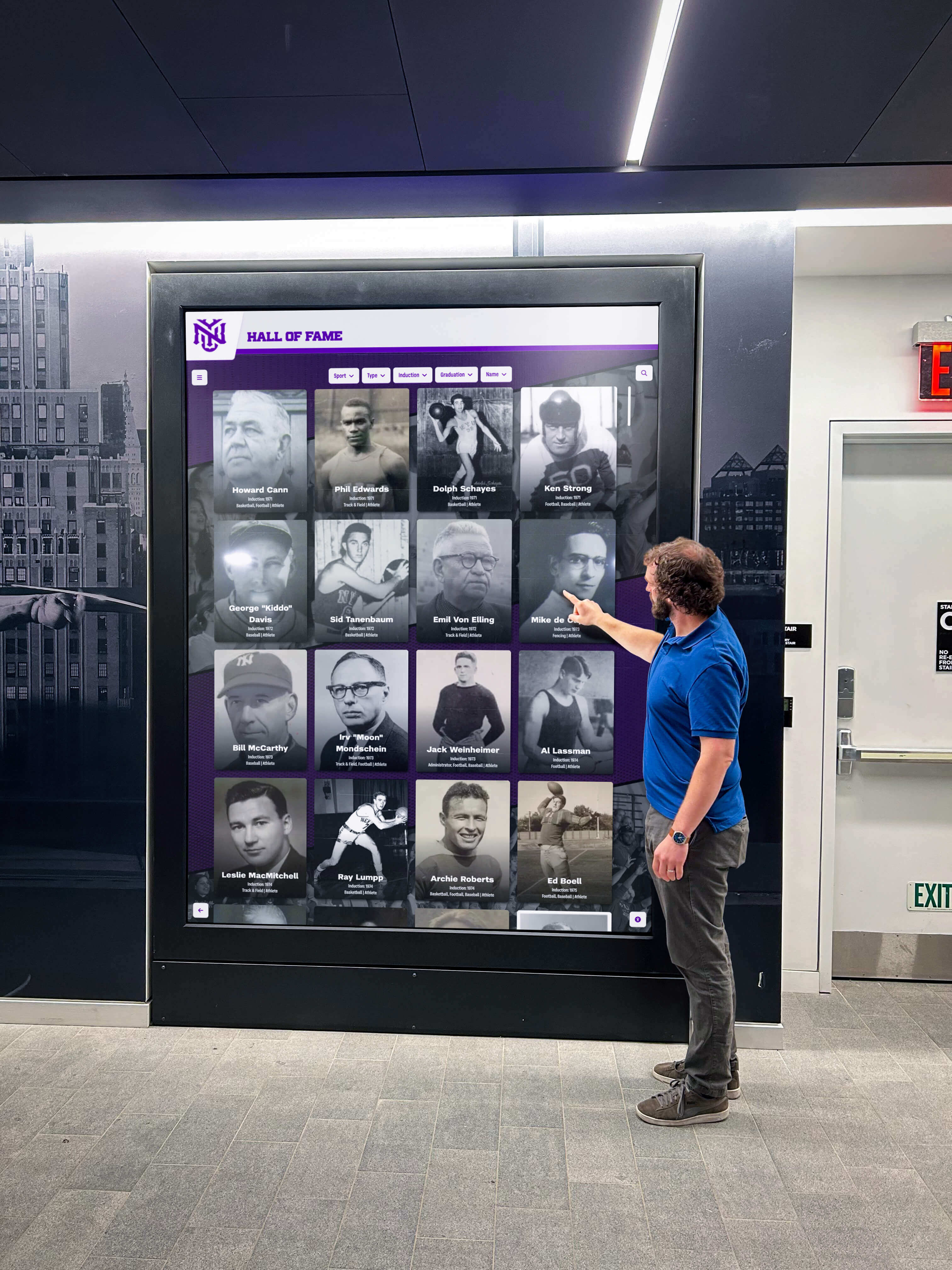
2.4.1 Bypass Blocks (Level A)
Requirement: Provide mechanisms to bypass repeated blocks of content like navigation menus.
Importance for Schools: Screen reader users navigating through complex interfaces need ways to skip navigation menus and go directly to main content. Otherwise, they must listen to entire navigation lists every time screens change.
Practical Implementation: Provide “skip to main content” links at beginning of each screen. Proper heading structure allows screen reader users to navigate directly to content sections. Consistent layouts help users predict where main content appears.
2.4.2 Page Titled (Level A)
Requirement: Screens/pages have titles describing their topic or purpose.
Importance for Schools: Screen reader users rely on descriptive titles to understand what screen they’re viewing. Titles like “Athlete Profile: Maria Rodriguez” or “Basketball Records: All-Time Scoring Leaders” help users confirm they reached intended destinations.
Practical Implementation: Every screen or section on recognition displays needs clear descriptive titles. These titles should be programmatically available to assistive technology even when visually styled or positioned creatively.
2.4.3 Focus Order (Level A)
Requirement: When components receive keyboard focus, the order must be logical and preserve meaning and operability.
Importance for Schools: Keyboard and assistive technology users navigate sequentially through content. Illogical focus order creates confusion and makes interfaces unusable. Focus should flow naturally from top to bottom, left to right in Western contexts.
Practical Implementation: Test focus order by tabbing through displays with a keyboard. Focus should move through navigation menus, then into main content, following visual layout logically. Complex layouts may need custom focus order specified in code.
2.4.4 Link Purpose (In Context) (Level A)
Requirement: The purpose of each link can be determined from the link text alone or from link text together with its programmatically determined context.
Importance for Schools: Generic link text like “Click here” or “More” doesn’t communicate destination. Screen reader users often navigate by jumping between links, hearing link text out of context. Links need descriptive text communicating their purpose.
Practical Implementation: Use descriptive link text: “View Maria Rodriguez’s complete athlete profile” instead of “Click here.” Button labels should describe actions: “Search athlete records” instead of “Go.”
2.5.1 Pointer Gestures (Level A in WCAG 2.1 and 2.2)
Requirement: Functionality requiring multipoint or path-based gestures can also be operated with single-pointer actions.
Importance for Schools: Complex gestures like pinch-to-zoom or multi-finger swipes exclude people with motor disabilities who cannot perform coordinated movements. All functionality must work with simple taps or clicks.
Practical Implementation: Touchscreen displays should provide on-screen zoom controls rather than requiring pinch gestures. Swiping gestures should have button alternatives. Simple tap interactions accommodate broadest range of abilities.
2.5.2 Pointer Cancellation (Level A in WCAG 2.1 and 2.2)
Requirement: For functionality operated with single pointer, activation occurs on up-event (release) with mechanisms to abort or undo, or down-event (press) activation is reversible.
Importance for Schools: People with motor control difficulties often accidentally trigger controls. Activating on button/touch release rather than press allows users to slide off controls if they touched incorrectly.
Practical Implementation: Touch controls should activate when users lift their finger, not when they first touch. This allows users to drag away from accidental touches before activation. Critical actions should include confirmation dialogs.
2.5.3 Label in Name (Level A in WCAG 2.1 and 2.2)
Requirement: For controls with visible text labels, the accessible name must include the visible text.
Importance for Schools: People using speech input software say visible labels to activate controls. If the programmatic name differs from visible label, speech commands fail. A button labeled “Search Athletes” should have “Search Athletes” as its accessible name.
Practical Implementation: Ensure buttons, links, and form controls use their visible text labels as accessible names. Avoid situations where visible text says one thing while screen readers hear something different.
2.5.4 Motion Actuation (Level A in WCAG 2.1 and 2.2)
Requirement: Functionality triggered by device or user motion can also be operated through user interface components, and motion can be disabled.
Importance for Schools: Some people cannot perform motion gestures like tilting or shaking devices. Others experience unintended motion input. All motion-activated functionality needs conventional control alternatives.
Practical Implementation: If displays include motion-based features (like tilting screens to view 3D content), provide on-screen buttons offering the same functionality. Allow disabling motion controls in accessibility settings.
Principle 3: Understandable (Users Must Be Able to Understand Information and Operation)
3.1.1 Language of Page (Level A)
Requirement: The default human language of each screen/page can be programmatically determined.
Importance for Schools: Screen readers need to know what language content uses to pronounce words correctly. Without language identification, text is read with incorrect pronunciation, creating confusion for users.
Practical Implementation: Set language attributes in the platform code. If displays serve multilingual communities and switch between languages, each section needs proper language tags. This helps assistive technology select appropriate pronunciation rules.
3.2.1 On Focus (Level A)
Requirement: When any component receives focus, it does not initiate unexpected context changes.
Importance for Schools: Simply moving to a control should not trigger actions. Users need to understand what they’re focusing on before anything happens. Automatic submission when focus reaches a button, or automatic screen changes when tabbing through menus, disorient users.
Practical Implementation: Context changes (screen transitions, opening menus, submitting searches) should only occur through explicit user activation, not simply from focus movement. Users should be able to tab through options without triggering actions until they press Enter or tap.
3.2.2 On Input (Level A)
Requirement: Changing settings of user interface components does not automatically cause unexpected context changes unless users have been advised of the behavior beforehand.
Importance for Schools: Automatic form submission or screen changes when users make selections creates confusion, especially for keyboard users navigating through options. People need time to review choices before submission.
Practical Implementation: Dropdown menus selecting sports or years should not immediately refresh content. Instead, provide explicit “Go” or “Apply” buttons. If auto-update is necessary, warn users clearly beforehand.
3.2.6 Consistent Help (Level A in WCAG 2.2 only)
Requirement: If help mechanisms are available across multiple screens, they appear in consistent relative order unless user initiates a change.
Importance for Schools: Users with cognitive disabilities rely on consistency. When help buttons, search features, or contact options appear in different locations on different screens, finding assistance becomes difficult.
Practical Implementation: Keep help features, search buttons, and navigation menus in consistent positions throughout the display experience. Header and footer elements should remain stable across all screens.
3.3.1 Error Identification (Level A)
Requirement: If input errors are automatically detected, the error is identified and described to users in text.
Importance for Schools: When searches return no results or users enter invalid inputs, clear error messages help everyone understand what went wrong. People using screen readers cannot see visual error indicators like red text unless errors are announced.
Practical Implementation: Search forms should clearly state “No results found for ‘John Smithh’. Check spelling or try different keywords.” Form validation should identify specific problems: “Please enter at least 3 characters for search” rather than just highlighting fields in red.
3.3.2 Labels or Instructions (Level A)
Requirement: Labels or instructions are provided when content requires user input.
Importance for Schools: Clear labels help everyone understand what information to enter or what actions controls perform. People with cognitive disabilities particularly benefit from explicit instructions.
Practical Implementation: Search boxes need labels: “Search by athlete name, sport, or year.” Filter controls need clear options: “Select sport: Football, Basketball, Baseball…” Buttons should describe their actions: “Search” not just a magnifying glass icon.
3.3.7 Redundant Entry (Level A in WCAG 2.2 only)
Requirement: Information previously entered by or provided to users in the same process is either auto-populated or available for selection, unless re-entering is essential or previous information is no longer valid.
Importance for Schools: People with cognitive or motor disabilities find repeated data entry burdensome. If users indicate their graduating class while searching, subsequent screens should remember that context.
Practical Implementation: Maintain search context as users navigate. If someone searches basketball records, keep that sport filter active as they explore individual athletes unless they explicitly change it. Remember recent searches for quick re-access.
Principle 4: Robust (Content Must Work with Current and Future Technologies)
4.1.1 Parsing (Level A)
Requirement: In content using markup languages, ensure elements have complete start and end tags, are nested properly, contain no duplicate attributes, and IDs are unique—except where specifications allow these features.
Note: This criterion was updated in WCAG 2.2 errata. For WCAG 2.0 and 2.1, this is always considered to support. For WCAG 2.2, this criterion is obsolete and removed.
Importance for Schools: While technical, proper code syntax ensures assistive technology can correctly parse and interpret content. Malformed code causes unpredictable assistive technology behavior.
Practical Implementation: Use reputable digital recognition platforms like Rocket Alumni Solutions that generate clean, valid code automatically. Regular code validation catches errors before they affect users.
4.1.2 Name, Role, Value (Level A)
Requirement: For all user interface components, the name, role, state, and properties can be programmatically determined and set, and notification of changes is available to assistive technology.
Importance for Schools: Screen readers announce controls by their name (button text), role (button, link, checkbox), and current state (expanded, selected, required). Without this information, assistive technology users cannot understand or operate interfaces.
Practical Implementation: Use semantic HTML elements (buttons, links, form controls) that inherently communicate roles. Custom controls need ARIA attributes specifying roles, states, and properties. Expandable menus must indicate whether they’re expanded or collapsed.
WCAG 2.2 Level AA Success Criteria: Target Compliance Standard
Level AA criteria address major accessibility barriers while remaining technically feasible. Schools should target Level AA conformance for digital recognition displays.
Principle 1: Perceivable (Level AA Additions)
1.2.4 Captions (Live) (Level AA)
Requirement: Provide captions for all live audio content in synchronized media.
Importance for Schools: Live-streamed events, real-time game broadcasts, or live ceremonies require captions enabling students who are deaf or hard of hearing to participate. While most recognition displays show prerecorded content, those featuring live feeds need real-time captioning.
Practical Implementation: Use live captioning services or automated captioning tools for live broadcasts. Professional Communication Access Realtime Translation (CART) services provide high-quality live captions. YouTube Live and similar platforms offer automatic captioning for live streams.
1.2.5 Audio Description (Prerecorded) (Level AA)
Requirement: Provide audio descriptions for prerecorded video content.
Importance for Schools: Level AA requires more comprehensive audio description than Level A. Videos must include narration describing important visual information including actions, settings, body language, and scene changes that dialogue alone doesn’t convey.
Practical Implementation: Athletic highlight videos need descriptions of key plays: “Number 12 catches a pass at the 40-yard line, breaks three tackles, and sprints down the sideline for a touchdown.” Graduation ceremony videos describe processional, speakers, and graduate recognition.
1.3.4 Orientation (Level AA in WCAG 2.1 and 2.2)
Requirement: Content does not restrict its view and operation to a single display orientation (portrait or landscape) unless a specific orientation is essential.
Importance for Schools: People with disabilities may have devices mounted in specific orientations. Touchscreen displays should work in multiple orientations, or if fixed orientation is necessary, content should remain accessible in that orientation.
Practical Implementation: Wall-mounted displays typically use landscape orientation. Ensure content displays properly in this orientation. If displays rotate, verify content remains accessible and readable in all supported orientations.
1.3.5 Identify Input Purpose (Level AA in WCAG 2.1 and 2.2)
Requirement: The purpose of input fields collecting user information can be programmatically determined when the input serves a specific purpose defined in WCAG’s input purposes list.
Importance for Schools: Assistive technology can auto-fill fields when input purposes are identified. This particularly helps people with cognitive disabilities who struggle remembering and typing information.
Practical Implementation: If displays collect user information (email for updates, names for searches), use HTML autocomplete attributes identifying field purposes. Modern browsers and assistive technology use these attributes to suggest or auto-fill appropriate values.
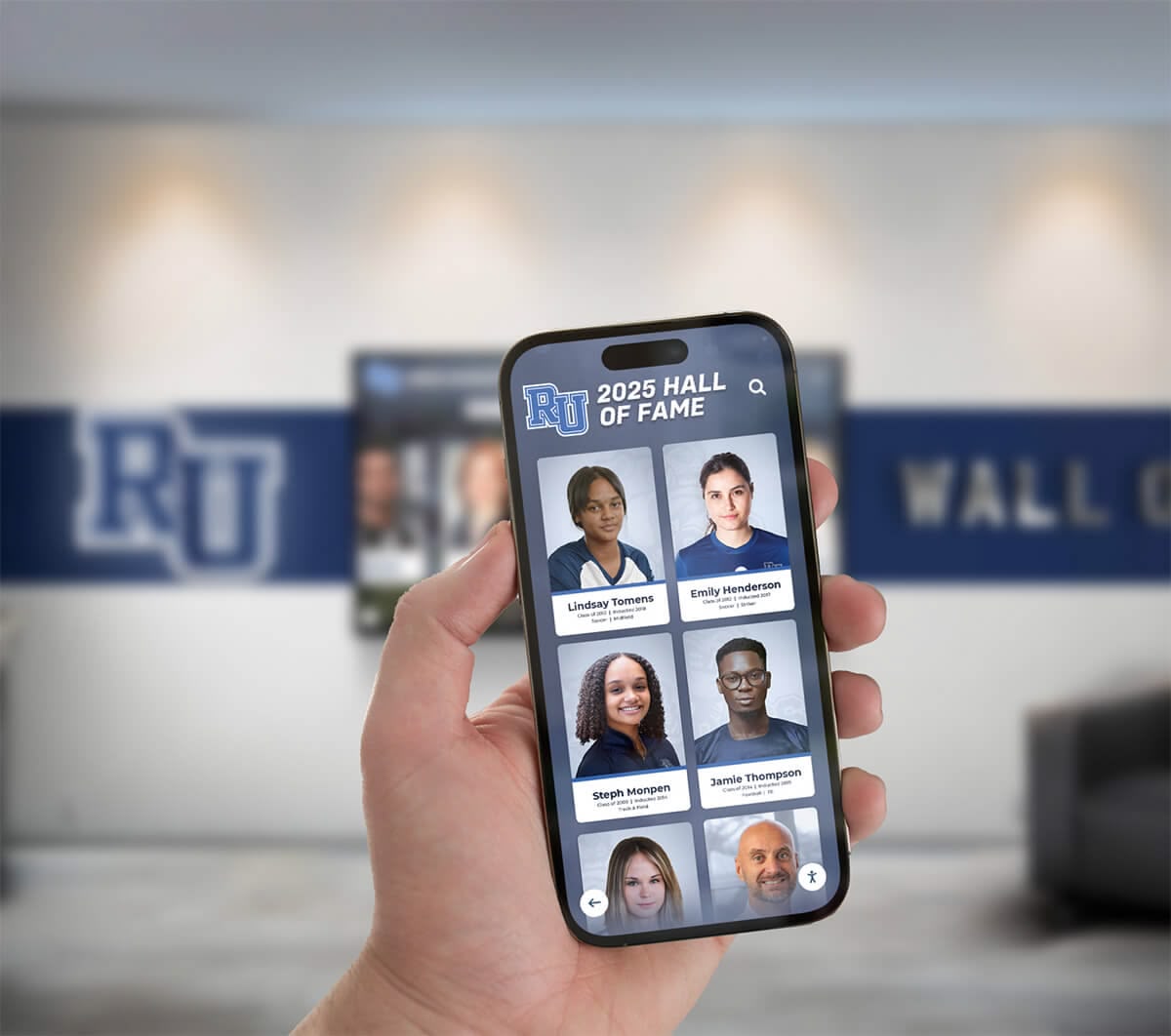
1.4.3 Contrast (Minimum) (Level AA)
Requirement: Visual presentation of text and images of text has contrast ratio of at least 4.5:1, except for large text (at least 18pt or 14pt bold) which requires 3:1, and incidental or logo text.
Importance for Schools: Low contrast text creates severe readability problems for people with low vision, color blindness, and aging-related vision changes. Many students and visitors struggle to read light gray text on white backgrounds or dark text on dark backgrounds.
Practical Implementation: Test color combinations with contrast checking tools. Black text on white backgrounds provides 21:1 ratio—excellent contrast. Dark gray (#595959) on white provides 7:1—good contrast. Light gray (#767676) on white provides 4.6:1—minimum acceptable. Avoid thin fonts which require higher contrast ratios even at larger sizes.
1.4.4 Resize Text (Level AA)
Requirement: Text can be resized up to 200% without loss of content or functionality, except for captions and images of text.
Importance for Schools: People with low vision need to enlarge text to read comfortably. Interfaces that break or hide content when text scales create serious barriers. Students with vision impairments should be able to adjust text size to their needs.
Practical Implementation: Use relative text sizing (em, rem) rather than fixed pixel sizes. Test displays with browser zoom increased to 200%. Content should reflow appropriately without requiring horizontal scrolling. Text should remain readable and controls should remain accessible at all zoom levels.
1.4.5 Images of Text (Level AA)
Requirement: Use actual text rather than images of text, except where specific visual presentation is essential or customizable by users.
Importance for Schools: Text embedded in images cannot be resized, cannot be read by screen readers without alternative text, and cannot have colors adjusted for better contrast. Using real text provides flexibility and accessibility.
Practical Implementation: Display athlete names, statistics, and descriptions using actual text styled with CSS rather than generating graphics with embedded text. Logos and decorative elements represent acceptable exceptions. Record board statistics should use real text enabling assistive technology access and user customization.
1.4.10 Reflow (Level AA in WCAG 2.1 and 2.2)
Requirement: Content can be presented without requiring scrolling in two dimensions at 400% zoom on standard viewport sizes, except for images, maps, diagrams, video, games, presentations, and data tables.
Importance for Schools: People with low vision who need significant magnification should not have to scroll both horizontally and vertically to read content. Content should reflow to fit within magnified viewports.
Practical Implementation: Use responsive design principles. Content should reflow into single columns at high magnification levels. Avoid fixed-width layouts that require horizontal scrolling. Test at various zoom levels ensuring readability without two-directional scrolling.
1.4.11 Non-text Contrast (Level AA in WCAG 2.1 and 2.2)
Requirement: Visual presentation of user interface components and graphical objects has contrast ratio of at least 3:1 against adjacent colors.
Importance for Schools: People with low vision need sufficient contrast not just for text but for interactive controls, icons, and graphical elements. Light gray buttons on white backgrounds disappear for many users.
Practical Implementation: Test button borders, icon colors, and graphical elements against backgrounds. Navigation icons should contrast at 3:1 minimum. Focus indicators showing which element has keyboard focus need 3:1 contrast. Chart elements and data visualizations require sufficient contrast between adjacent colors.
1.4.12 Text Spacing (Level AA in WCAG 2.1 and 2.2)
Requirement: Content does not lose information or functionality when users adjust line height to 1.5 times font size, spacing between paragraphs to 2 times font size, letter spacing to 0.12 times font size, and word spacing to 0.16 times font size.
Importance for Schools: People with dyslexia and other reading disabilities often adjust text spacing to improve readability. Interfaces that break when spacing changes create barriers for these users.
Practical Implementation: Avoid fixed-height containers that crop text when spacing increases. Use flexible layouts accommodating text expansion. Test displays with browser extensions that modify text spacing to ensure layout remains intact and readable.
1.4.13 Content on Hover or Focus (Level AA in WCAG 2.1 and 2.2)
Requirement: When additional content appears and disappears based on pointer hover or keyboard focus, it must be dismissible without moving focus, hoverable (pointer can move over it), and persistent (remains visible until user dismisses or it’s no longer relevant).
Importance for Schools: Tooltips, pop-ups, and expandable information that appear on hover or focus must be accessible to everyone. People using screen magnification need to move pointers over pop-up content to read it. Keyboard users need to interact with revealed content.
Practical Implementation: Information pop-ups should remain visible while users read them. Users should be able to dismiss tooltips with Escape key. Pop-up athlete biographies should remain open allowing users to interact with links or buttons within them.
Principle 2: Operable (Level AA Additions)
2.4.5 Multiple Ways (Level AA)
Requirement: Provide multiple ways to locate content within displays, such as search, navigation menus, site maps, or links between related content.
Importance for Schools: People have different preferences and abilities for finding information. Some browse menus effectively, others prefer searching directly. Multiple navigation methods ensure everyone can find content efficiently.
Practical Implementation: Recognition displays should offer both browsing (sport menus, year filters) and searching (text search for names). Related content links help users discover connections. A-Z athlete indexes provide alphabetical navigation. Multiple approaches accommodate diverse user preferences and abilities.

2.4.6 Headings and Labels (Level AA)
Requirement: Headings and labels describe topic or purpose clearly.
Importance for Schools: Clear, descriptive headings help everyone understand content organization, particularly benefiting people with cognitive disabilities and screen reader users who navigate by headings. Ambiguous labels create confusion.
Practical Implementation: Use descriptive headings: “Basketball All-Time Scoring Leaders” rather than “Records.” Label sections clearly: “Search Athletes by Name, Sport, or Year” instead of just “Search.” Button labels should describe actions: “View Complete Athlete Profile” rather than “Details.”
2.4.7 Focus Visible (Level AA)
Requirement: Any keyboard operable interface has a mode of operation where keyboard focus indicator is visible.
Importance for Schools: Keyboard users need clear visual indicators showing which element currently has focus. Without focus indicators, keyboard navigation becomes impossible—users cannot determine where they are on screen.
Practical Implementation: Ensure all interactive elements show clear visual focus indicators when selected via keyboard. Default browser focus indicators (usually blue outline) work adequately but can be styled to match design while remaining clearly visible. Focus indicators should have sufficient contrast against all possible backgrounds.
2.4.11 Focus Not Obscured (Minimum) (Level AA in WCAG 2.2 only)
Requirement: When user interface components receive keyboard focus, the component is not entirely hidden by author-created content.
Importance for Schools: Fixed headers, footers, or dialogs should not completely hide elements receiving keyboard focus. Users need to see what they’re focused on to understand and interact with it.
Practical Implementation: Ensure focused elements scroll into view and are not hidden behind sticky navigation menus or pop-up dialogs. If persistent headers exist, content should scroll to keep focused elements visible below headers.
2.5.7 Dragging Movements (Level AA in WCAG 2.2 only)
Requirement: All functionality that uses dragging movements can be operated by single pointer input without dragging, unless dragging is essential or the functionality is determined by the user agent.
Importance for Schools: Dragging gestures are difficult or impossible for many people with motor disabilities. Interfaces requiring drag-and-drop exclude these users.
Practical Implementation: If displays include draggable elements (like timeline sliders or sortable lists), provide alternative controls. Timeline sliders should have buttons for incremental movement. Sortable lists should offer buttons to reorder items.
2.5.8 Target Size (Minimum) (Level AA in WCAG 2.2 only)
Requirement: Touch targets must be at least 24×24 CSS pixels, except when equivalent controls exist meeting size requirement, inline targets within sentences, user agent controlled, or presentation is essential.
Importance for Schools: People with motor disabilities, tremors, or reduced dexterity struggle with small touch targets. Large touch areas reduce errors and frustration, benefiting everyone but essential for users with physical disabilities.
Practical Implementation: Make buttons, links, and interactive elements at least 24×24 pixels, with 44×44 pixels or larger providing better accessibility. Provide adequate spacing between adjacent targets to prevent accidental activation of wrong controls.
Principle 3: Understandable (Level AA Additions)
3.1.2 Language of Parts (Level AA)
Requirement: The human language of each passage or phrase in content can be programmatically determined except for proper names, technical terms, words in indeterminate language, and vernacular that’s part of immediately surrounding text.
Importance for Schools: When content includes phrases or passages in different languages, proper language tags ensure assistive technology pronounces text correctly. This matters particularly for schools with multilingual communities.
Practical Implementation: Mark foreign language phrases with appropriate language codes. If an athlete biography mentions their Spanish nickname “El Rápido” in English text, mark that phrase as Spanish so screen readers pronounce it correctly.
3.2.3 Consistent Navigation (Level AA)
Requirement: Navigation mechanisms repeated across multiple screens occur in same relative order each time, unless user initiates a change.
Importance for Schools: Consistent navigation helps everyone, particularly benefiting people with cognitive disabilities and those using assistive technology. When menus, search, and navigation appear in different locations on different screens, finding features becomes difficult.
Practical Implementation: Keep navigation menus in same location on every screen—typically top of display. Search features should remain in consistent positions. Home buttons should always appear in the same corner. Consistency reduces cognitive load and supports efficient navigation.
3.2.4 Consistent Identification (Level AA)
Requirement: Components with the same functionality are identified consistently throughout content.
Importance for Schools: Search icons should look the same throughout displays. Home buttons should use consistent labels. If “Back” buttons exist on some screens, they should appear and function consistently everywhere they’re used.
Practical Implementation: Establish design systems ensuring buttons, icons, and controls serving similar functions look and behave identically. If one screen uses a house icon for “Home,” all screens should use that same icon rather than mixing house icons, home text, and other variations.
3.3.3 Error Suggestion (Level AA)
Requirement: If input errors are automatically detected and suggestions for correction are known, provide suggestions unless doing so would jeopardize security or purpose of content.
Importance for Schools: Clear correction guidance helps everyone, particularly benefiting people with cognitive disabilities. When searches produce no results, suggesting corrections reduces frustration.
Practical Implementation: If search for “Johm Smith” returns no results but “John Smith” exists in database, suggest: “Did you mean ‘John Smith’?” Spell-checking and fuzzy matching help users find content despite typos. Show similar athlete names or related search suggestions.
3.3.4 Error Prevention (Legal, Financial, Data) (Level AA)
Requirement: For pages causing legal commitments, financial transactions, data modification/deletion in storage systems, or test responses, submissions are reversible, data is checked for errors with correction opportunities, or users can confirm before final submission.
Importance for Schools: While most recognition displays don’t involve financial transactions, any system collecting data or making irreversible changes needs safeguards preventing costly errors.
Practical Implementation: If displays allow users to submit achievement corrections or updates, include confirmation screens: “Submit correction for Maria Rodriguez’s 100m dash time? [Confirm] [Cancel].” Allow reviewing information before final submission.
3.3.8 Accessible Authentication (Minimum) (Level AA in WCAG 2.2 only)
Requirement: Cognitive function tests (like remembering passwords, solving puzzles, or recalling information) are not required for authentication unless alternatives exist, object recognition, personal content identification, or assistive technology/mechanisms are supported.
Importance for Schools: If displays require authentication for administrative access, avoid cognitive tests that disadvantage people with memory or cognitive disabilities. While most public-facing recognition displays don’t require user authentication, backend administrative access should be accessible.
Practical Implementation: Support password managers and biometric authentication. If using knowledge-based authentication, provide alternatives like email verification. Avoid CAPTCHAs requiring solving puzzles or remembering complex sequences.
Principle 4: Robust (Level AA Additions)
4.1.3 Status Messages (Level AA in WCAG 2.1 and 2.2)
Requirement: Status messages can be programmatically determined through role or properties, enabling presentation to users by assistive technology without receiving focus.
Importance for Schools: When content updates—search results load, filters apply, errors occur—screen reader users need notification even when focus doesn’t move to new content. Status announcements keep everyone informed of system responses.
Practical Implementation: Use ARIA live regions to announce status changes. When search completes, announce “12 results found for basketball records.” When filters apply, announce “Showing records from 2020-2023.” When errors occur, announce “No results found. Try different keywords.”
WCAG 2.2 Level AAA Success Criteria: Enhanced Accessibility
Level AAA criteria provide the highest level of accessibility but may not be achievable for all content types or system configurations. Schools should understand Level AAA requirements to pursue enhanced accessibility where feasible, while recognizing that Level AA conformance represents the standard target.
When to Pursue Level AAA
Schools might pursue Level AAA conformance for:
- Specialized content serving students with specific disabilities
- Systems specifically designed for accessibility demonstration
- Institutional commitment to accessibility leadership
- Situations where achieving AAA is technically and economically practical
Level AAA includes requirements like sign language interpretation for video content (1.2.6), enhanced contrast ratios of 7:1 for regular text (1.4.6), and no timing requirements at all (2.2.3). While valuable, these requirements exceed what most schools can achieve comprehensively across all digital displays.
Schools should focus efforts on achieving and maintaining robust Level AA conformance rather than pursuing incomplete or inconsistent Level AAA implementation.
How Digital Recognition Platforms Address WCAG Requirements
Purpose-built digital recognition platforms like Rocket Alumni Solutions incorporate accessibility features addressing WCAG 2.2 Level AA requirements from the ground up rather than retrofitting accessibility onto inaccessible systems.
Built-in Accessibility Features
Semantic HTML Structure: Proper heading hierarchies, landmark regions, and semantic elements enable screen readers to communicate content structure and enable efficient navigation.
Keyboard Navigation: Complete keyboard access to all features including menus, search, filters, and interactive elements. Tab navigation, arrow key controls, and Enter/Space activation work throughout systems.
Screen Reader Support: Alternative text for images, descriptive labels for controls, status announcements for content changes, and proper form labels enable screen reader users to access all content and functionality.
Responsive Design: Content reflows appropriately at various zoom levels and viewport sizes, supporting users who magnify content or use displays at different resolutions.
Sufficient Contrast: Text and interface elements meet WCAG 2.2 Level AA contrast requirements, ensuring readability for people with low vision and color blindness.
Focus Indicators: Clear visible focus indicators show keyboard users which element currently has focus, enabling efficient keyboard navigation.
Consistent Layouts: Navigation, search, and core functions appear in consistent locations throughout systems, reducing cognitive load and supporting users with cognitive disabilities.
Alternative Input Methods: Support for keyboard, switch devices, and other assistive input technologies beyond direct touch interaction.
Accessible Forms and Controls: Proper labels, instructions, error messages, and suggestions support successful interaction for everyone including people with cognitive disabilities.
Implementation Support for Schools
Quality platforms provide schools with tools and guidance ensuring continued accessibility:
Accessible Templates: Pre-built layouts meeting WCAG requirements allow schools to create accessible content without specialized accessibility expertise.
Content Guidelines: Documentation explaining how to maintain accessibility when adding photos, writing descriptions, and creating profiles.
Automated Testing: Built-in checks identify common accessibility issues before content publishes.
Training Resources: Staff training materials covering accessibility best practices relevant to recognition content management.
Regular Updates: Platforms evolve with updated accessibility standards, ensuring long-term conformance as guidelines advance.
Schools implementing interactive digital recognition displays should specifically evaluate WCAG compliance during vendor selection. Request demonstrations showing keyboard navigation, screen reader operation, and other accessibility features. Ask about conformance testing and documentation of WCAG compliance. Institutions should review complete guides on touchscreen software options to understand platform capabilities affecting accessibility implementation.
Testing and Maintaining Accessibility Compliance
Achieving WCAG 2.2 Level AA conformance requires systematic testing throughout implementation and ongoing monitoring to maintain compliance as content changes.
Initial Accessibility Testing
Automated Testing Tools: Software like WAVE, Axe, or Lighthouse identifies many common accessibility issues including missing alternative text, insufficient contrast, improperly nested headings, and form control problems. While automated tools catch numerous issues, they cannot identify all accessibility barriers.
Manual Testing: Human evaluation addresses issues automated tools miss including logical tab order, clear focus indicators, meaningful link text, logical heading structure, and consistency across screens.
Keyboard Testing: Navigate entire displays using only keyboard. Verify all functionality is accessible, focus order is logical, focus indicators are visible, and no keyboard traps exist.
Screen Reader Testing: Test with screen readers like NVDA (Windows), JAWS (Windows), or VoiceOver (Mac/iOS). Verify all content is announced properly, alternative text is present and descriptive, headings and landmarks enable efficient navigation, and controls are labeled clearly.
Contrast Testing: Use tools like WebAIM’s Contrast Checker to verify all text and interface elements meet WCAG contrast requirements.
Magnification Testing: Zoom displays to 200% and verify content remains readable without horizontal scrolling, text doesn’t overlap, and controls remain accessible.
Ongoing Accessibility Maintenance
Accessibility isn’t a one-time achievement but requires continuous attention:
Content Review Processes: Establish workflows ensuring new content meets accessibility requirements. Checklists remind staff to add alternative text, verify heading structure, and check contrast when creating athlete profiles or achievement records.
Regular Audits: Periodic accessibility audits identify issues that crept in over time. Annual comprehensive audits complement ongoing content checks.
Staff Training: Train all staff managing content on accessibility basics relevant to their responsibilities. Understanding why accessibility matters motivates continued attention to accessibility requirements.
User Feedback: Encourage students, families, and visitors to report accessibility problems. People with disabilities provide invaluable insight into barriers that testing may miss.
Version Updates: Keep software platforms current. Updates often include accessibility improvements, bug fixes, and features supporting new assistive technologies.
Documentation: Maintain accessibility statements explaining conformance levels, known issues, and contact information for reporting problems. Transparency demonstrates commitment while providing information users need.

Legal and Regulatory Considerations for Schools
Schools face multiple legal frameworks requiring digital accessibility:
Americans with Disabilities Act (ADA)
The ADA prohibits discrimination based on disability in places of public accommodation, including schools. While originally enacted before widespread internet and digital technology adoption, courts increasingly interpret the ADA to cover digital content including websites, applications, and interactive displays in public spaces.
School digital recognition displays in lobbies, gymnasiums, and common areas fall under ADA coverage. Students, families, and visitors with disabilities have rights to equal access to information and services these displays provide.
Section 504 of the Rehabilitation Act
Section 504 applies to schools receiving federal funding, prohibiting discrimination based on disability. This includes ensuring students with disabilities have equal access to school programs, services, and facilities.
Digital displays celebrating student achievements, displaying school information, or providing recognition fall under Section 504 coverage. Schools must ensure students with disabilities can access recognition of their own achievements and information about school programs.
Section 508 of the Rehabilitation Act
Section 508 requires federal agencies and organizations receiving federal funds to make their electronic and information technology accessible to people with disabilities. While enforcement varies, Section 508 technical standards closely align with WCAG Level AA requirements.
Schools purchasing digital recognition systems with federal funds should verify WCAG 2.2 Level AA conformance to support Section 508 compliance.
State and Local Requirements
Many states have enacted accessibility laws or policies requiring educational institutions to provide accessible digital content. State requirements often reference WCAG standards as technical requirements.
Schools should verify applicable state and local accessibility requirements and document compliance efforts.
Legal Risk Management
WCAG 2.2 Level AA conformance represents best practice for managing legal risk:
Proactive Compliance: Addressing accessibility upfront costs significantly less than retrofitting inaccessible systems or defending accessibility complaints and lawsuits.
Documentation: Maintain documentation of accessibility conformance including testing results, compliance statements, and remediation efforts. Documentation demonstrates good-faith efforts toward accessibility.
Remediation Plans: If full compliance isn’t immediately achievable, document specific barriers, planned remediation, and timelines. Commitment to ongoing improvement demonstrates institutional responsibility.
Staff Training: Train staff on accessibility requirements and implementation practices. Training creates institutional capacity supporting long-term compliance.
Vendor Contracts: Include accessibility requirements in procurement contracts for digital systems. Verify vendor commitment to accessibility and WCAG conformance before purchasing.
Procurement Considerations: Evaluating Vendor Accessibility Claims
Schools evaluating digital recognition platforms should thoroughly assess accessibility conformance rather than accepting generic claims about being “accessible” or “ADA compliant.”
Essential Questions for Vendors
What WCAG conformance level does your platform meet? Require specific answers: Level A, Level AA, or Level AAA. Generic claims about “meeting ADA requirements” lack specificity needed for evaluation.
Do you have third-party accessibility audit results? Independent testing provides more credible evidence than vendor self-assessment. Request recent audit reports including WCAG conformance reports or Voluntary Product Accessibility Templates (VPATs).
Can we test accessibility features during demonstrations? Request live demonstrations of keyboard navigation, screen reader operation, high contrast modes, and content magnification. Hands-on testing reveals actual accessibility rather than theoretical claims.
How do you support accessible content creation? Understand what tools and guidance vendors provide helping schools maintain accessibility. Templates, guidelines, and automated checks support continued compliance.
How do software updates address accessibility? Ask about processes ensuring updates maintain accessibility rather than introducing new barriers. Regular accessibility testing as part of release processes indicates institutional commitment.
What accessibility training do you provide? Implementation training should cover accessibility features and content management practices supporting continued conformance.
Red Flags Indicating Accessibility Problems
Vague Accessibility Claims: Generic statements about being “accessible” or “ADA compliant” without specific WCAG conformance levels indicate superficial accessibility consideration.
No Documentation: Inability to provide accessibility conformance reports, testing results, or technical documentation suggests accessibility was not systematically addressed.
Mouse-Dependent Demonstrations: If vendor demonstrations rely entirely on mouse interaction without showing keyboard alternatives, platforms likely lack proper keyboard accessibility.
Poor Contrast: Low-contrast text, light gray buttons, and faint icons visible during demonstrations indicate systems unlikely to meet contrast requirements.
Complex Interaction Requirements: Platforms requiring multi-step gestures, precise targeting, or complex mouse movements likely exclude users with motor disabilities.
Dismissive Responses: Vendors minimizing accessibility importance, claiming accessibility is too expensive, or suggesting schools don’t need it reveal problematic attitudes undermining confidence in accessibility commitment.
Recommended Procurement Language
Include specific accessibility requirements in procurement documents:
“The digital recognition platform must conform to Web Content Accessibility Guidelines (WCAG) 2.2 Level AA. Vendor shall provide:
Documentation of WCAG 2.2 Level AA conformance including third-party testing results or detailed conformance reports (VPAT or equivalent).
Demonstration of keyboard accessibility, screen reader operation, and assistive technology compatibility during product presentations.
Content management tools supporting creation and maintenance of accessible content including alternative text, proper heading structure, and sufficient contrast.
Training materials covering accessibility features and accessible content creation practices.
Commitment to maintaining WCAG 2.2 Level AA conformance through future platform updates and enhancements.
Technical support for accessibility-related issues and questions.”
Clear accessibility requirements in procurement processes set appropriate expectations and enable meaningful evaluation of competing solutions.
Creating an Accessibility Culture Supporting Digital Inclusion
Technology alone doesn’t create accessible experiences—organizational culture and practices determine whether accessibility goals translate to genuine inclusion.
Leadership Commitment
Accessibility requires visible leadership commitment demonstrating institutional priority. Administrators should:
Include Accessibility in Mission Statements: Articulate accessibility as institutional value reflected in technology decisions and implementation practices.
Allocate Adequate Resources: Budget appropriately for accessible technology, accessibility testing, staff training, and ongoing compliance efforts.
Establish Accountability: Assign clear responsibility for accessibility compliance and hold staff accountable for meeting accessibility requirements.
Celebrate Accessibility Achievements: Recognize teams and individuals advancing accessibility, demonstrating that accessibility work is valued and appreciated.
Staff Education and Empowerment
Staff managing digital recognition displays need understanding, skills, and motivation to maintain accessibility:
Accessibility Training Programs: Provide training covering why accessibility matters, applicable requirements, and practical skills for creating accessible content. Training should address specific responsibilities relevant to each role.
Practical Resources: Develop quick-reference guides, checklists, and templates supporting accessible content creation. Make accessibility easy rather than burdensome.
Accessibility Champions: Identify and support staff members particularly passionate about accessibility to serve as resources and advocates within organizations.
Inclusive Design Thinking: Incorporate accessibility considerations early in planning processes rather than retrofitting after systems are built. Consider diverse user needs during requirements development and design phases.
Community Engagement
People with disabilities provide invaluable insight into accessibility barriers and opportunities:
User Testing: Involve students, families, and community members with disabilities in testing digital recognition displays. First-hand feedback identifies issues that formal testing may miss.
Accessibility Feedback Channels: Establish clear processes for reporting accessibility problems and requesting accommodations. Respond promptly and constructively to accessibility concerns.
Inclusive Planning: Include people with disabilities in planning and implementation teams developing digital recognition systems. Diverse perspectives lead to more inclusive outcomes.
Transparency: Publish accessibility statements explaining conformance efforts, known limitations, and contact information for accessibility questions. Transparency demonstrates accountability and commitment.
Conclusion: Building Accessible Digital Recognition That Serves Everyone
WCAG 2.2 Level AA compliance represents more than legal obligation—it’s fundamental to creating digital recognition systems that genuinely serve entire school communities. Students with disabilities deserve equal access to view their achievements, explore school history, and connect with institutional tradition. Families with diverse abilities should be able to engage with displays celebrating their students’ excellence. Alumni with disabilities merit opportunities to rediscover their recognition and share school pride regardless of physical abilities.
The success criteria detailed in this guide—from basic requirements like alternative text and keyboard navigation through enhanced standards for contrast, focus visibility, and status announcements—create cumulative benefits ensuring digital displays work for everyone. Conformance protects schools legally while fulfilling ethical obligations to serve diverse communities equitably.
Purpose-built digital recognition platforms incorporating accessibility from initial design provide substantial advantages over generic systems requiring extensive accessibility retrofitting. Schools planning digital display implementations should prioritize WCAG 2.2 Level AA conformance during vendor selection, verify accessibility through hands-on testing, and establish practices supporting continued compliance as content evolves.
Accessibility isn’t a checklist completed at launch but an ongoing commitment requiring attention, resources, and institutional culture valuing inclusion. Schools establishing accessible digital recognition systems create environments where every achievement receives celebration and every community member can participate fully regardless of ability.
Your students’ accomplishments deserve recognition accessible to everyone—teammates, classmates, families, and communities celebrating excellence together. Digital recognition platforms meeting WCAG 2.2 Level AA standards ensure achievements shine brightly for all who seek them, removing barriers that outdated technology and inaccessible design inadvertently created.
Ready to implement accessible digital recognition displays that serve your entire school community? Explore Rocket Alumni Solutions to discover platforms specifically designed with WCAG 2.2 Level AA compliance built in—delivering recognition excellence accessible to every student, family member, and visitor who walks through your doors.