



Schools, museums, athletic facilities, and organizations deploying touchscreen kiosks require reliable software that transforms standard tablets and displays into fully locked down, public-facing interactive systems. The right kiosk browser prevents users from accessing device settings, launching unauthorized apps, or exiting your chosen interface—ensuring your touchscreen serves its intended purpose without security vulnerabilities or user confusion.
The touchscreen kiosk app market offers dozens of solutions ranging from completely free open-source browsers to enterprise-grade paid platforms. While Fully Kiosk Browser dominates Android kiosk deployments, organizations increasingly seek alternatives offering better value, simpler management, or capabilities beyond basic lockdown. This guide examines the best touchscreen kiosk browser apps available for download in 2026—including free options superior to paid alternatives for many use cases.
Understanding Touchscreen Kiosk Browser Requirements
A touchscreen kiosk browser fundamentally differs from standard web browsers through specialized lockdown capabilities preventing unauthorized access to device functions, system settings, or alternative applications. These browsers launch automatically on device startup, operate in fullscreen mode without visible navigation controls, restrict physical button functionality, and prevent users from exiting kiosk mode without administrator authentication.
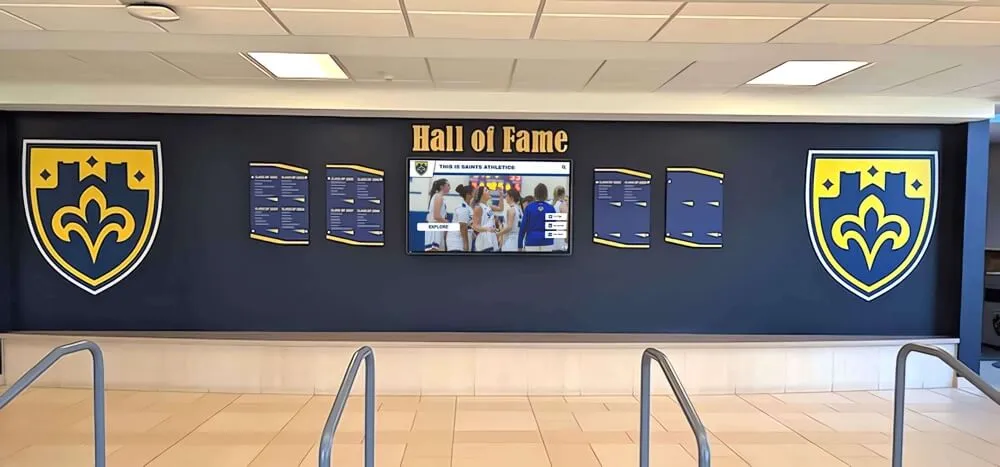
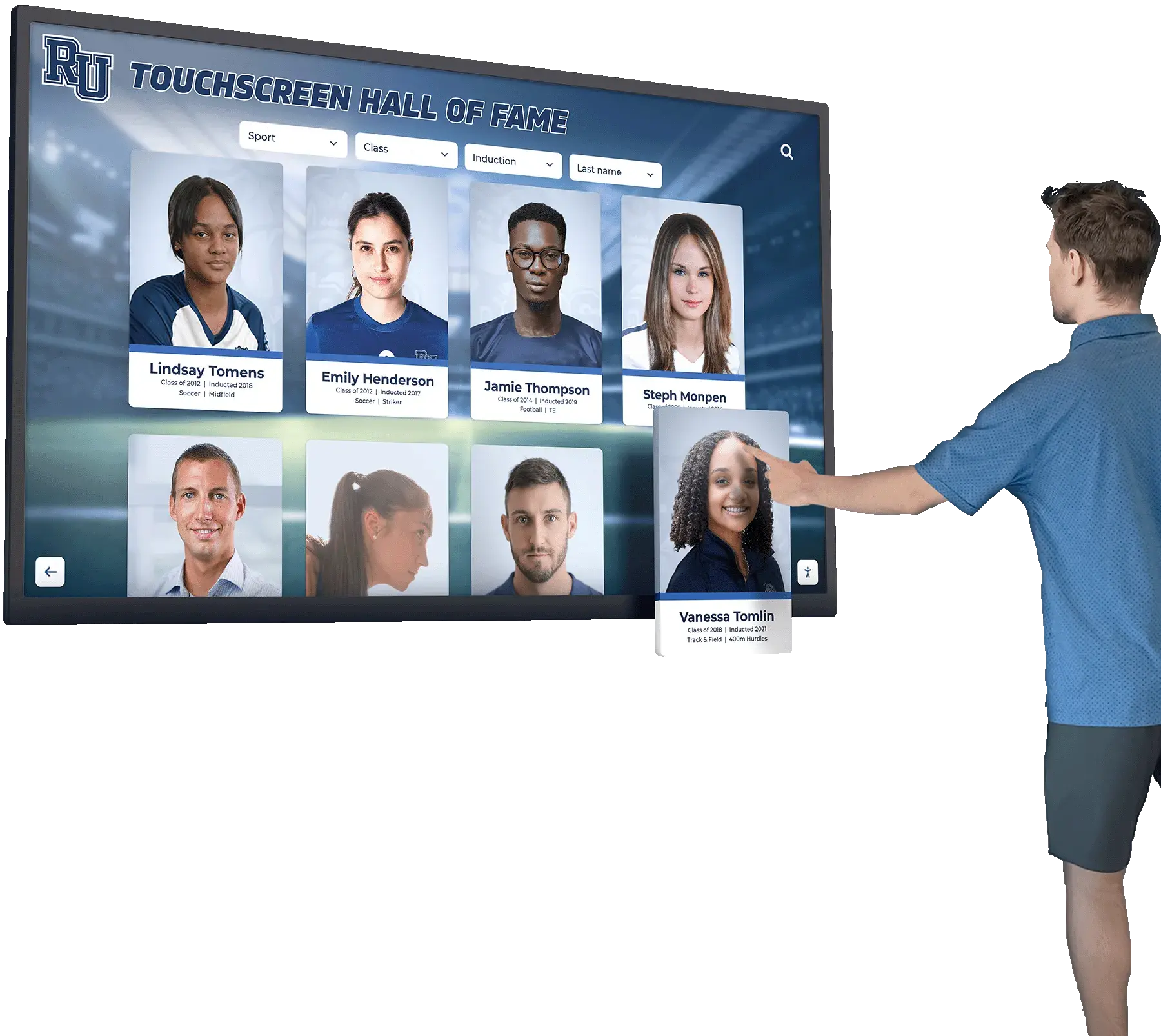
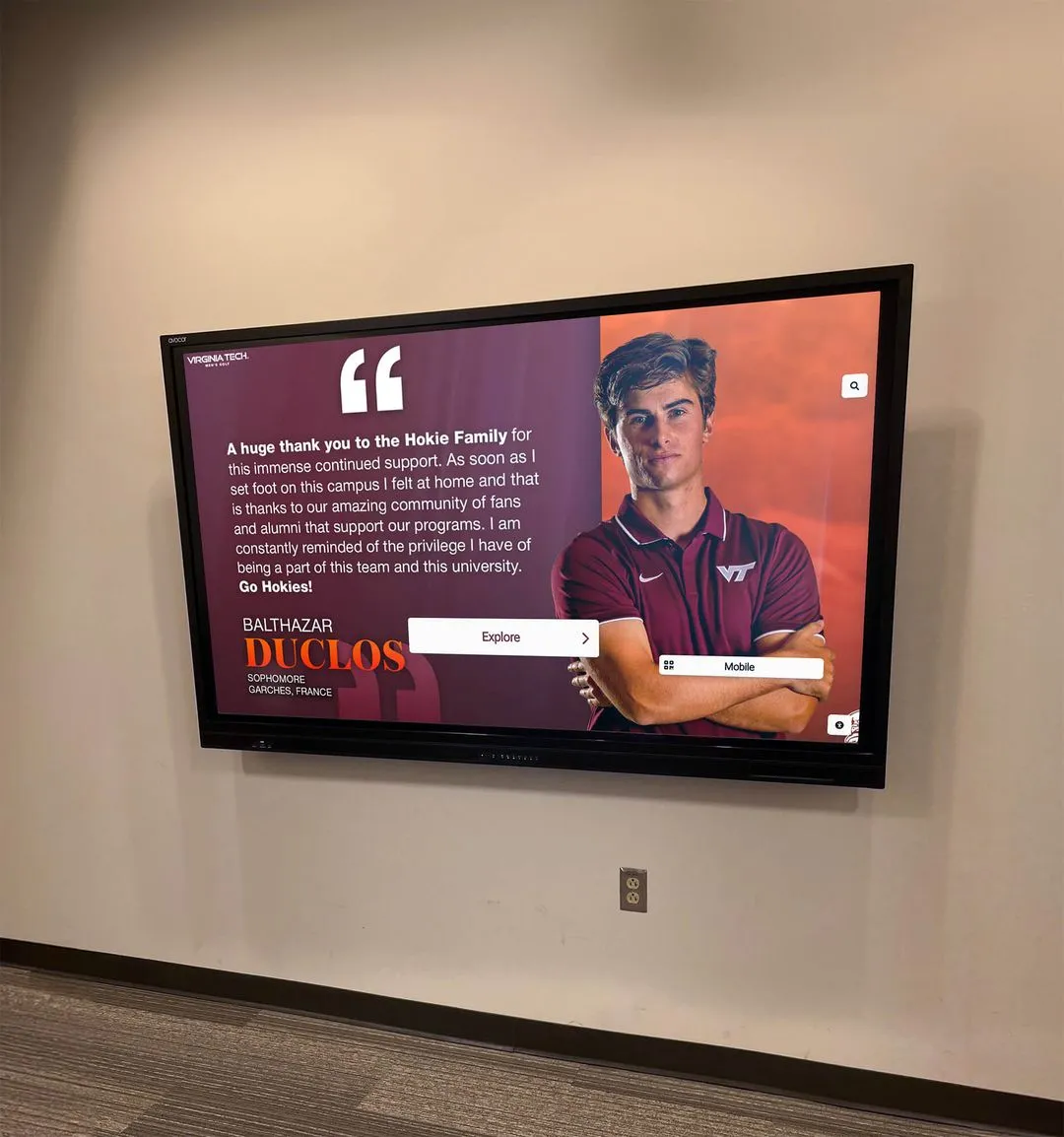
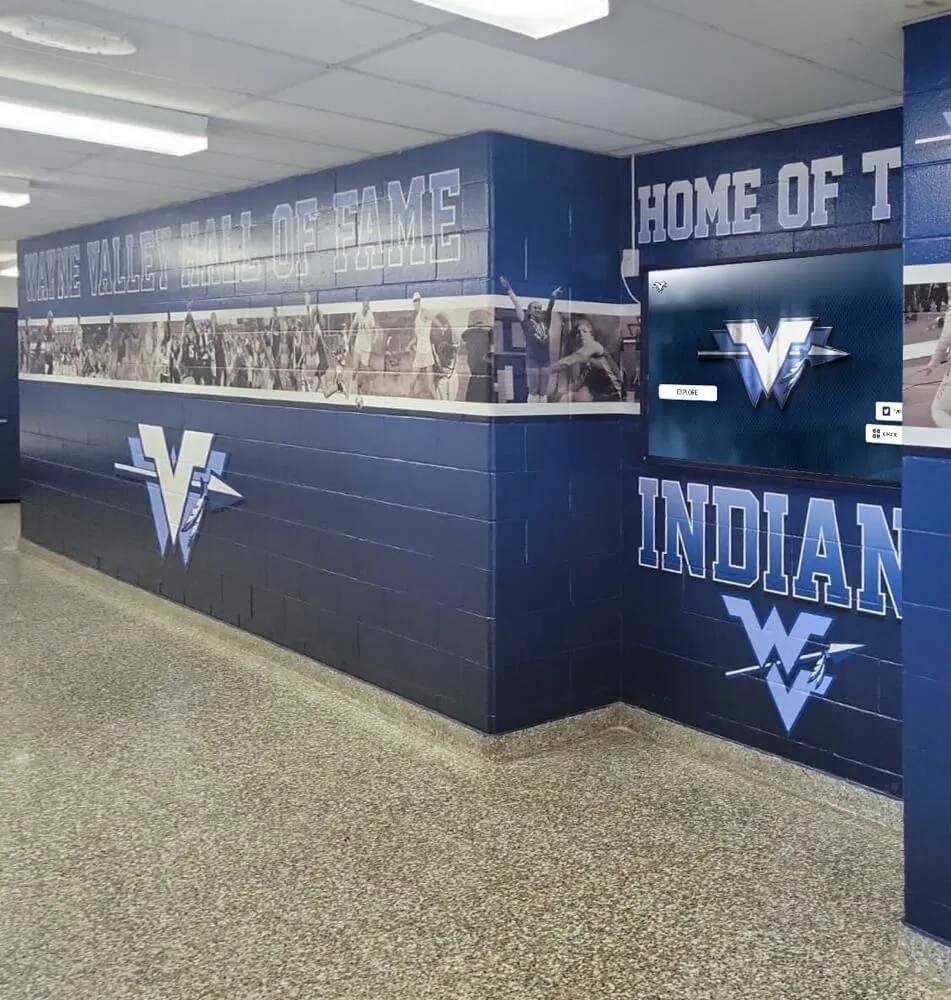
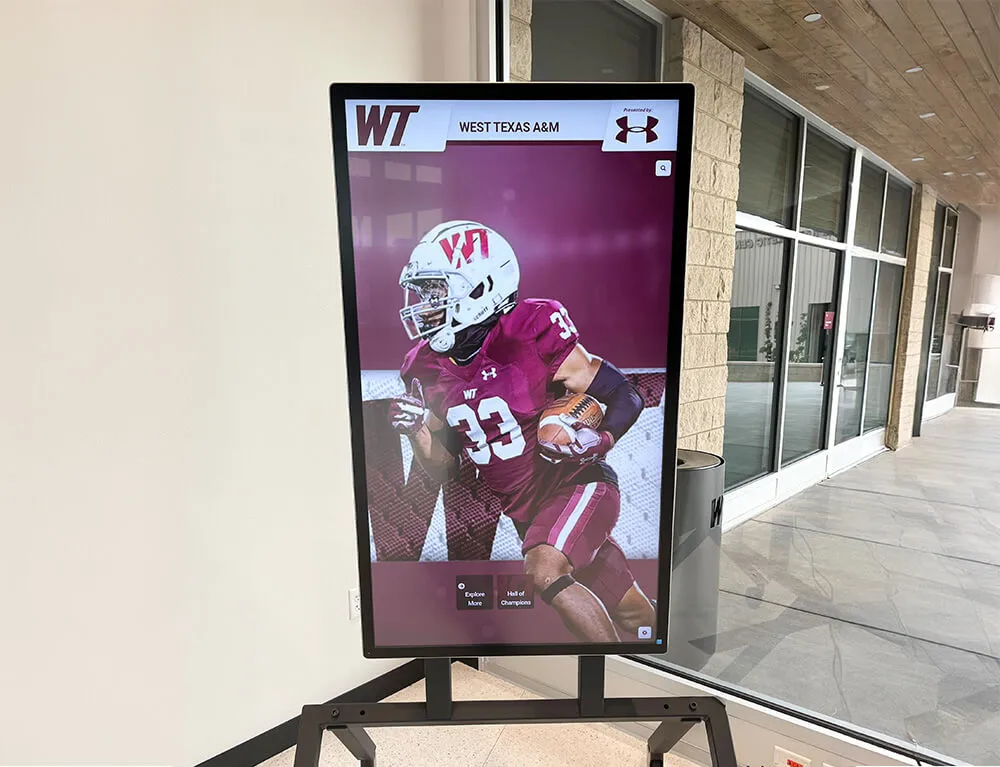
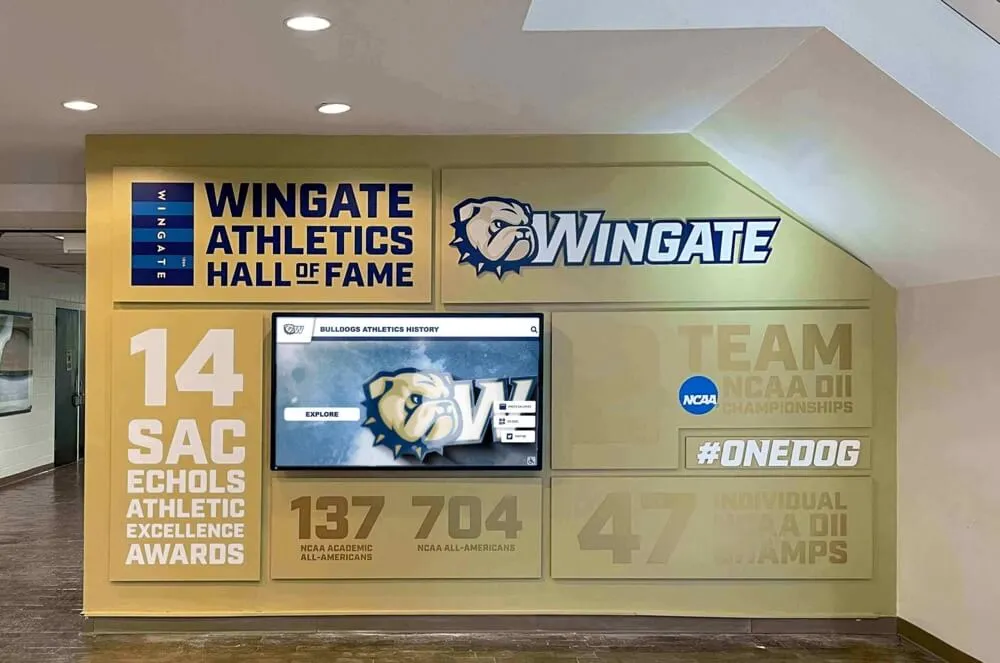
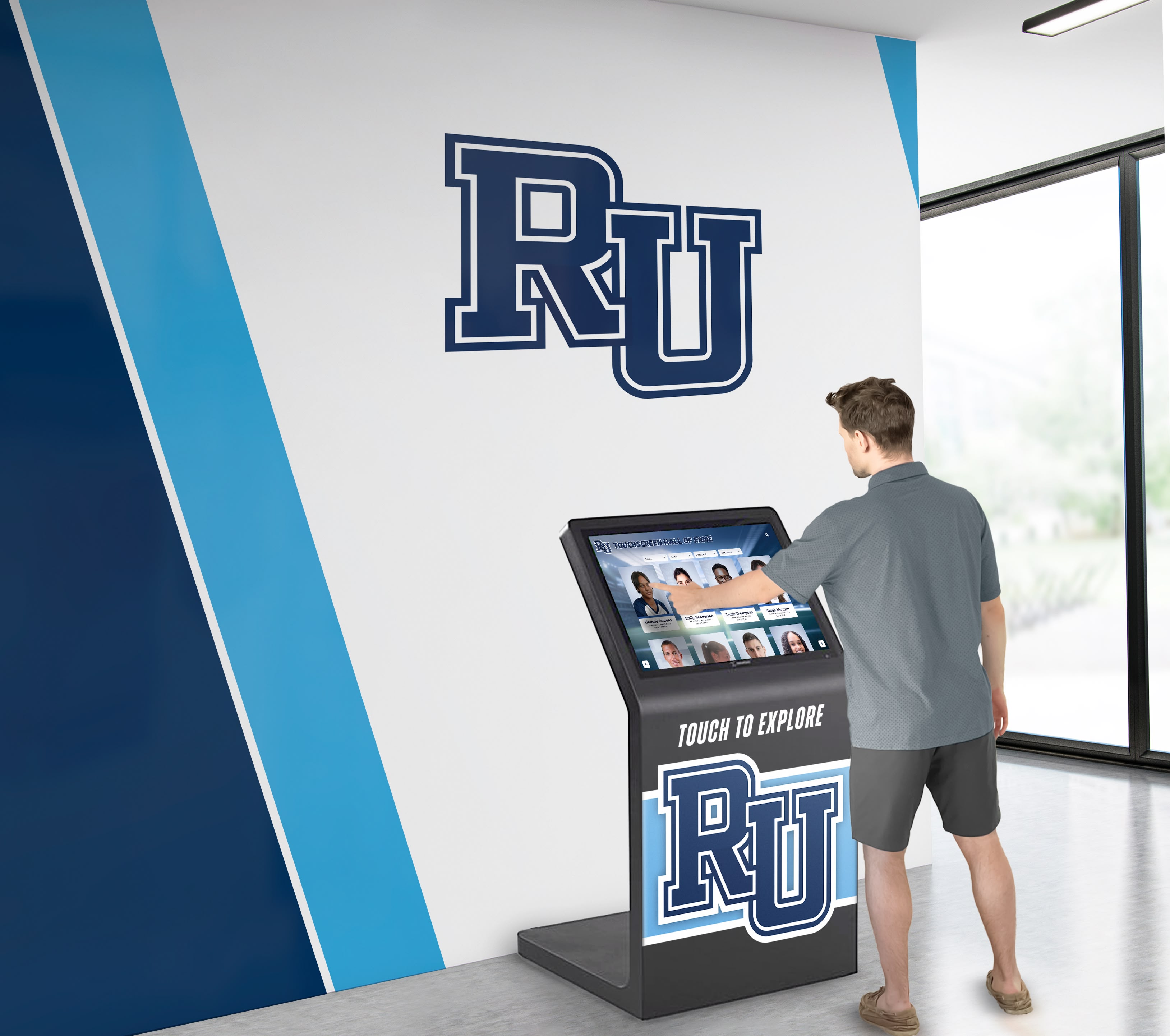
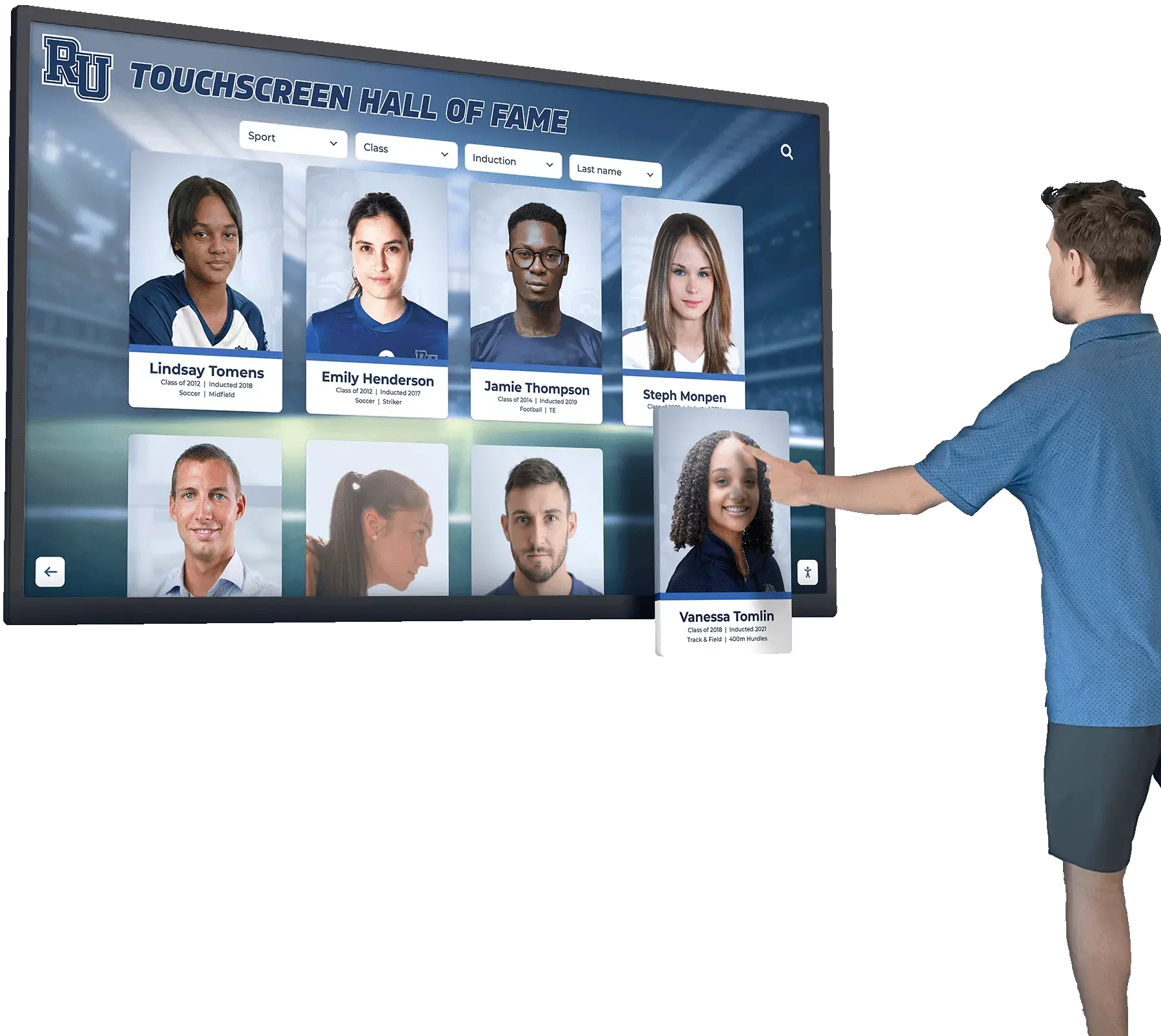
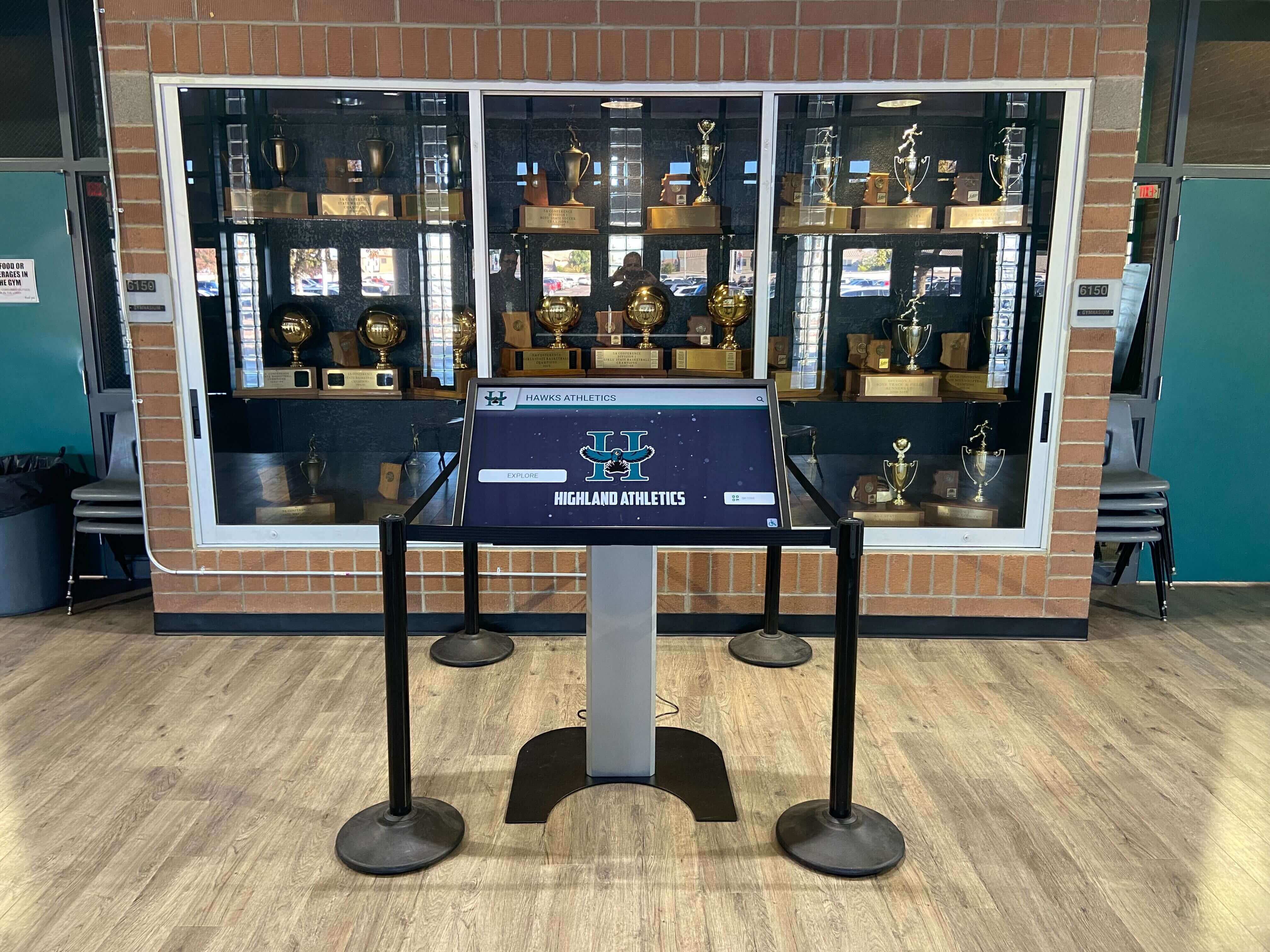

For schools deploying digital recognition displays or organizations implementing interactive information systems, choosing appropriate kiosk software determines whether deployments function reliably for years or create ongoing technical support burdens. Solutions like Rocket Alumni Solutions leverage optimized kiosk browsers delivering professional interactive experiences while simplifying content management through cloud-based platforms accessible from any device.
Why Organizations Need Dedicated Kiosk Browser Apps
Standard web browsers—Chrome, Safari, Firefox, or Edge—lack essential features required for secure public-facing touchscreen deployments. While these browsers support fullscreen modes, they cannot prevent users from accessing system functions, closing browser windows, or launching alternative applications through device gestures and button combinations.
Critical Kiosk Browser Capabilities
Complete Device Lockdown: Professional kiosk browsers restrict access to device settings, disable hardware buttons except power, prevent multitasking gestures, and block attempts to exit kiosk mode without administrator passwords. This comprehensive lockdown ensures touchscreens serve intended purposes without allowing casual users or malicious actors to compromise device security or access restricted functions.
Schools implementing interactive touchscreen recognition systems require lockdown preventing students from accessing device settings, browsing unauthorized websites, or disrupting carefully designed recognition experiences. Museum kiosks need similar protections ensuring visitors explore curated content without accidentally or intentionally accessing system functions.
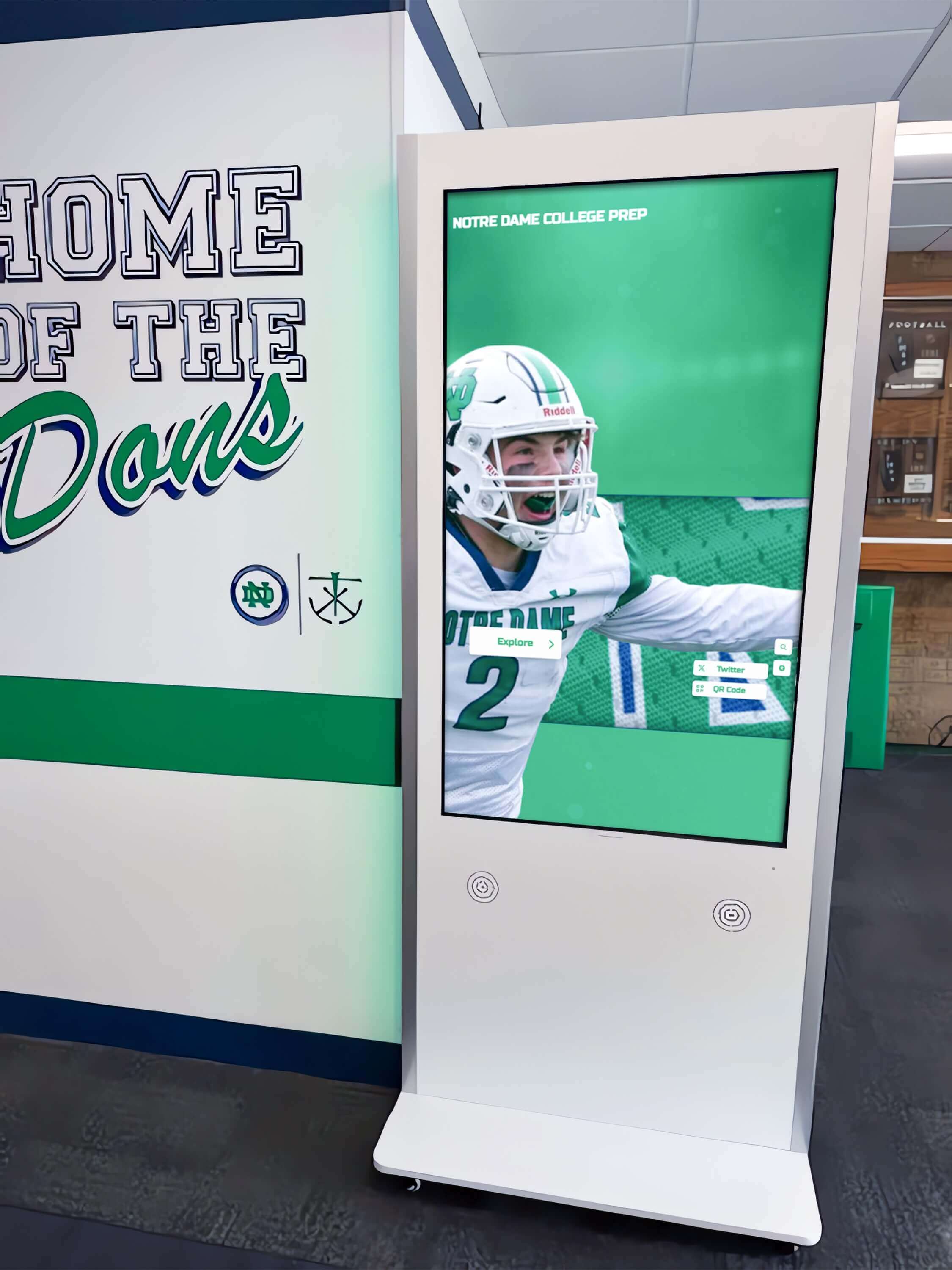
Automatic Launch and Recovery: Reliable kiosk browsers launch automatically when devices power on or restart, eliminating manual intervention after power outages or system updates. Crash recovery features automatically restart applications if software errors occur, maintaining continuous availability essential for unsupervised public deployments.
Remote Management and Monitoring: Cloud-based management capabilities enable administrators to update content, modify settings, monitor device status, and troubleshoot problems remotely without physical access to distributed kiosk installations. This centralized management proves critical for organizations managing multiple touchscreens across campuses, facilities, or geographic locations.
Athletic directors managing digital record boards across multiple buildings benefit tremendously from remote management updating all displays simultaneously from central administrative interfaces rather than visiting each location individually to modify content or adjust settings.
Session Management and Privacy: Public touchscreens require automatic timeout and reset functionality clearing browsing history, cached data, and temporary files between user sessions. These privacy protections prevent subsequent users from accessing previous visitors’ information while ensuring each person encounters fresh starting states rather than mid-session application states left by earlier users.
Customizable User Interface Restrictions: Administrators need granular control over which browser functions remain accessible. Professional kiosk browsers enable disabling address bars, hiding refresh buttons, blocking right-click menus, preventing zoom gestures, and restricting navigation to approved domains—creating simplified experiences appropriate for public users unfamiliar with your systems.
Fully Kiosk Browser: The Market Leader and Its Limitations
Fully Kiosk Browser has dominated Android kiosk deployments for years through comprehensive feature sets, reliable performance, and reasonable pricing. Understanding its capabilities and limitations provides context for evaluating alternatives.
Fully Kiosk Browser Capabilities
Fully Kiosk Browser offers extensive Android-specific lockdown features including fullscreen mode with hidden navigation, motion detection triggering content or actions, remote administration through web interfaces, screensaver functionality, device health monitoring, and integration with smart home platforms. The application supports HTML, PDF, and video content, works without device rooting, and provides detailed configuration options addressing diverse kiosk requirements.
Organizations deploying recognition displays in athletic facilities appreciate Fully Kiosk’s stability and Android optimization. The browser handles continuous operation reliably, recovers automatically from crashes, and provides remote access enabling content updates without physical device access.
Pricing Structure and Limitations
While Fully Kiosk offers free trials testing all features, commercial deployments require paid licenses. As of 2026, pricing runs approximately $6-7 per device for Plus licenses, with volume discounting for larger deployments. For organizations managing dozens or hundreds of touchscreens, these per-device costs accumulate substantially compared to free alternatives.
Platform Limitations: Fully Kiosk specializes in Android devices exclusively. Organizations requiring iOS, Windows, macOS, or cross-platform deployments must seek alternative solutions or implement multiple different kiosk browsers across mixed device fleets—complicating management and increasing technical complexity.
According to SourceForge kiosk browser comparisons, this platform limitation represents Fully Kiosk’s most significant constraint for organizations with diverse hardware ecosystems or requirements for deploying consistent experiences across multiple operating systems.
Feature Complexity: Fully Kiosk’s comprehensive feature set creates configuration complexity overwhelming organizations seeking straightforward lockdown without advanced motion detection, MQTT integration, or smart home connectivity. Schools implementing digital recognition walls typically need basic browser lockdown and remote management rather than sophisticated sensor integration or home automation features.
This feature abundance increases learning curves for administrators unfamiliar with kiosk browser concepts and creates opportunities for misconfiguration causing operational issues. Simpler alternatives often deliver better outcomes for organizations prioritizing reliability over feature breadth.
Best Free Touchscreen Kiosk Browser Apps
Several completely free kiosk browser solutions deliver professional lockdown capabilities rivaling or exceeding paid alternatives for specific use cases. These open-source or freemium options eliminate per-device licensing costs while providing essential security, management, and functionality.
OpenKiosk: Cross-Platform Open Source Solution
OpenKiosk represents the premier free, open-source kiosk browser available for Windows, macOS, and Linux. Built on Mozilla Firefox, OpenKiosk provides familiar browsing experiences with comprehensive lockdown capabilities securing devices for public terminal use.
Platform Support: Unlike Fully Kiosk’s Android-only focus, OpenKiosk supports desktop operating systems enabling consistent kiosk experiences across Windows PCs, Mac computers, and Linux systems. This cross-platform compatibility benefits organizations with mixed hardware environments or those preferring desktop touchscreen installations over tablets.
Schools implementing touchscreen information displays using existing desktop computers or all-in-one touchscreen PCs leverage OpenKiosk’s ability to transform standard hardware into secure public-facing kiosks without purchasing Android tablets or specialized devices.
Core Lockdown Features: OpenKiosk disables browser navigation controls, prevents access to system menus and settings, blocks attempts to close the browser window, restricts printing and file downloads, and limits browsing to administrator-approved websites. These lockdown capabilities create secure public browsing environments preventing unauthorized access to device functions or restricted content.
Configuration Simplicity: While offering robust security, OpenKiosk maintains configuration simplicity compared to feature-heavy paid alternatives. Administrators define approved websites, set home page URLs, configure timeout periods, and establish lockdown parameters through straightforward configuration files—avoiding complex management interfaces requiring extensive training.
Cost Advantages: As completely free open-source software, OpenKiosk eliminates per-device licensing fees regardless of deployment scale. Organizations managing hundreds of kiosks achieve identical functionality to paid alternatives without licensing costs scaling linearly with device counts.
For budget-conscious schools or nonprofits implementing recognition systems without enterprise budgets, OpenKiosk’s zero-cost licensing combined with cross-platform support creates compelling value propositions particularly when paired with cloud-managed content delivery platforms handling dynamic content updates independently of kiosk browser selection.
Kiosk Browser Lockdown: Android-Focused Free Alternative
Kiosk Browser Lockdown offers Android-specific kiosk functionality through a straightforward application available on Google Play. While requiring licenses for commercial use, all features remain available for testing without time limits or functional restrictions during evaluation periods.
Android Optimization: Designed specifically for Android tablets and devices, Kiosk Browser Lockdown provides native integration with Android system features delivering smooth performance, efficient battery management, and reliable operation on diverse Android hardware from budget tablets to commercial-grade displays.
Organizations deploying interactive recognition displays on Android hardware appreciate platform-specific optimization delivering better performance and tighter system integration than cross-platform alternatives potentially compromising efficiency through generic implementations.
User Interface Lockdown: The application restricts end users to defined webpages while preventing access to Android settings, alternative applications, or system functions. Simple administrative interfaces enable configuring allowed URLs, setting home pages, defining timeout behaviors, and establishing security parameters without requiring deep technical expertise.
Commercial Licensing Consideration: While free for testing and evaluation, Kiosk Browser Lockdown requires purchasing licenses for production deployments. According to AirDroid’s comparison of Android kiosk apps, licensing costs remain modest compared to enterprise MDM solutions while delivering focused kiosk-specific functionality without broader mobile device management complexity many organizations don’t require.
For schools or facilities with Android-only deployments seeking alternatives to Fully Kiosk, Kiosk Browser Lockdown provides comparable functionality with different feature emphasis potentially aligning better with specific organizational priorities around simplicity versus feature breadth.
Mac-Specific Kiosk Solutions
Organizations deploying touchscreens on macOS systems require platform-specific solutions addressing Mac hardware and operating system characteristics. Several options exist with varying capabilities, pricing models, and management complexity.
AppKiosk: Listed on the Mac App Store, AppKiosk provides native macOS kiosk functionality specifically optimized for touchscreens, large displays, and public space deployments including museums, libraries, trade shows, and office lobbies. The application emphasizes modern macOS design, touchscreen optimization, and straightforward configuration appropriate for non-technical administrators.
Kiosk - Fullscreen Browser: Available through the Mac App Store, this application transforms Mac computers into standalone kiosks through fullscreen web browsers configured with minimal setup. Features include locking users into browsers preventing window manipulation, hiding status bars, disabling key combinations accessing system functions, and supporting touchscreen and traditional input methods.
These Mac-focused solutions address organizations standardizing on Apple hardware or deploying touchscreens in environments where Mac computers align with existing technology ecosystems. According to discussions on Stack Overflow regarding Tauri kiosk modes, macOS kiosk implementations face unique challenges around dock and menu bar access that specialized kiosk browsers specifically address.
Comparing Free vs Paid Kiosk Browser Solutions
Understanding tradeoffs between free and commercial kiosk browsers helps organizations select solutions matching operational requirements, technical capabilities, and budget constraints.
Feature Comparison Considerations
Core Lockdown Capabilities: Both free open-source solutions like OpenKiosk and paid platforms like Fully Kiosk deliver comprehensive device lockdown preventing unauthorized access to system functions. The fundamental security and restriction features organizations require exist across pricing tiers—paid solutions don’t inherently provide superior lockdown compared to well-implemented free alternatives.
This parity in core capabilities means organizations prioritizing basic secure kiosk functionality often achieve identical outcomes through free solutions saving substantial licensing costs without compromising essential security or usability requirements.
Advanced Features and Integrations: Paid platforms typically offer broader feature sets beyond basic browser lockdown. Fully Kiosk includes motion detection, smart home integration, REST APIs, advanced monitoring, and specialized capabilities addressing complex use cases. Organizations requiring these advanced features justify commercial licensing through capabilities free alternatives lack.
However, according to analysis from Capterra’s Fully Kiosk pricing review, most schools and smaller organizations implementing recognition displays never utilize advanced features justifying premium pricing. For these users, free solutions deliver complete functionality needed for successful deployments without paying for unused capabilities.
Support and Documentation: Commercial solutions provide professional support channels, comprehensive documentation, regular updates addressing security vulnerabilities and operating system changes, and vendor accountability for ongoing functionality. Free open-source alternatives rely on community support, documentation quality varies, and responsibility for maintaining currency with OS updates falls to volunteer developers.
Organizations lacking internal technical expertise or requiring guaranteed response times and vendor accountability favor commercial solutions. Those with capable IT staff comfortable troubleshooting issues and researching community forums successfully deploy free alternatives while managing occasional support challenges through internal resources.
Cost Analysis Across Deployment Scales
Small Deployments (1-10 Devices): For organizations managing handful of touchscreens, paid licensing costs remain modest. Fully Kiosk pricing around $6-7 per device translates to $60-70 total licensing for ten kiosks—reasonable budgets for most institutions benefiting from commercial support and comprehensive features.
However, even at small scales, free alternatives eliminate licensing costs entirely. Organizations redirecting saved licensing fees toward better hardware, professional content development, or improved network infrastructure often achieve superior overall results than allocating budgets to software licensing delivering minimal practical advantages over free alternatives.
Medium Deployments (10-50 Devices): Paid licensing costs become increasingly significant as deployments scale. Fifty devices running Fully Kiosk represent $300-350 in licensing fees. Schools implementing digital recognition systems across multiple buildings, museums deploying interactive exhibits throughout galleries, or athletic facilities installing touchscreens in various locations reach these scales routinely.
Free alternatives’ zero marginal cost per additional device creates compelling economics at medium scales. Organizations achieve consistent functionality across all installations without budget constraints limiting deployment breadth or forcing compromises reducing installation counts to control licensing expenses.
Large Deployments (50+ Devices): Enterprise-scale deployments spanning hundreds of touchscreens face substantial licensing obligations with paid solutions. Even with volume discounting, organizations managing large kiosk fleets encounter five-figure annual licensing costs for commercial platforms.
At these scales, free open-source solutions’ economics become overwhelming. Organizations redirect licensing savings toward professional implementation services, enhanced hardware specifications, or dedicated IT staff supporting deployments—investments delivering more tangible value than incremental software features rarely utilized in practice.
Management and Operational Considerations
Remote Management Capabilities: Both free and paid solutions offer remote management functionality essential for distributed deployments. The implementation approaches differ—commercial platforms typically provide polished web-based dashboards, while open-source solutions may require more technical configuration leveraging separate MDM platforms or custom management systems.
Organizations with existing mobile device management infrastructure or technical staff comfortable implementing remote management solutions achieve comparable operational efficiency with free alternatives. Institutions preferring turnkey management interfaces benefit from commercial platforms’ integrated management experiences.
Update Frequency and Long-Term Viability: Commercial vendors provide regular updates maintaining compatibility with evolving operating systems and addressing security vulnerabilities promptly. Open-source projects depend on community developer engagement—popular projects like OpenKiosk maintain active development, while niche alternatives may experience irregular updates or eventual abandonment.
Organizations prioritizing long-term stability favor established commercial vendors or widely-adopted open-source projects with substantial community support. According to information from AlternativeTo’s kiosk browser listings, evaluating project maturity, community size, and update frequency helps predict long-term viability regardless of commercial versus open-source distinction.
Implementing Successful Kiosk Browser Deployments
Selecting appropriate kiosk browser software represents only one component of successful touchscreen deployments. Comprehensive implementation approaches address hardware selection, network infrastructure, content strategy, and ongoing management establishing reliable systems serving users effectively for years.
Hardware Selection for Kiosk Deployments
Operating System Considerations: Kiosk browser availability constrains operating system choices. Android devices offer broadest kiosk browser selection including Fully Kiosk, Kiosk Browser Lockdown, and numerous alternatives. Windows and macOS support OpenKiosk and platform-specific solutions. iOS provides limited options typically requiring mobile device management platforms rather than standalone kiosk browsers.
Schools implementing touchscreen recognition displays benefit from selecting operating systems aligning with chosen kiosk browser capabilities rather than allowing hardware preferences to dictate software options potentially compromising functionality or management simplicity.
Commercial vs Consumer Hardware: Consumer tablets and computers cost substantially less than commercial-grade touchscreen displays. However, commercial hardware provides higher brightness appropriate for challenging lighting conditions, industrial-grade durability withstanding continuous operation, longer warranty coverage, and enterprise support channels addressing issues promptly.
Organizations deploying kiosks in demanding environments—bright lobbies, high-traffic areas, or locations requiring 24/7 operation—justify commercial hardware costs through superior reliability and longevity. Budget-conscious institutions with controlled environments and moderate usage patterns successfully deploy consumer devices saving substantial hardware costs.
Mounting and Physical Security: Kiosk software locks down devices digitally, but physical security prevents hardware theft, vandalism, or unauthorized physical access to ports and buttons. Professional mounting enclosures secure devices permanently, restrict access to power buttons and ports, provide cable management preventing accidental disconnections, and present professional appearances appropriate for institutional settings.
According to guidance from ViewSonic’s educational kiosk display recommendations, proper physical installation complementing software lockdown creates comprehensive security preventing both digital and physical security vulnerabilities that separately addressing only one dimension cannot achieve.
Network Infrastructure Requirements
Connectivity Planning: Web-based kiosk content requires reliable network connectivity. Hardwired Ethernet provides optimal reliability over WiFi for permanent installations. Ensure adequate bandwidth supporting simultaneous users accessing media-rich content—high-resolution photos, videos, and interactive elements consume substantial data compared to simple text displays.
Content Delivery Networks: Organizations implementing cloud-managed content across distributed kiosks benefit from content delivery network (CDN) architectures reducing latency and improving load times. Solutions like Rocket Alumni Solutions leverage CDN infrastructure ensuring interactive content loads quickly regardless of geographic location or network conditions—creating responsive user experiences even when central servers reside hundreds or thousands of miles from physical kiosk installations.
Offline Capability Planning: Network outages inevitably occur. Kiosk implementations requiring guaranteed availability during connectivity interruptions need browsers caching content locally enabling continued operation when servers become unreachable. Evaluate how different kiosk browsers handle offline scenarios and whether cached functionality meets operational requirements during outages.
Content Strategy and User Experience Design
Intuitive Navigation: Public touchscreens serve users unfamiliar with your systems requiring immediate comprehension without instruction. Design obvious navigation, clear labeling, and predictable interaction patterns. Minimize navigation depth—important content should reach within 2-3 taps from home screens. Provide clear “home” or “start over” buttons enabling recovery from confusing navigation states.
Organizations implementing searchable recognition databases ensure search functionality appears prominently, category browsing provides logical organization, and content discovery accommodates different user approaches—some prefer browsing categories while others search specific names directly.
Session Management: Implement automatic timeout and reset features returning displays to home screens after inactivity periods. Clear browsing history, cached form data, and temporary files between sessions protecting user privacy while ensuring each visitor encounters clean starting states rather than mid-session application states left by earlier users.
Accessibility Considerations: Design interfaces accommodating users with varying abilities. Ensure touch targets meet minimum size recommendations for reliable activation. Provide sufficient color contrast for readability in varying lighting conditions. Consider text size appropriate for viewing distances typical in your installation environment. Implement navigation conventions familiar from consumer technology reducing learning curves.
According to Microsoft’s Edge kiosk mode documentation, successful public-facing interactive systems prioritize accessibility ensuring all community members engage with content effectively regardless of physical or cognitive abilities.
Security Best Practices Beyond Browser Lockdown
Operating System Hardening: Kiosk browsers lock down browser environments, but underlying operating systems require security hardening preventing unauthorized access through alternative vectors. Disable unnecessary services, implement automatic security updates, restrict physical device access, configure strong administrator passwords, and monitor systems for unusual activity indicating potential compromise.
Network Segmentation: Place public-facing kiosks on isolated network segments separated from internal administrative networks, student/faculty resources, or sensitive institutional data. Network segmentation limits damage from potential kiosk compromises preventing attackers accessing broader institutional resources beyond initially compromised devices.
Regular Security Audits: Periodically review kiosk configurations ensuring lockdown settings remain properly configured, software versions stay current with security patches, and physical security measures maintain integrity. Organizations often discover configuration drift where initially secure deployments gradually weaken through incremental changes never intended to compromise security but cumulatively creating vulnerabilities.
Physical Port Security: Exposed USB ports, network jacks, or other physical interfaces enable attackers with physical access to compromise devices regardless of software lockdown effectiveness. Secure or disable unused ports, implement port security protocols detecting unauthorized connections, and utilize mounting enclosures restricting physical access to device interfaces.
Educational Institution Kiosk Use Cases
Schools, colleges, and universities implement touchscreen kiosks for diverse applications beyond traditional recognition displays. Understanding common educational use cases helps institutions identify opportunities where kiosk technology delivers value while informing appropriate browser selection matching specific functional requirements.
Digital Recognition and Athletic Achievements
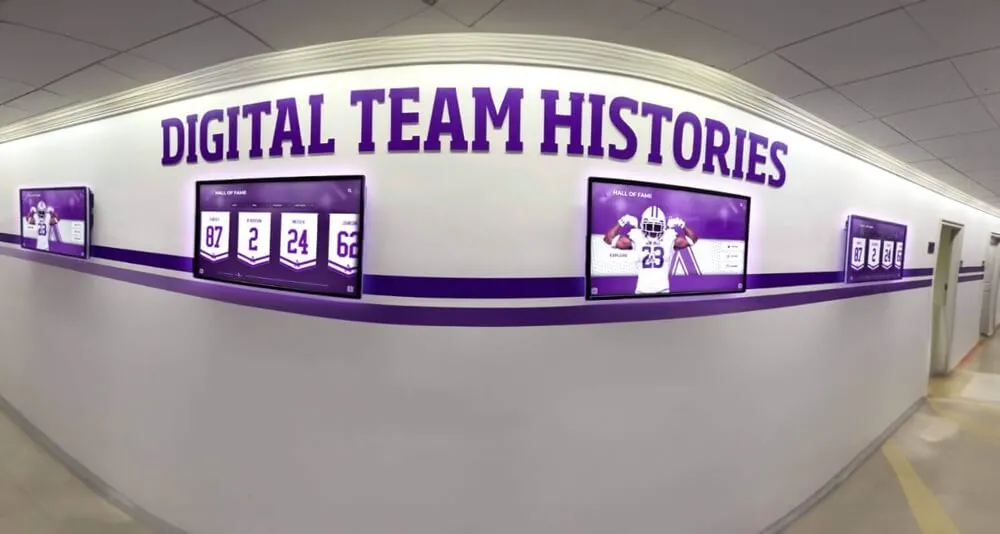
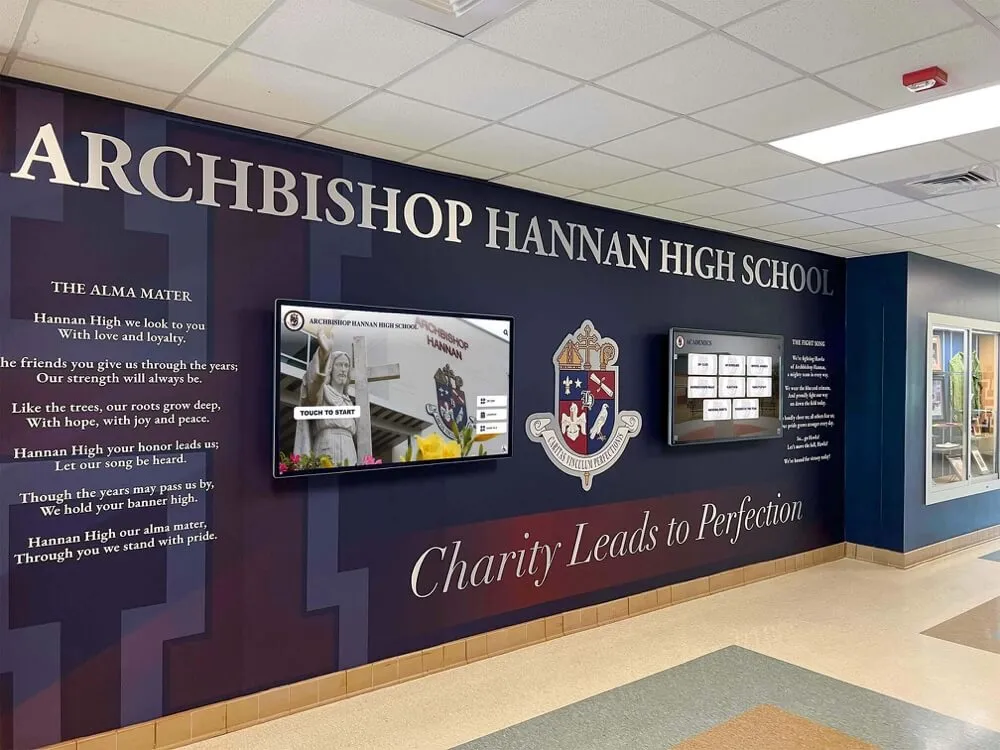
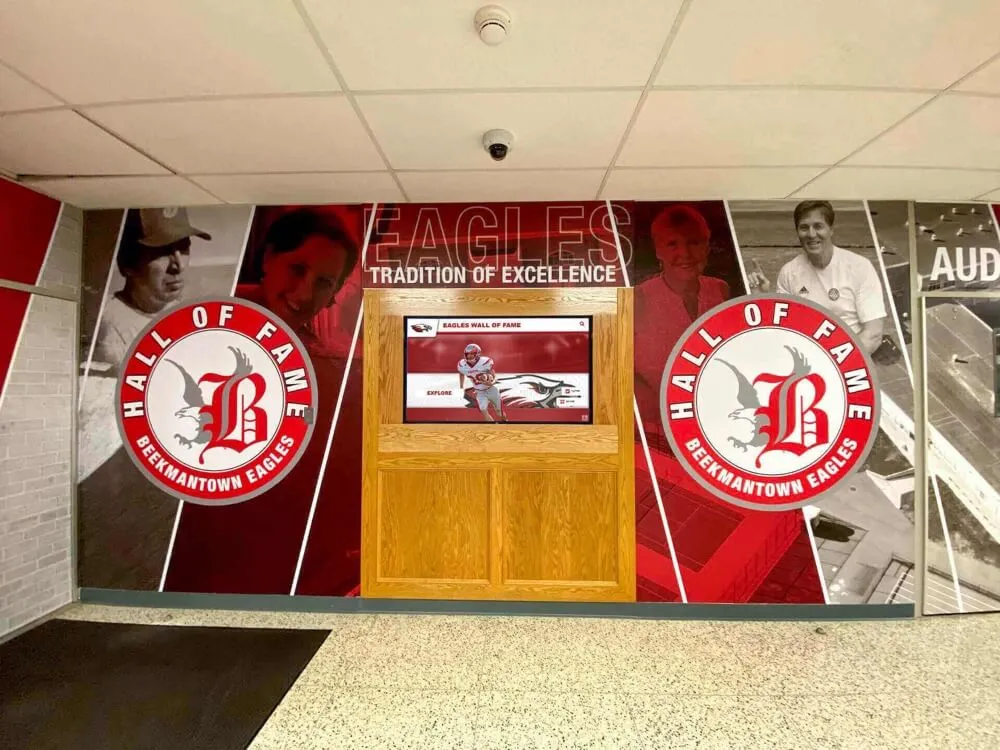
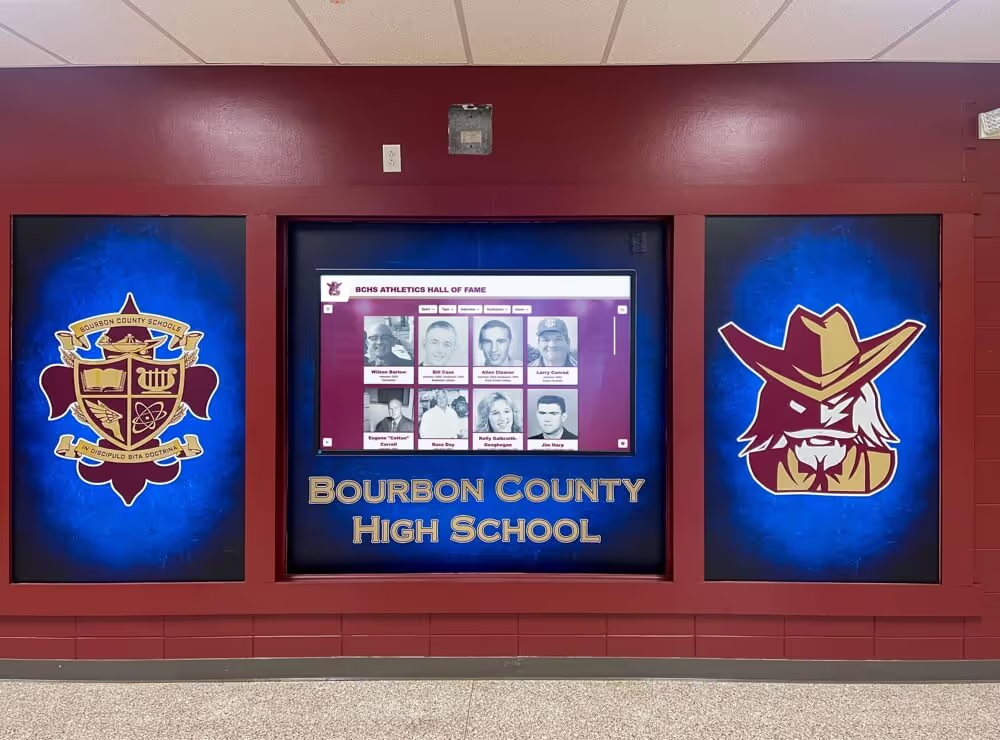
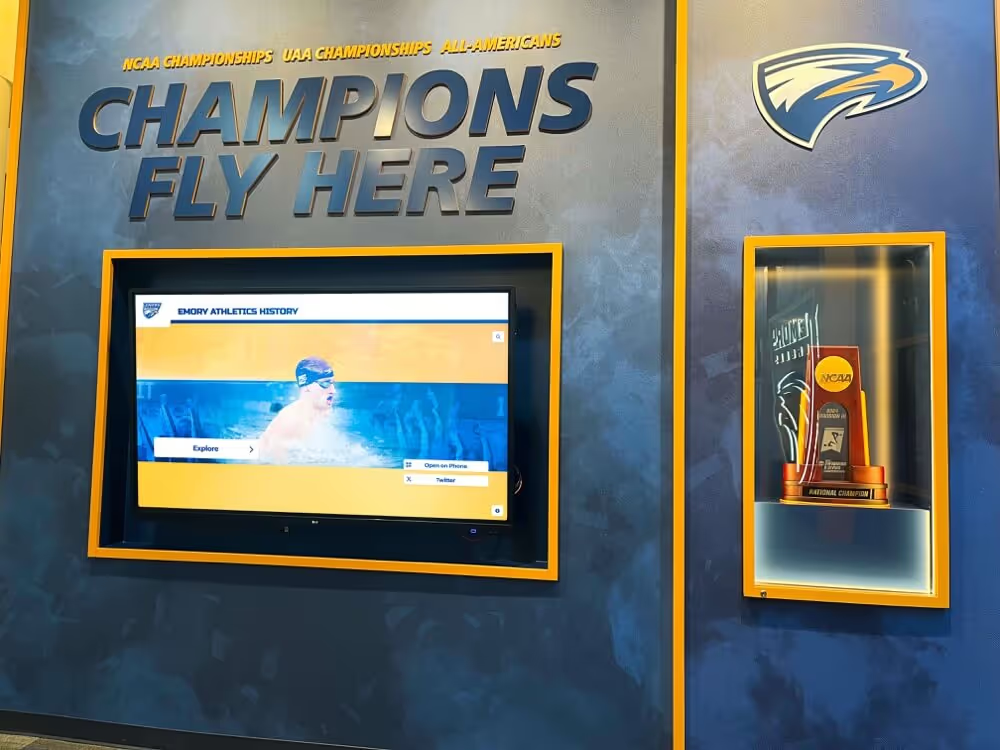
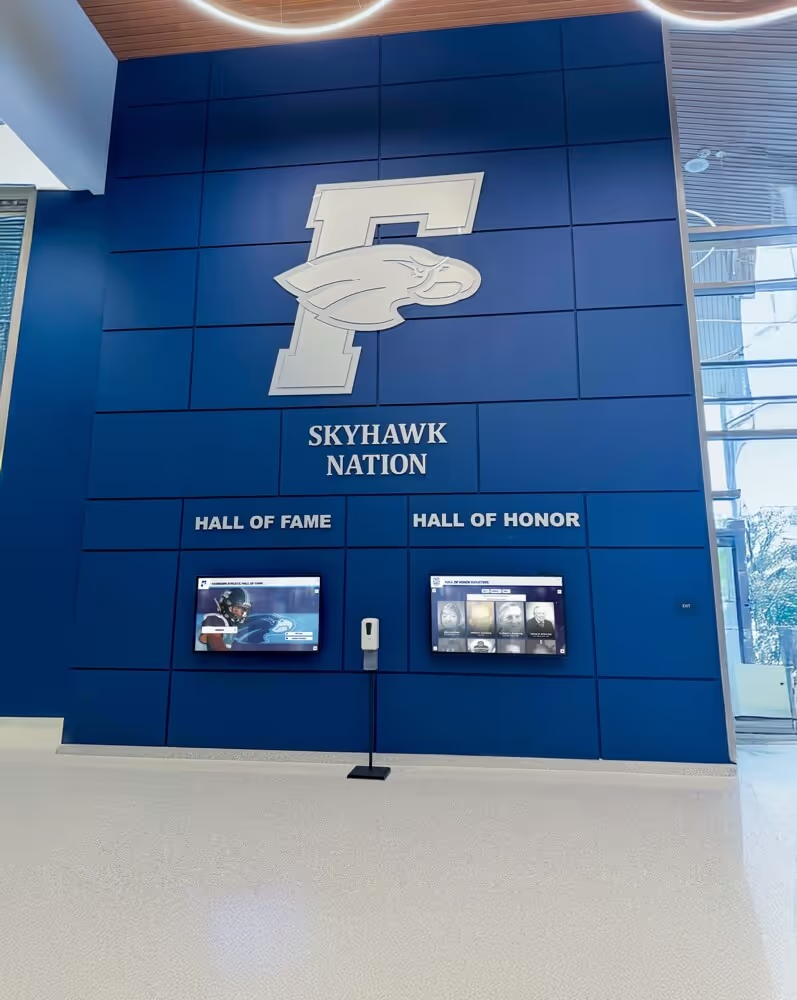
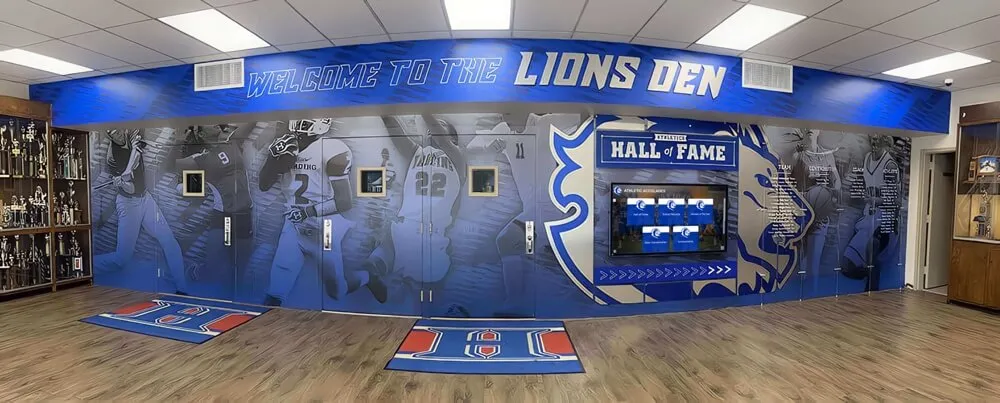
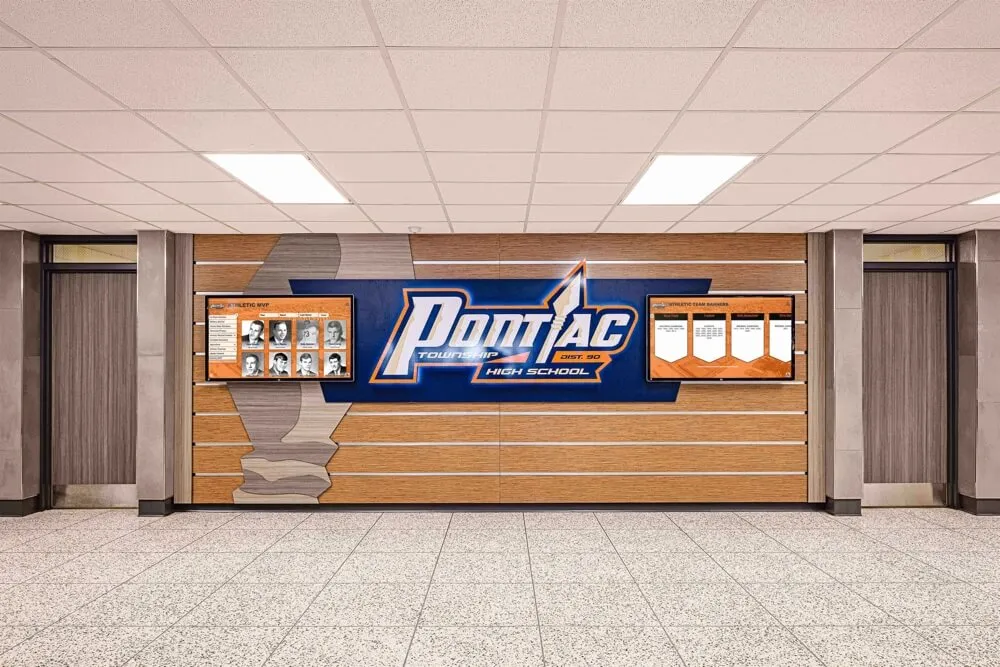
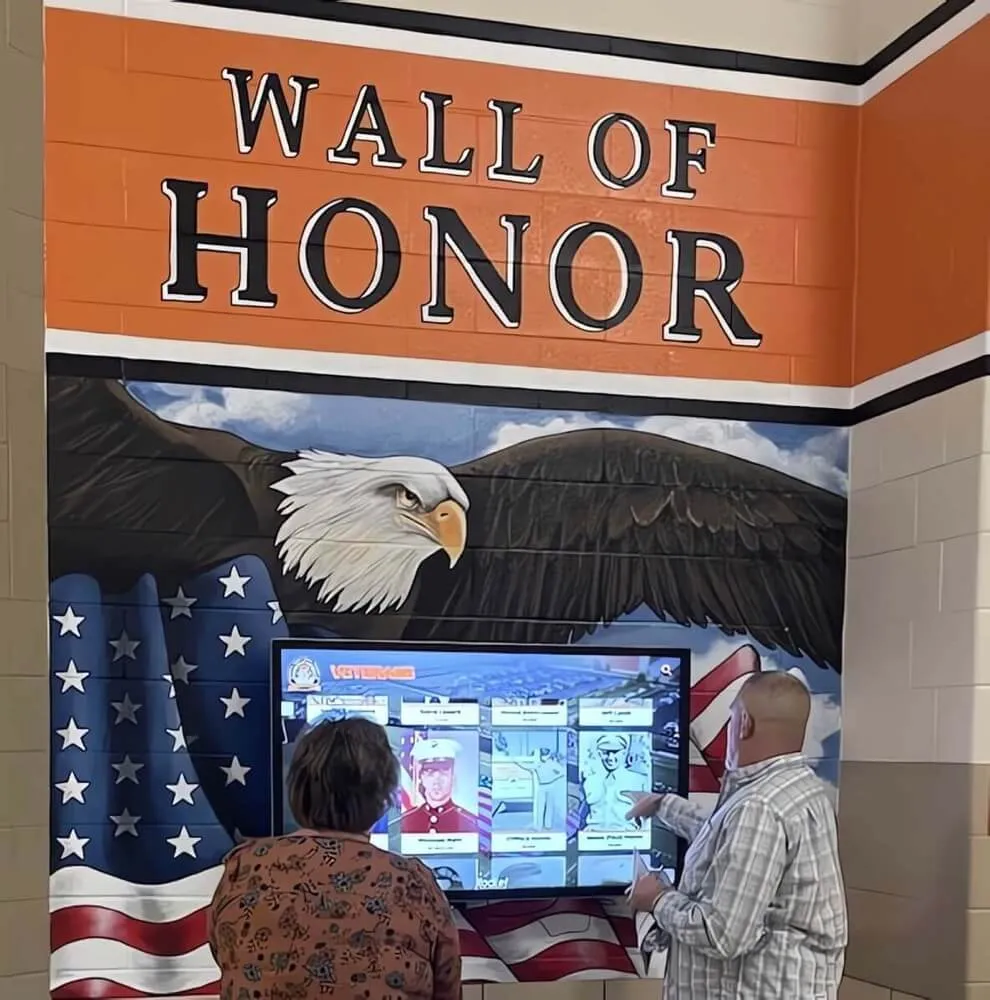
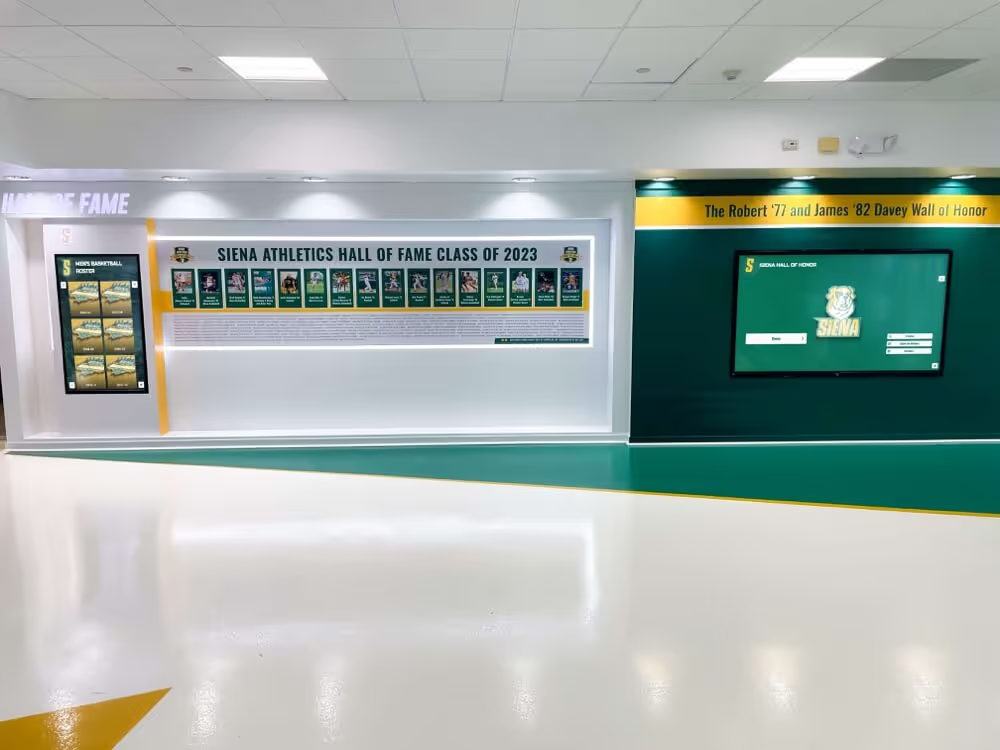
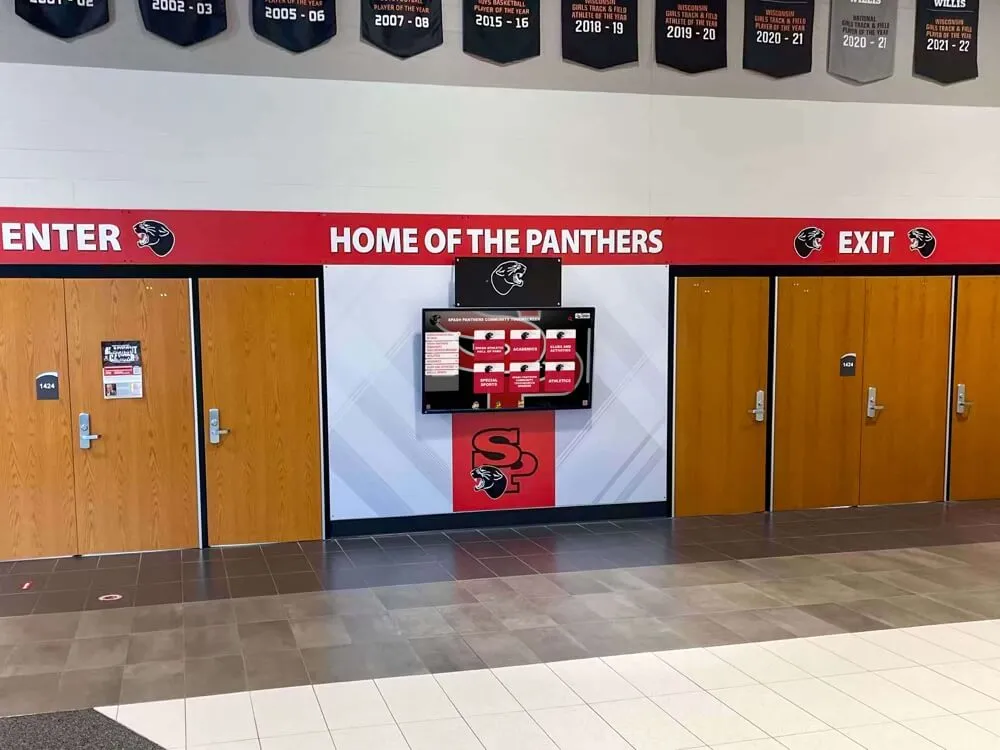
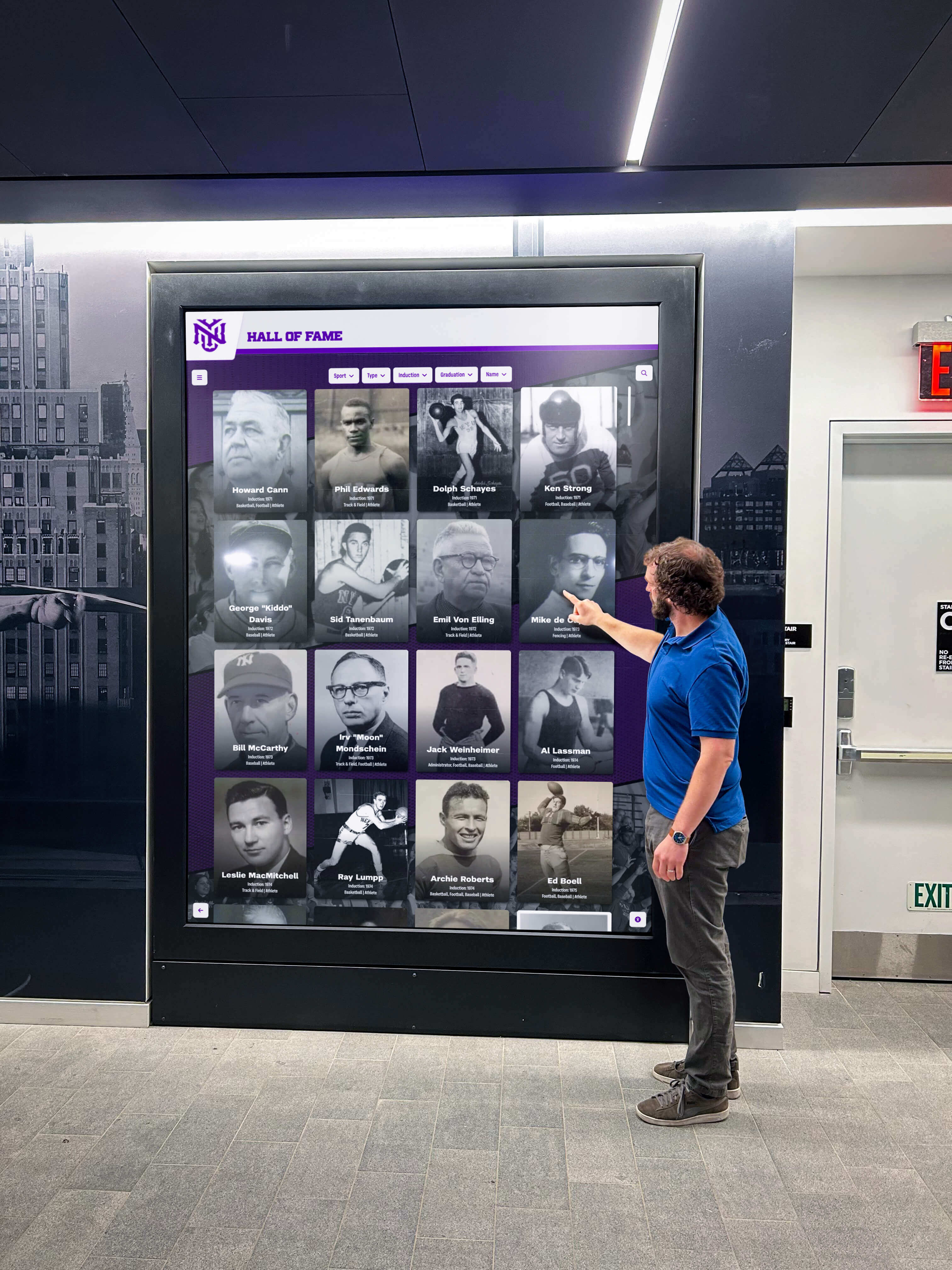
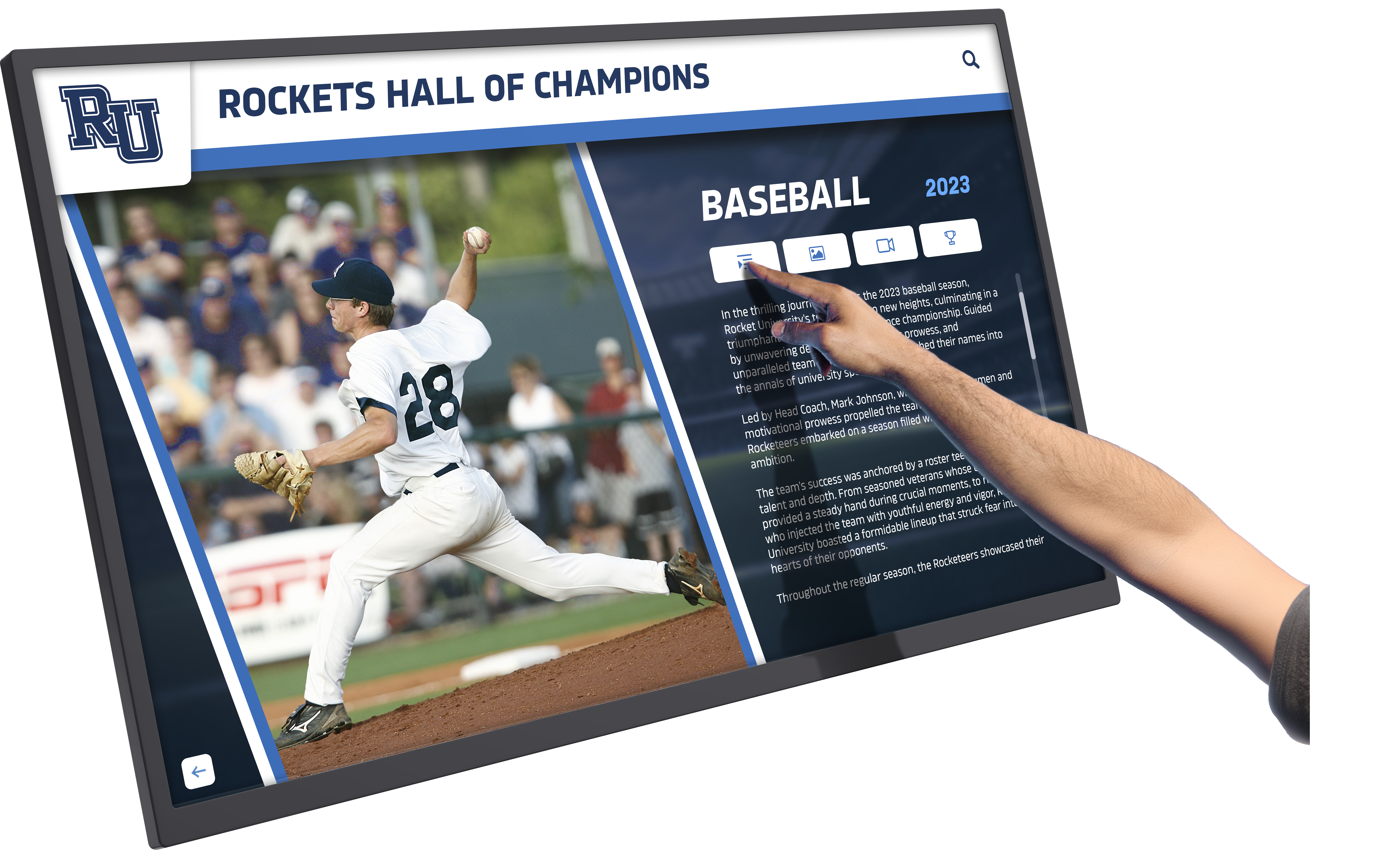
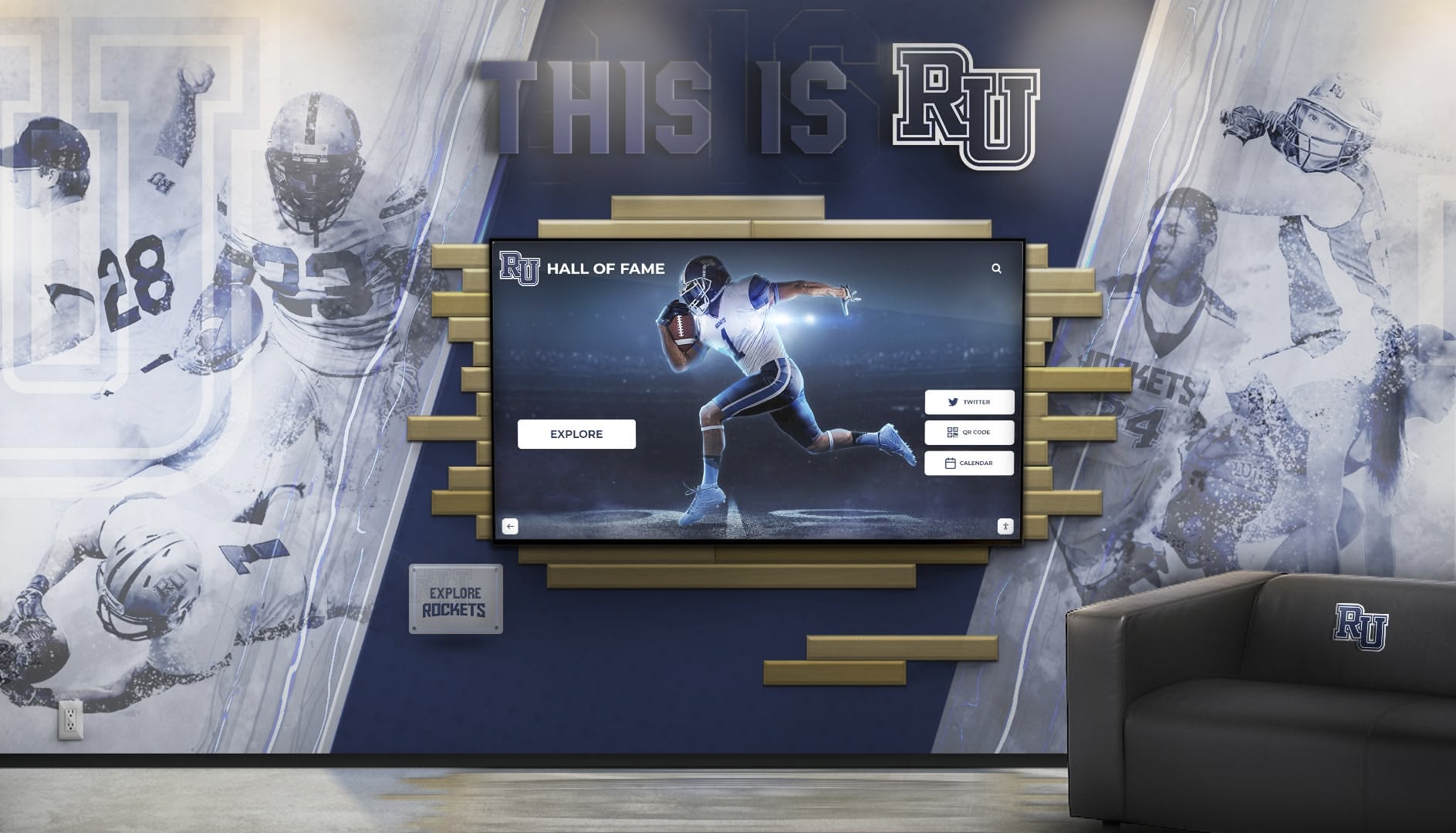
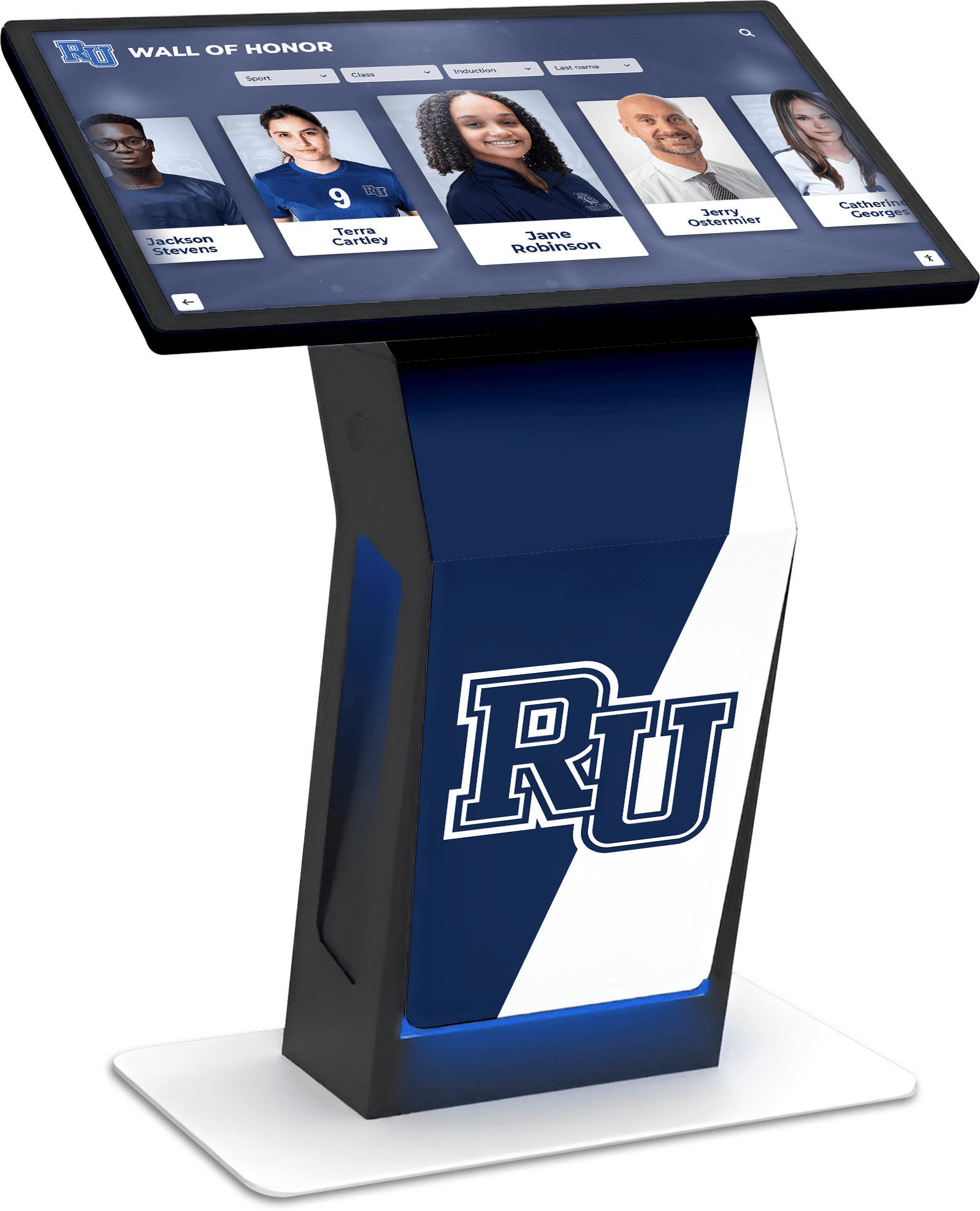
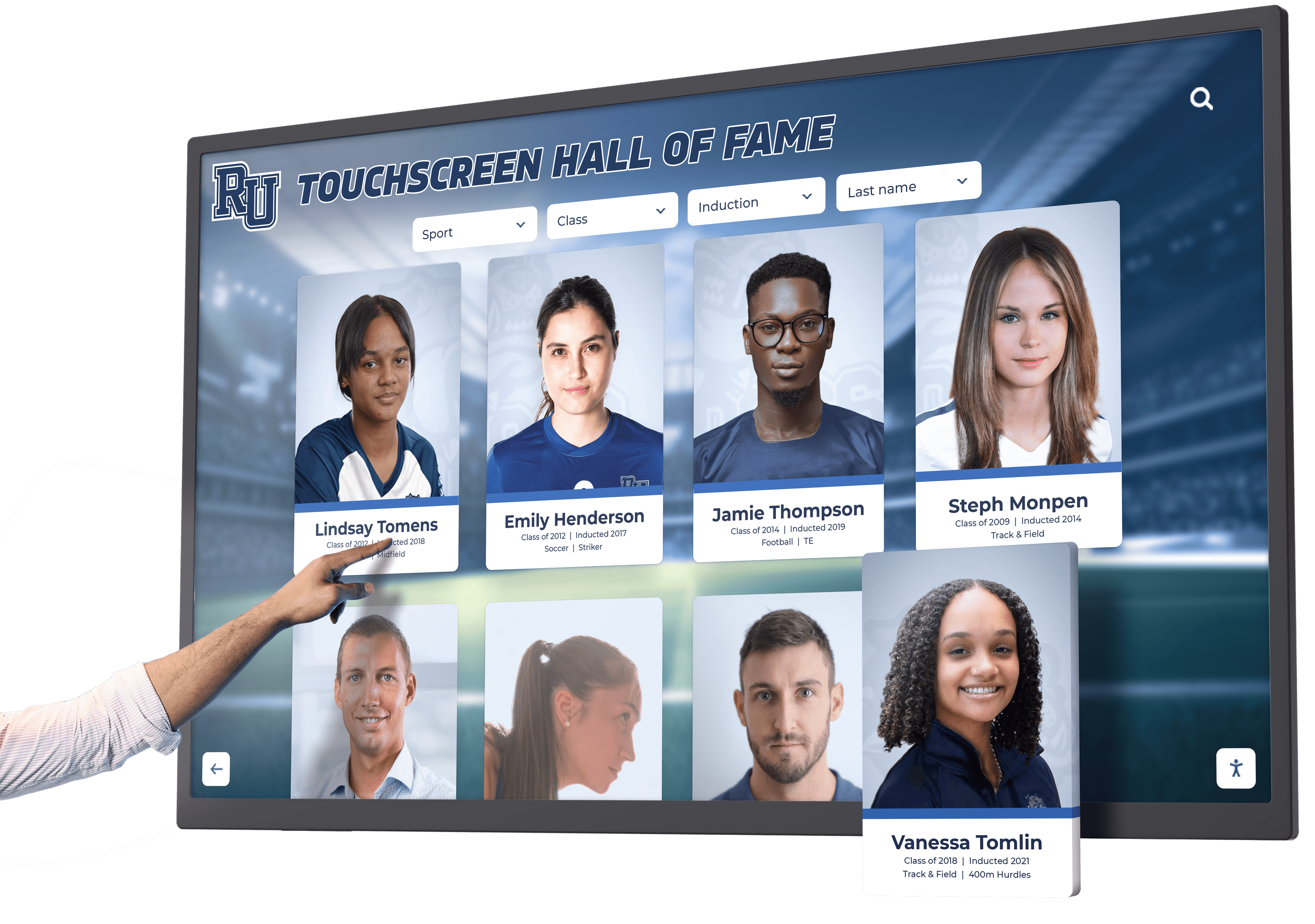
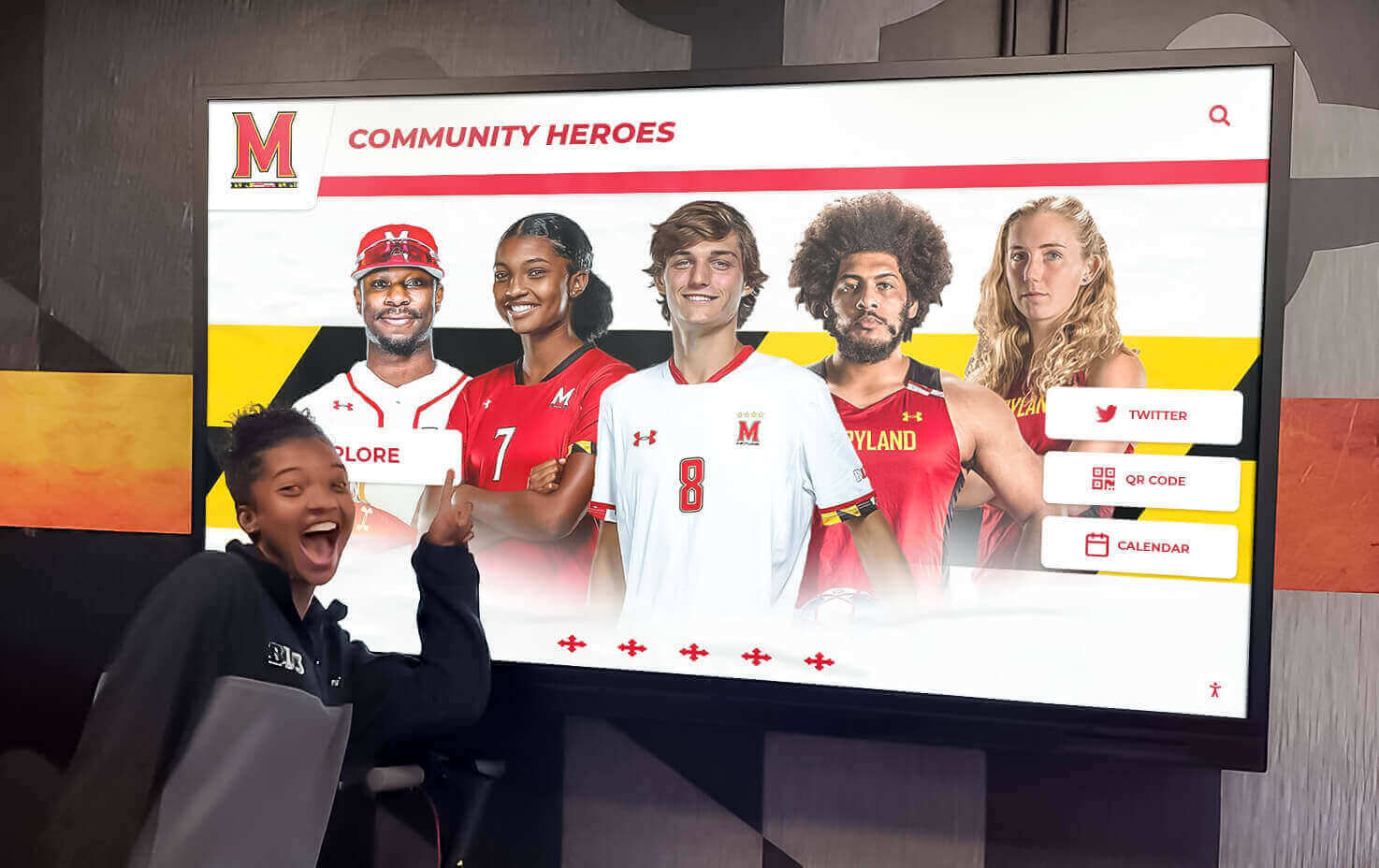
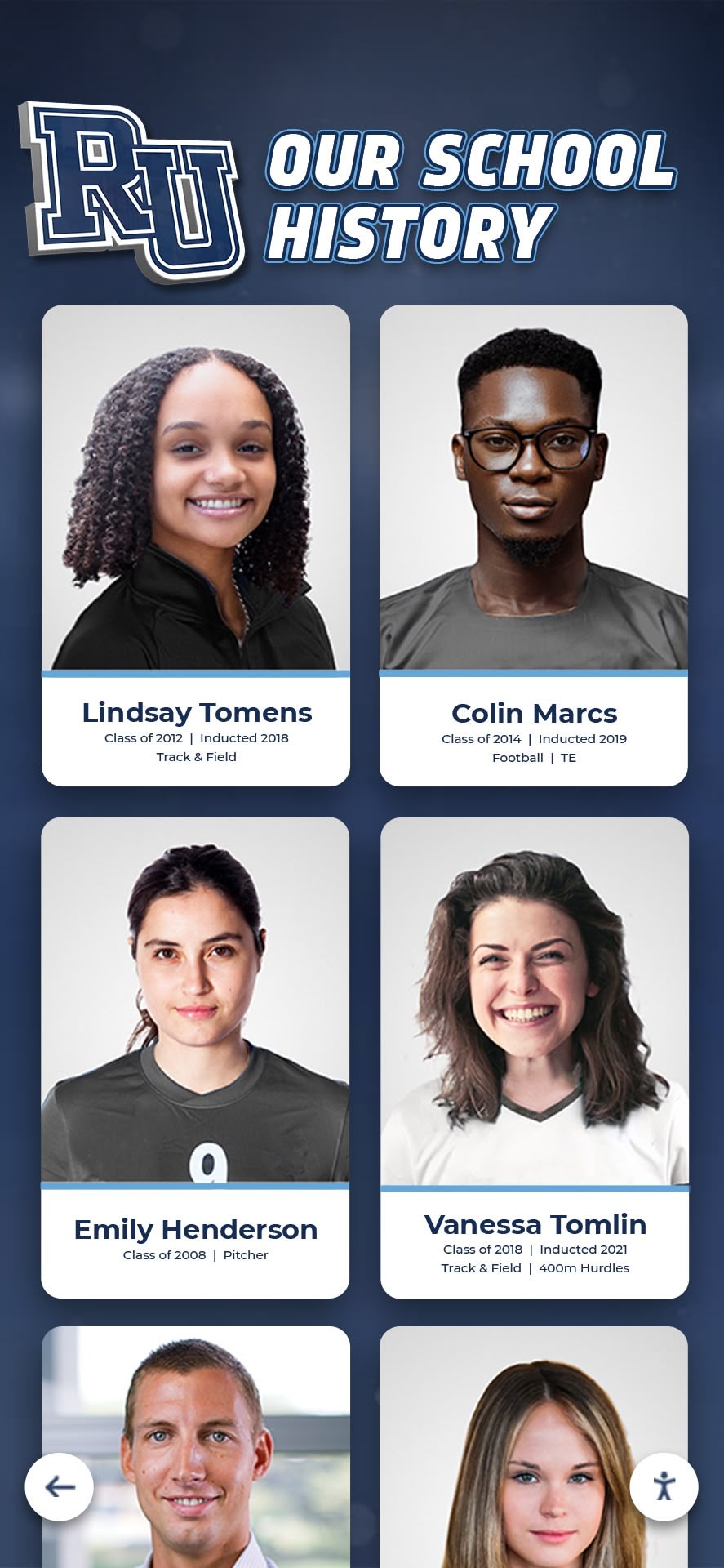
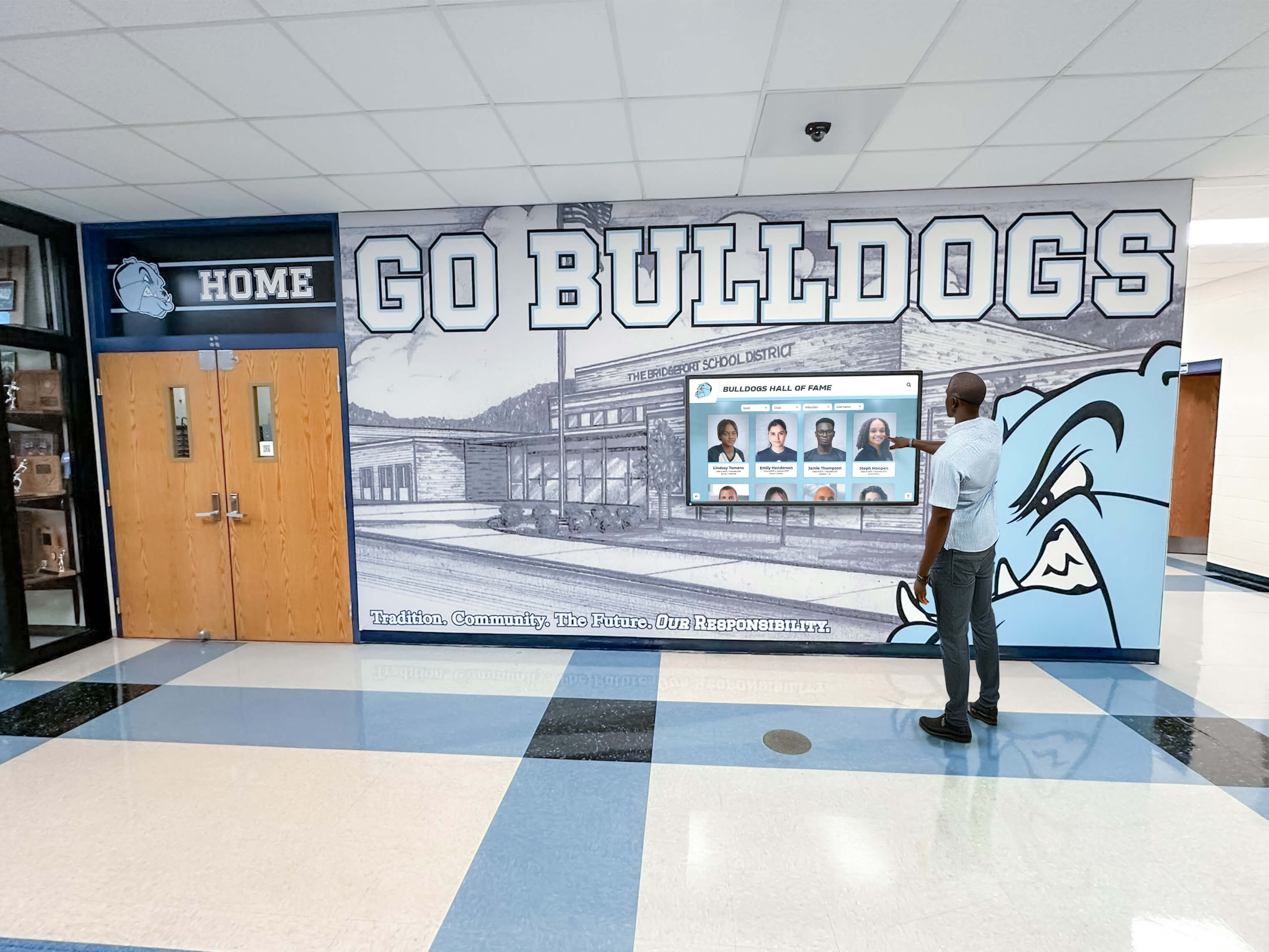
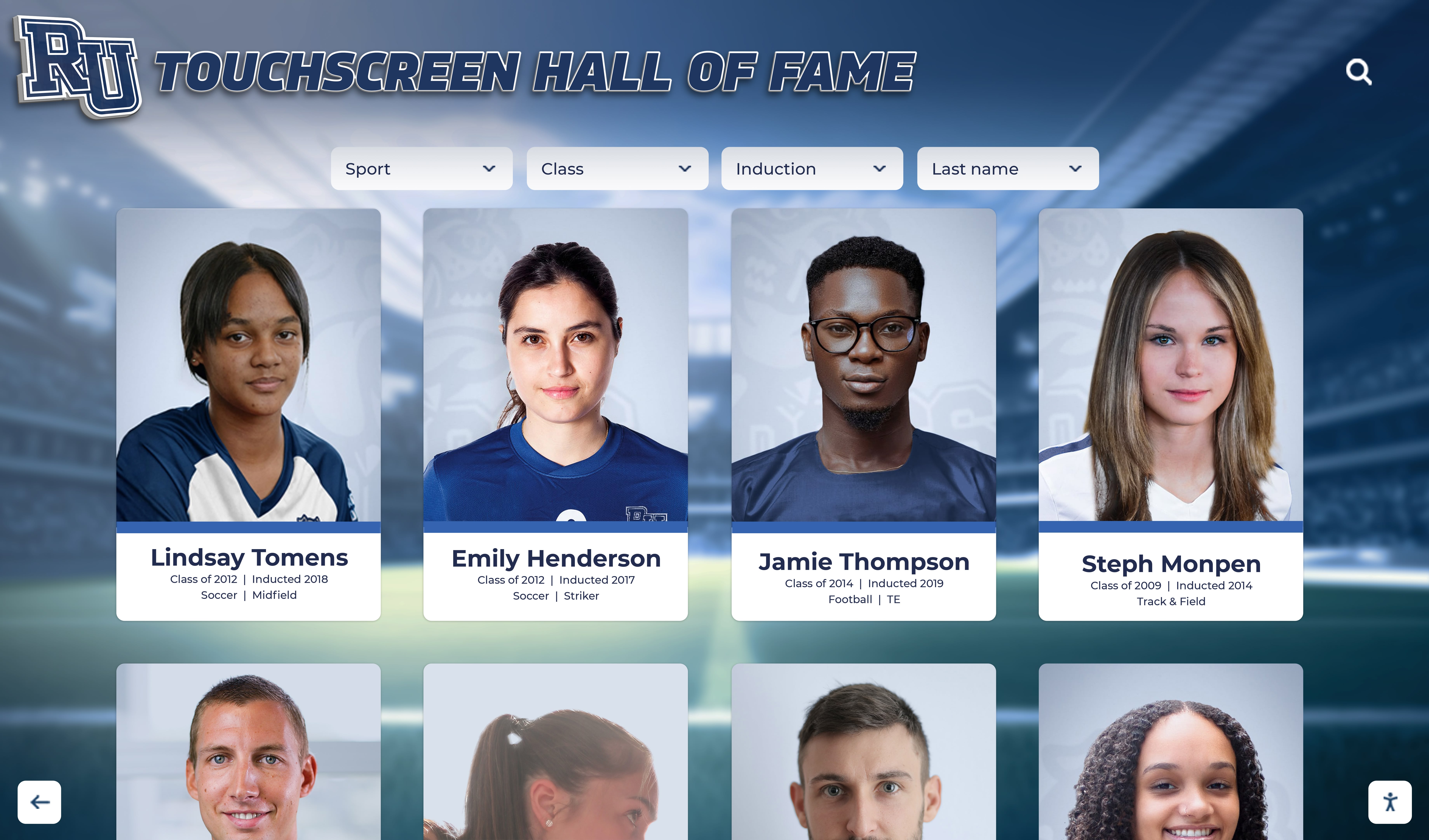
Interactive touchscreen displays celebrating student achievement represent primary educational kiosk applications. Digital record boards showcasing athletic accomplishments, academic honors, performing arts recognition, and school history engage students, alumni, and visitors while preserving institutional memory comprehensively and accessibly.
These recognition applications typically require kiosk browsers supporting rich media content—high-resolution photos, video highlights, detailed profiles, and intuitive search enabling personalized content discovery. Browser selection prioritizes smooth media playback, responsive touch interaction, and reliable continuous operation rather than advanced features like motion detection or sensor integration.
Schools implementing recognition kiosks benefit from pairing appropriate kiosk browsers with purpose-built content platforms like Rocket Alumni Solutions delivering web-based recognition experiences specifically designed for celebrating achievement while simplifying content management through cloud administrative interfaces accessible to athletic directors, activities coordinators, and administrators without technical expertise.
Wayfinding and Campus Information
Large school campuses benefit from interactive wayfinding kiosks helping visitors, parents, and new students navigate facilities, locate classrooms and offices, find event venues, and access campus maps. These informational applications require kiosk browsers with reliable performance, clear visual displays, and simple interfaces accommodating users unfamiliar with campus layouts.
According to Scalefusion’s analysis of educational kiosk solutions, effective wayfinding implementations combine locked-down kiosk browsers with responsive map interfaces, search functionality finding locations by name, and accessibility features ensuring all visitors successfully navigate regardless of technical proficiency or physical abilities.
Self-Service Check-In and Administration
Administrative offices increasingly deploy self-service kiosks for visitor check-in, student attendance, event registration, and forms submission reducing front desk workload while providing 24/7 access to essential services. These administrative applications often require integration with student information systems, databases, or specialized software beyond simple web browsers.
Browser selection for administrative kiosks emphasizes security—protecting sensitive student data, preventing unauthorized access to administrative systems, and ensuring reliable session isolation between sequential users. Organizations implementing administrative kiosks should evaluate whether kiosk browsers alone suffice or whether mobile device management platforms providing broader security controls better address comprehensive requirements.
Library and Media Centers
School library touchscreens enable catalog search, digital resource access, reservation systems, and multimedia exploration. These applications require browsers supporting diverse content types, complex web applications, and integration with library management systems while preventing users from accessing inappropriate content or device settings.
Library kiosk implementations benefit from browsers offering granular URL filtering restricting access to approved resources while blocking problematic content. According to MetroClick’s educational touchscreen kiosk overview, successful library kiosks balance access to legitimate educational resources with security preventing misuse during unsupervised operation.
Deployment Planning and Implementation Strategy
Successful touchscreen kiosk implementations require systematic planning addressing technical requirements, content preparation, staff training, and ongoing support establishing reliable systems serving communities effectively from initial deployment through years of continuous operation.
Assessment and Requirements Definition
Use Case Identification: Define specific purposes kiosks will serve. Recognition displays require different capabilities than administrative check-in systems or wayfinding applications. Clear use case definition informs appropriate hardware selection, kiosk browser choice, content platform evaluation, and network infrastructure requirements.
Schools implementing digital athletic displays focus requirements on media-rich content delivery, intuitive public interaction, and simplified content management enabling athletic directors updating achievements without IT department involvement for every modification.
Location Analysis: Evaluate physical installation environments considering lighting conditions affecting screen visibility, traffic patterns determining optimal placement and screen orientation, network connectivity availability, electrical outlet access, ADA compliance for mounting heights and approach clearances, and security requirements preventing theft or vandalism.
Stakeholder Input: Engage content managers, end users, IT staff, facilities personnel, and administrators in planning processes. Athletic directors managing recognition content provide insights into update frequency and workflow requirements. IT teams identify network infrastructure constraints and security policies affecting implementation approaches. Facilities staff address mounting, power, and physical security considerations.
Pilot Deployments and Iteration
Small-Scale Testing: Deploy initial installations in controlled environments before broad rollouts. Pilot deployments identify unforeseen issues, validate configuration approaches, test content management workflows, and gather user feedback informing refinements before committing to full-scale implementations.
Organizations testing multiple kiosk browser options during pilots make informed decisions based on actual operational experience rather than theoretical feature comparisons. Free kiosk browsers enable cost-effective parallel testing evaluating multiple solutions without licensing commitments.
Performance Monitoring: Track system reliability, content load times, user interaction patterns, and technical issues during pilot phases. Establish baseline performance metrics informing whether production deployments meet acceptable standards or require optimization before expansion.
Feedback Collection: Observe actual users interacting with pilot kiosks. Note confusion points, navigation difficulties, accessibility challenges, or content discovery problems. User observation reveals usability issues invisible during administrative testing by personnel intimately familiar with content organization and system functionality.
Staff Training and Change Management
Administrator Training: Content managers require training on cloud management interfaces, media upload procedures, content organization best practices, and troubleshooting common issues. Athletic directors managing recognition displays need comfort uploading photos, writing achievement descriptions, organizing content logically, and publishing updates without technical support intervention.
Effective training emphasizes hands-on practice, addresses common scenarios managers encounter regularly, and provides reference documentation supporting independent problem-solving rather than creating dependencies on IT staff for routine content management activities.
IT Staff Technical Documentation: Technical personnel require comprehensive documentation covering system architecture, kiosk browser configuration, network requirements, security settings, backup procedures, disaster recovery processes, and escalation procedures for issues exceeding routine troubleshooting capabilities.
Ongoing Support Planning: Establish clear support processes defining who handles different issue types, response time expectations, escalation paths for complex problems, and procedures for after-hours emergencies. Successful long-term operations require sustainable support models preventing burnout among technical staff while maintaining high availability for critical systems.
Future Trends in Touchscreen Kiosk Technology
Kiosk browser technology continues evolving with emerging capabilities, changing security requirements, and shifting organizational expectations shaping future deployments.
Progressive Web Applications and Offline Capability
Progressive web applications (PWAs) combine web-based deployment simplicity with native-like capabilities including offline operation, push notifications, background synchronization, and improved performance. Kiosk browsers increasingly support PWA features enabling sophisticated interactive experiences without native application complexity.
Organizations implementing cloud-managed recognition systems benefit from PWA capabilities providing graceful degradation during network interruptions—cached content remains accessible while connectivity issues prevent only real-time updates and searches requiring server connections.
Artificial Intelligence Integration
AI capabilities enhance kiosk experiences through natural language search understanding conversational queries, content recommendations adapting to interaction patterns, automated content tagging and organization, and personalized experiences responding to user preferences inferred from behavior patterns.
These AI enhancements typically implement server-side regardless of kiosk browser selection, benefiting all deployment approaches equally. Organizations implementing searchable achievement databases increasingly leverage AI improving content discovery beyond traditional keyword search—enabling questions like “show me all basketball players from the 1990s who scored over 1000 points” returning relevant results without requiring exact database field matching.
Enhanced Security and Privacy Requirements
Evolving data privacy regulations, heightened security awareness, and increasing cyber threats drive more sophisticated security requirements for public-facing kiosks. Future kiosk browsers will emphasize zero-trust architectures, enhanced session isolation, stricter data collection controls, and comprehensive audit logging addressing regulatory compliance and institutional security policies.
Organizations implementing kiosks handling any personal information—even minimal data like search queries or browsing patterns—must evaluate how browsers and content platforms address privacy requirements including data retention policies, encryption standards, and user consent mechanisms.
Cloud-Based Kiosk Management Platforms
Specialized cloud platforms increasingly manage kiosk deployments regardless of underlying browser or operating system selection. These unified management systems deploy content, monitor device health, configure settings remotely, collect analytics, and troubleshoot problems across heterogeneous device fleets from single administrative interfaces.
Cloud management platforms reduce kiosk browser selection importance by abstracting deployment and operational complexity. Organizations select hardware and browsers based on functional requirements and economics while cloud platforms handle management concerns consistently. According to analysis from Livewire Digital’s educational kiosk solutions, this architectural evolution simplifies multi-site deployments significantly compared to managing individual kiosk browsers directly.
Implementing Recognition Systems with Optimal Kiosk Solutions
Schools and organizations implementing digital recognition displays celebrating achievements and preserving history require specialized approaches combining appropriate kiosk browsers with purpose-built content platforms delivering engaging interactive experiences.
Recognition-Specific Requirements
Recognition applications differ from general-purpose kiosk uses through specialized needs including unlimited content capacity accommodating comprehensive achievement coverage, intuitive public interaction requiring no instruction, simplified content management accessible to non-technical staff, multimedia storytelling beyond basic text and photos, powerful search enabling personalized discovery, and long-term content preservation maintaining accessibility indefinitely.
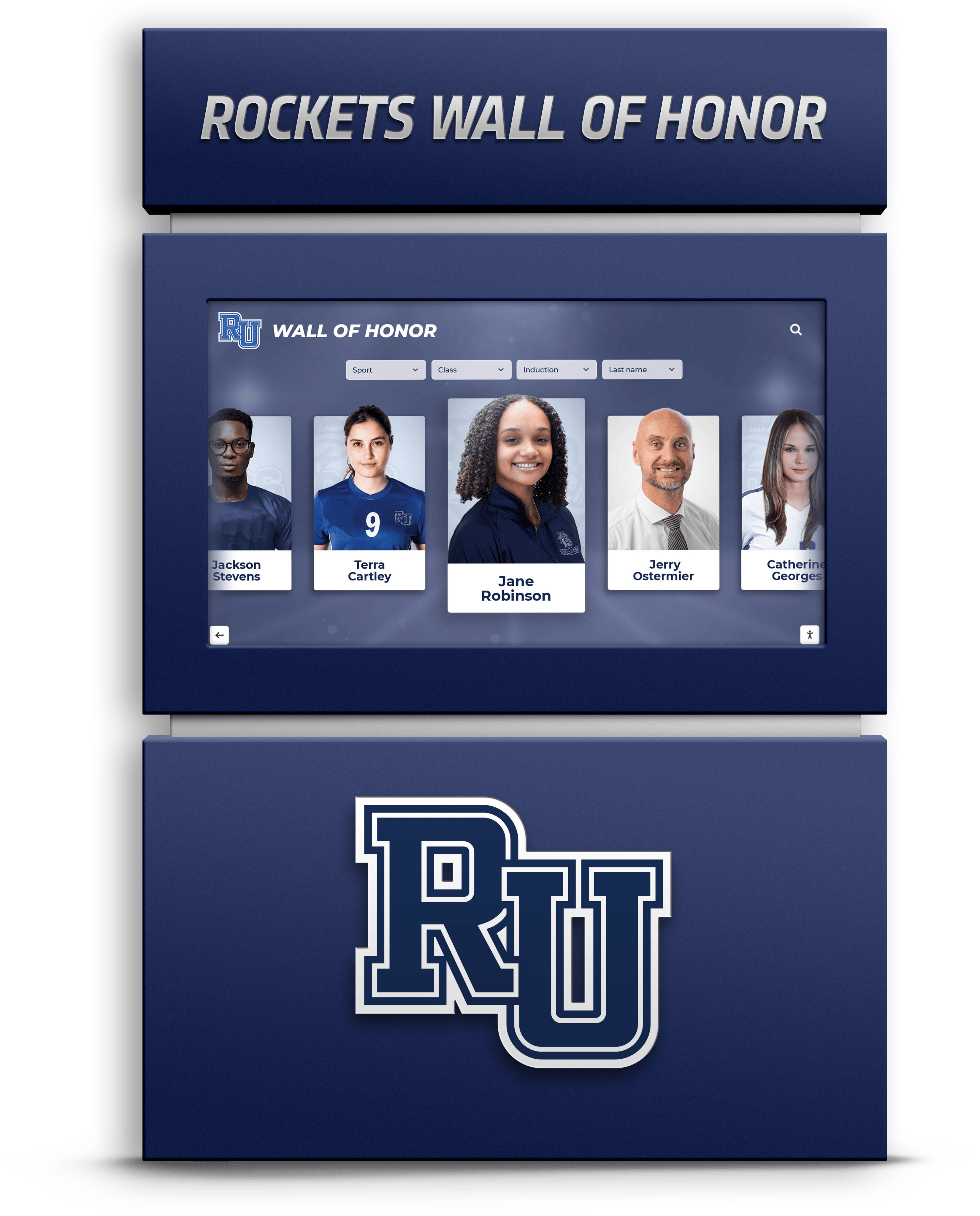
Generic kiosk browsers provide essential lockdown and security but don’t address recognition-specific workflow, content organization, or user experience requirements. Purpose-built platforms like Rocket Alumni Solutions combine optimized kiosk browser technology with specialized recognition capabilities delivering comprehensive solutions addressing full implementation requirements rather than requiring organizations assembling components independently.
The Rocket Alumni Solutions Approach
Rocket Alumni Solutions implements cloud-based recognition platforms leveraging web-based architecture delivering professional interactive experiences while eliminating native application complexity. Browser-based content displays automatically through optimized kiosk configurations handling lockdown, continuous operation, and remote management without requiring athletic directors or administrators managing technical kiosk browser settings directly.
This integrated approach combines appropriate kiosk browser technology—often utilizing free solutions like OpenKiosk for desktop installations or optimized Android browsers for tablet deployments—with purpose-built recognition content management accessible from any device with web browsers. Organizations deploy professional recognition systems without choosing between multiple disconnected components or developing technical expertise managing kiosk browser configurations independently.
The platform emphasizes recognition’s core purposes—celebrating achievement comprehensively, preserving institutional memory permanently, and engaging communities meaningfully through interactive exploration. By focusing specifically on recognition rather than generic kiosk functionality, the architecture delivers capabilities and workflows matching how schools actually celebrate achievement while simplifying technical implementation through integrated approaches managing browser lockdown, content delivery, and ongoing updates cohesively.
Making Your Kiosk Browser Selection Decision
Choosing appropriate touchscreen kiosk browser software requires evaluating specific organizational requirements, technical capabilities, budget constraints, and long-term operational realities against different solutions’ strengths and limitations.
Decision Framework
Operating System Requirements: Platform constraints significantly limit browser options. Android users choose among Fully Kiosk, Kiosk Browser Lockdown, and numerous alternatives. Windows, macOS, and Linux deployments rely on OpenKiosk or platform-specific solutions. Cross-platform requirements necessitate either multiple different browsers or web-based content working across diverse kiosk browser implementations.
Budget Considerations: Organizations with limited budgets benefit from free alternatives like OpenKiosk eliminating licensing costs regardless of deployment scale. Institutions with resources supporting commercial licensing evaluate whether paid solutions’ incremental features justify ongoing costs or whether free alternatives deliver sufficient functionality for specific use cases.
Technical Support Requirements: Organizations lacking internal technical expertise or requiring guaranteed vendor support favor commercial solutions providing professional support channels and accountability. Institutions with capable IT staff comfortable troubleshooting issues and leveraging community resources successfully deploy free alternatives while managing occasional support challenges internally.
Feature Requirements: Basic lockdown, remote management, and reliable operation exist across free and paid solutions. Organizations requiring specialized capabilities—motion detection, sensor integration, sophisticated monitoring, or advanced features—justify commercial licensing through capabilities free alternatives lack. Schools implementing straightforward recognition displays typically find free browsers deliver complete functionality needed without paying for unused advanced features.
Deployment Scale: Small installations find paid licensing costs modest while benefiting from commercial support. Large deployments managing dozens or hundreds of kiosks face substantial licensing expenses where free alternatives’ zero marginal cost per device creates compelling economics redirecting savings toward hardware, content, or implementation services delivering more tangible value than incremental software capabilities.
Long-Term Operational Considerations
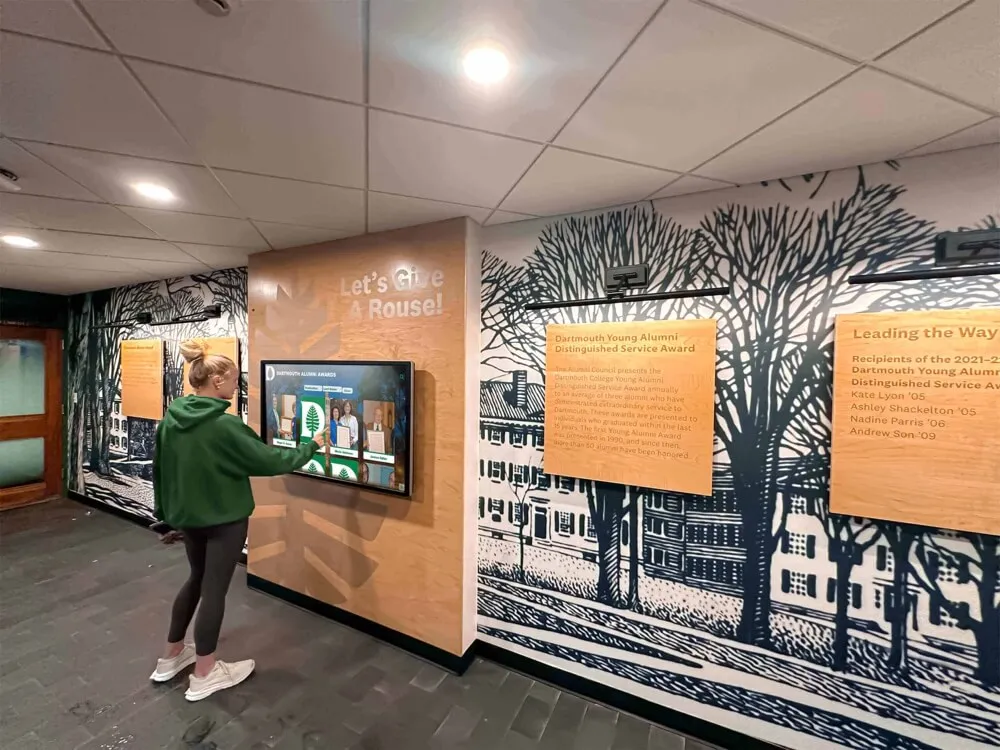
Think beyond initial deployment to years of ongoing operation. Software choices made today affect maintenance requirements, content management workflows, and system sustainability long-term. Browser architectures enabling centralized management, automatic updates maintaining compatibility, and simplified administrative workflows typically age better than solutions requiring distributed device management or technical intervention for routine operations.
For most schools implementing digital record boards, recognition displays, or interactive showcases, free open-source kiosk browsers combined with cloud-managed content platforms deliver optimal combinations of capability, simplicity, cost-effectiveness, and long-term sustainability. Organizations prioritizing these practical operational advantages over maximum feature breadth find this approach serves recognition needs excellently while dramatically simplifying deployment and ongoing management compared to enterprise-grade alternatives whose complexity exceeds requirements for straightforward public-facing recognition applications.
Transforming Recognition Through Appropriate Technology Selection
The touchscreen kiosk browser landscape offers unprecedented choice—from completely free open-source solutions to enterprise-grade commercial platforms, from Android-specific applications to cross-platform alternatives, and from basic lockdown features to sophisticated sensor integration and automation capabilities.
While Fully Kiosk Browser dominates Android kiosk deployments through comprehensive features and reliable performance, free alternatives like OpenKiosk deliver equivalent core functionality for most use cases while eliminating per-device licensing costs. Organizations implementing straightforward recognition displays, informational kiosks, or interactive content systems typically achieve superior outcomes through free browsers paired with specialized content platforms rather than paying for comprehensive feature sets rarely utilized in practice.
The optimal kiosk browser choice balances immediate functional requirements with long-term operational realities, budget constraints, technical capabilities, and platform requirements—creating touchscreen deployments serving communities effectively today while remaining manageable and relevant for years without creating unsustainable technical debt or operational burdens.
Schools and organizations implementing recognition systems should evaluate specific needs systematically, test candidate solutions through pilots before broad deployment, and prioritize long-term sustainability over feature checklists potentially impressive initially but irrelevant operationally. The right choice creates engaging recognition experiences celebrating achievement meaningfully while simplifying rather than complicating ongoing management—enabling focus on recognition’s core purposes rather than technical administration.
Ready to implement professional recognition displays combining appropriate kiosk browser technology with purpose-built content platforms specifically designed for celebrating achievement? Integrated solutions eliminate complexity of managing disconnected components while delivering engaging interactive experiences accessible to entire communities. Schedule a consultation to discover how appropriate technology choices create sustainable recognition systems serving schools effectively without creating technical burdens.
Sources:
This comparison is based on publicly available information as of November 2026. All product names and trademarks belong to their respective owners. Comparative statements reflect Rocket Alumni Solutions’ interpretation of available data and may change over time.
- Fully Kiosk Browser
- OpenKiosk
- Kiosk Browser Lockdown - Google Play
- ViewSonic Educational Kiosk Displays
- SourceForge Kiosk Browser Alternatives
- AirDroid Android Kiosk Software Comparison
- Capterra Fully Kiosk Pricing
- Microsoft Edge Kiosk Mode Documentation
- AlternativeTo Kiosk Browser Listings
- Scalefusion Kiosk Solutions