



When a school or organization starts planning an interactive touch screen display, the first question is usually about price. The question that should come first is how the technology actually works—because understanding the components, the software layer, and the support structure tells you far more about long-term value than any price tag.
This guide covers every layer of an interactive touch screen digital signage system: how the hardware senses touch, what software manages and delivers content, what network and computing requirements apply, and what to verify before signing any purchase agreement.
What Is Interactive Touch Screen Digital Signage?
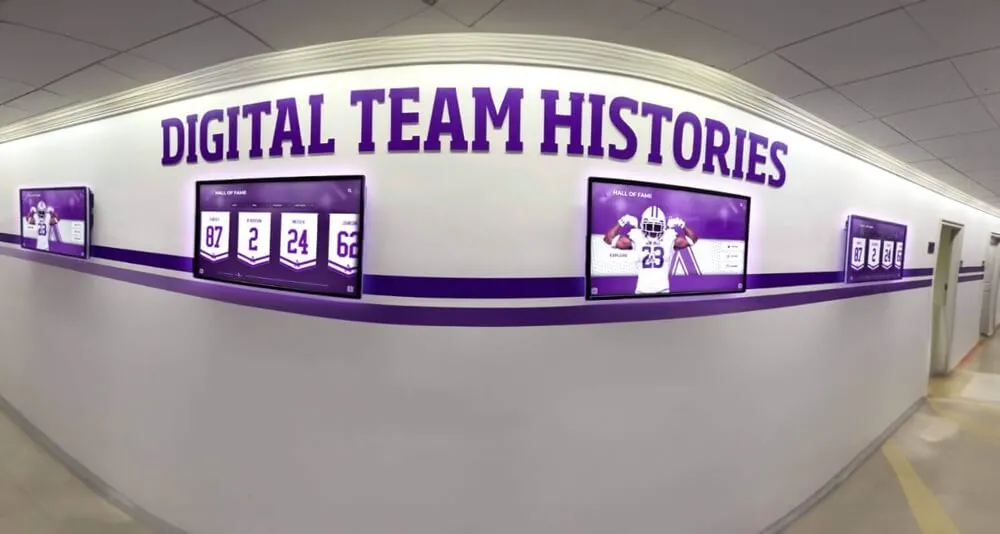
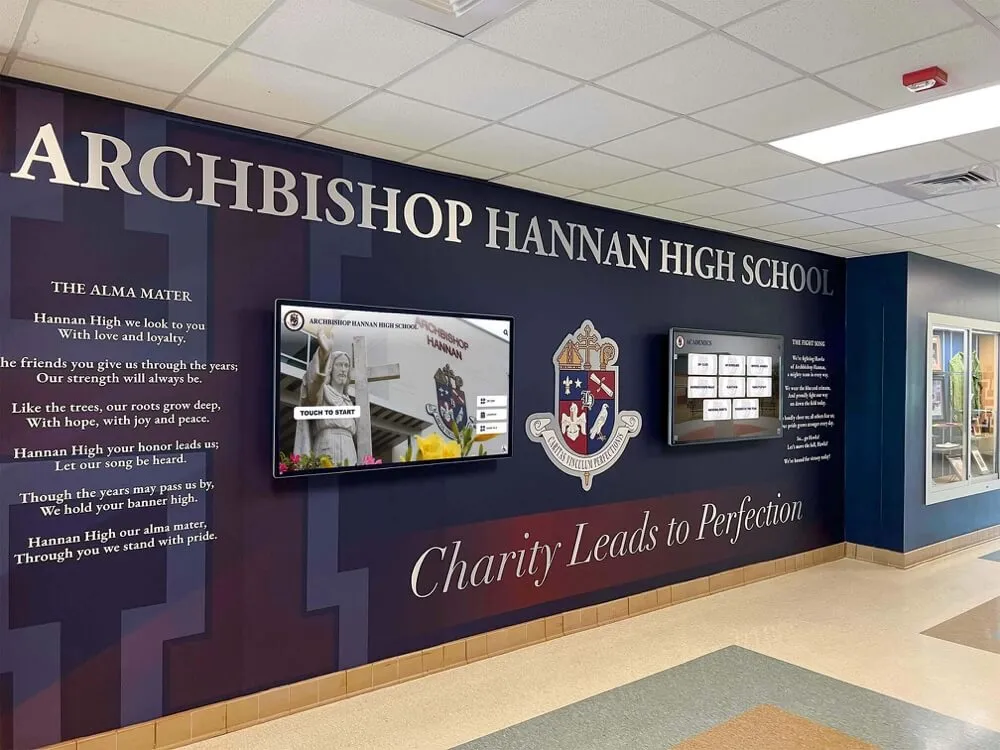
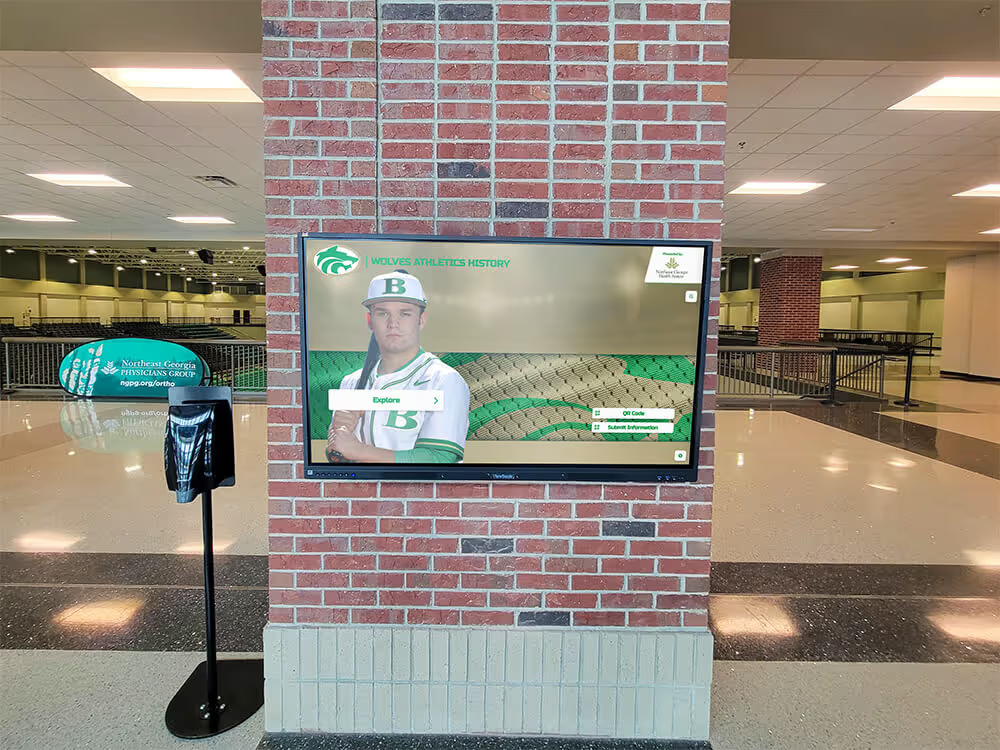
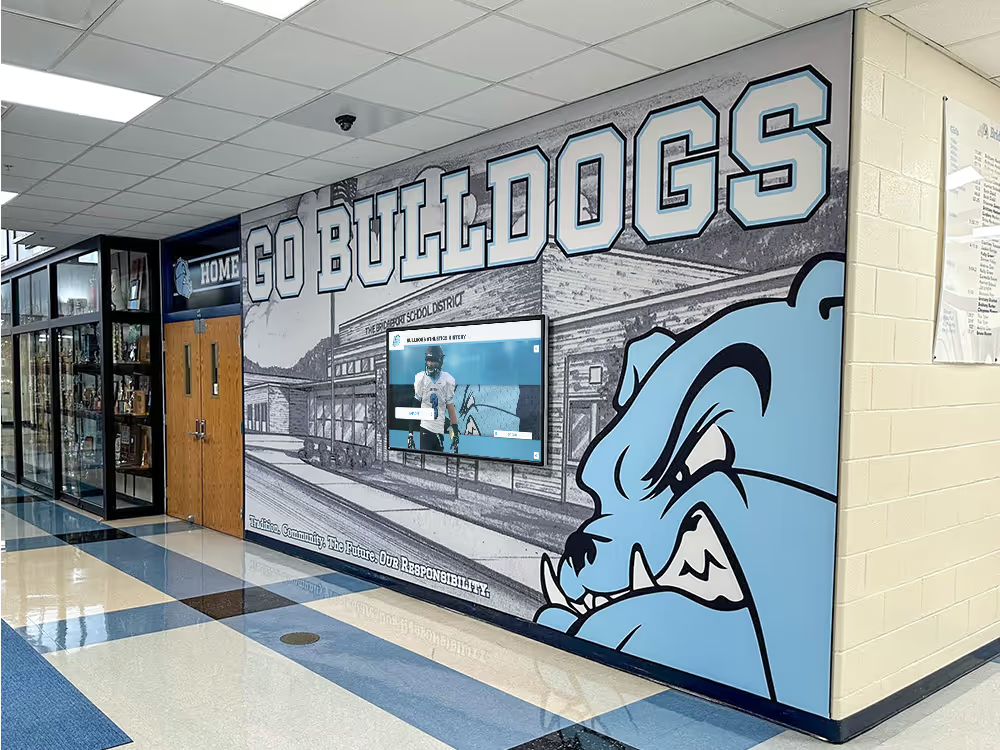
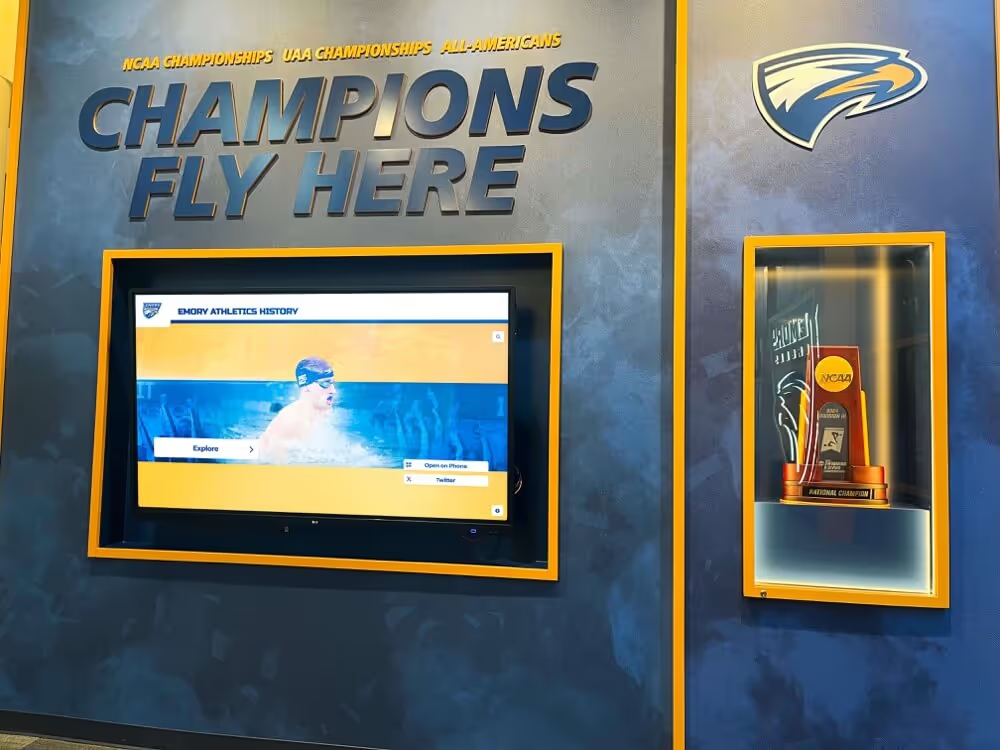
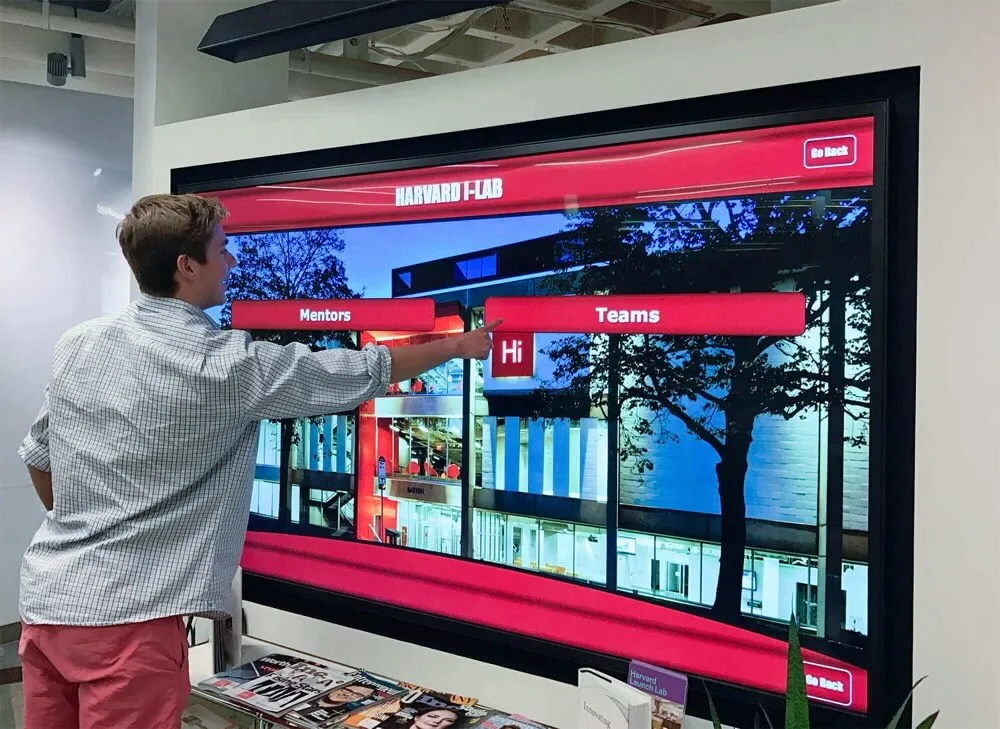
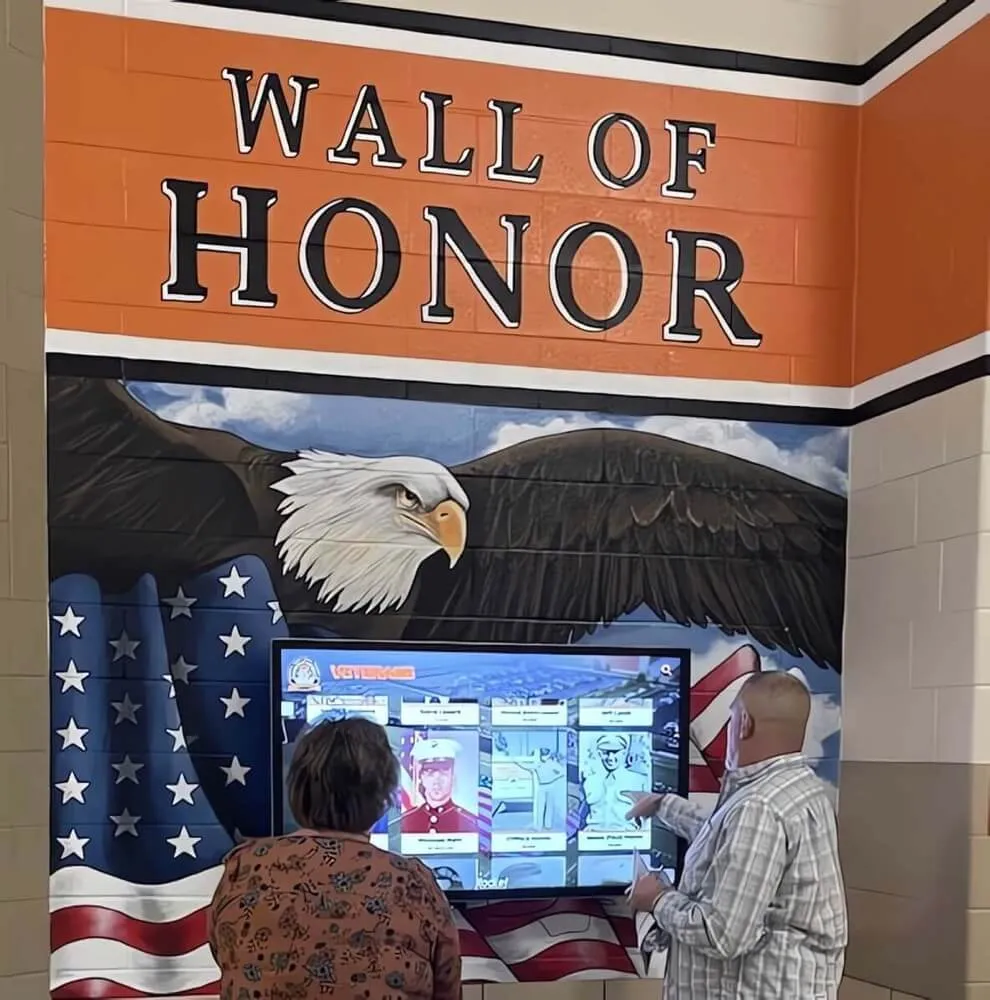
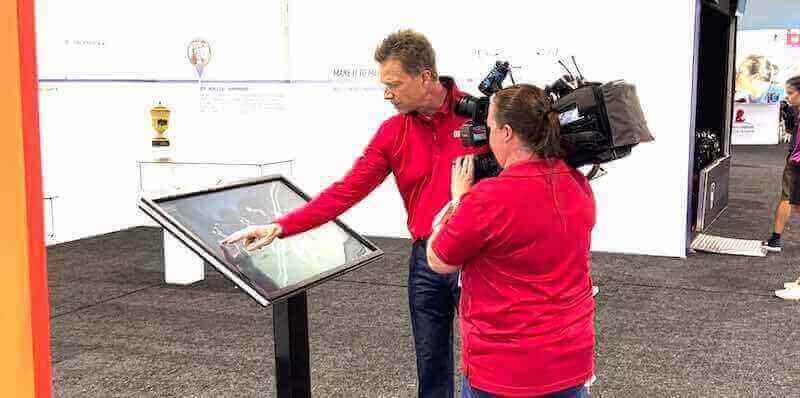
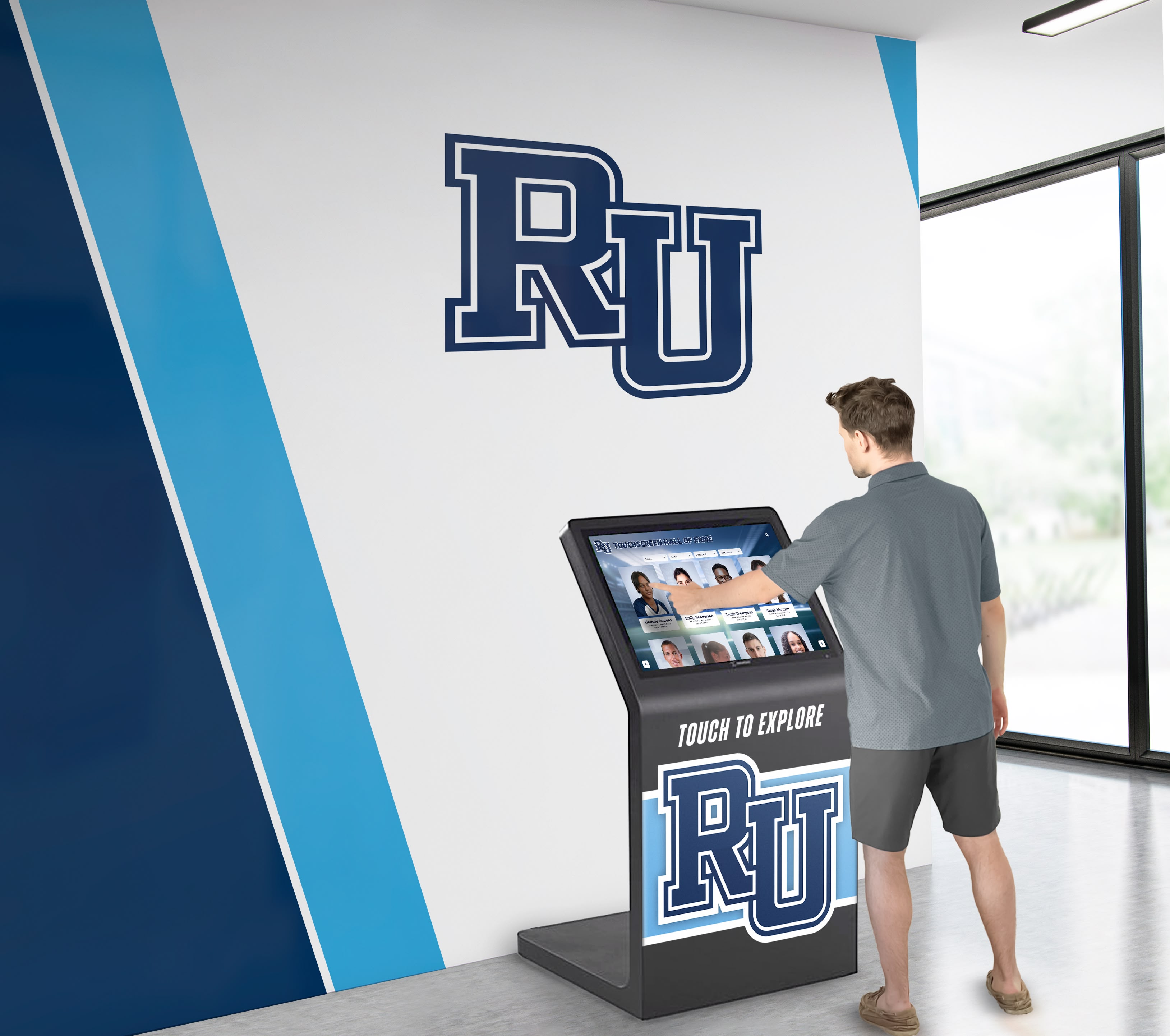
Interactive touch screen digital signage refers to display systems that respond to touch input from users, allowing them to navigate content, search databases, and explore information at their own pace. Unlike standard digital signage that plays content passively in a loop, interactive displays turn viewers into participants. In school and athletic environments, that distinction matters: a passive screen shows a photo slideshow; an interactive display lets a parent search for their child's name in the record books, or lets an alumni inductee browse their profile and year.
Solutions like Rocket Alumni Solutions are built specifically for this application—purpose-built platforms where administrators manage content through a web interface and users explore recognition content through a touch-enabled display in a hallway, lobby, or athletic facility.
How Touch Screen Technology Actually Works
Touch screen displays don’t sense input by magic. They use one of several underlying technologies, each with different performance characteristics, durability profiles, and price implications. Knowing which type you’re buying matters because it affects everything from accuracy to maintenance costs.
Projected Capacitive (PCAP) Touch
Projected capacitive touch is the same technology found in smartphones and tablets. A grid of conductive electrodes sits behind the screen glass. When a finger contacts the surface, it creates a measurable change in the electrical field at that intersection. A controller chip reads the exact coordinates and sends them to the operating system as a touch event.
PCAP panels support true multi-touch, meaning they track multiple simultaneous contact points accurately. This matters for interactive displays where two users might be exploring content side by side, or where swipe gestures are part of the designed interaction. Most commercial-grade interactive signage built for public environments today uses PCAP because of its accuracy, responsiveness, and durability under sustained use.
Infrared (IR) Touch
IR touch panels project an invisible grid of infrared light beams across the screen surface using emitters along the frame edges. When a finger—or any object—interrupts a beam, the system registers the contact point by identifying which beams were blocked.
IR touch works with any pointing object and doesn’t require direct contact with a capacitive glass surface, making it viable for large-format displays where PCAP implementation becomes expensive. Many 75-inch and larger displays use IR overlay frames added over standard panels. The tradeoffs are sensitivity to strong ambient light and slightly lower precision at close touch points compared to PCAP. For most school hallway and lobby applications, IR performs acceptably.
Resistive Touch (Legacy, Avoid for New Installations)
Older resistive panels use two conductive layers that physically press together when touched. They support only single-point touch, require firm or stylus pressure, and degrade with heavy use. Resistive touch is largely absent from modern commercial signage deployments and should not be specified for new installations.
A detailed history of touch screen technology shows how the technology evolved from early resistive systems to today’s responsive capacitive panels—useful context when a vendor tries to pass off older hardware as current.
The Five Components of a Complete Interactive Signage System
An interactive touch screen display is not a single product—it is a system. Most buyer confusion and post-purchase disappointment come from evaluating only the display panel while ignoring the other four components that determine whether the system actually works in practice.
1. Display Panel
The panel is the most visible component but only one piece of the stack. Key specifications:
Screen size: Match size to expected viewing distance. A 55-inch display works for hallway kiosks viewed from 6 to 10 feet. Lobby installations with longer sightlines may need 70-inch or larger panels.
Brightness (nits): Standard indoor environments need 400–500 nits. Installations near windows or glass doors require 700+ nits to remain readable under strong ambient light.
Commercial vs. consumer grade: Consumer televisions are rated for approximately 4–6 hours of daily operation. Commercial displays are built for 16–18 hours. Public signage installations need commercial-grade panels—this is non-negotiable.
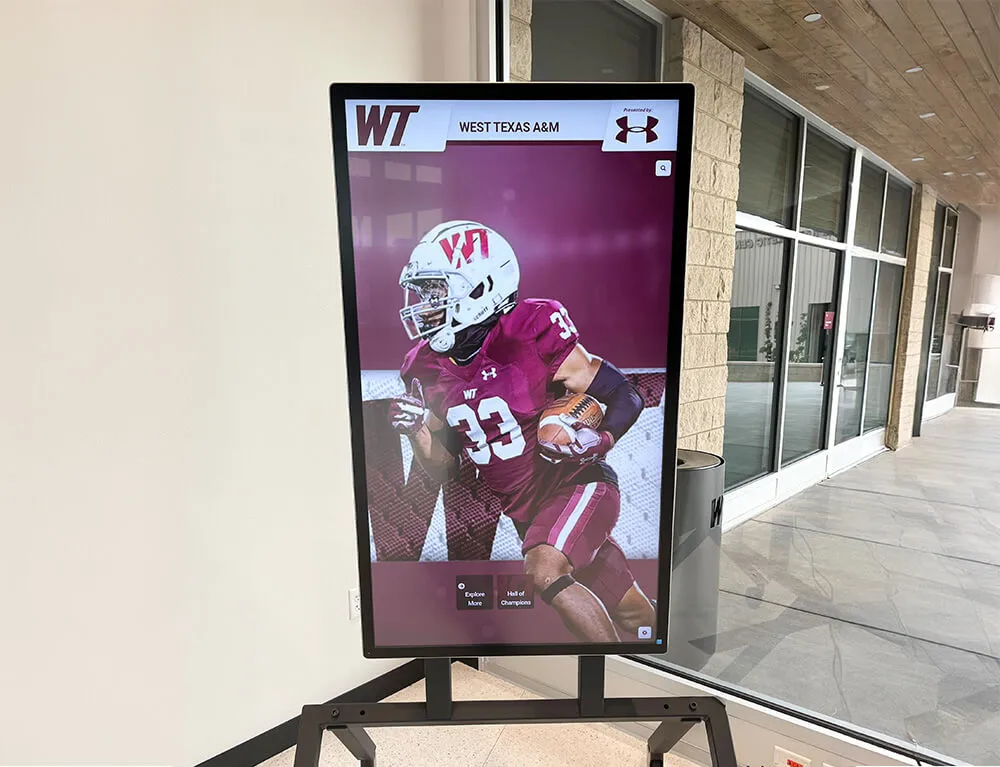
Aspect ratio: 16:9 landscape is standard for most content. Portrait-orientation displays work well for narrow-corridor kiosks or installations designed around vertical content layouts.
2. Touch Overlay or Built-In Touch Layer
Touch sensitivity comes from either a built-in touch layer within the display panel itself (most modern commercial panels include this), or an aftermarket IR touch frame added over a standard non-touch display.
Built-in PCAP touch typically provides better optical clarity, thinner profile, and more consistent touch response across the full screen surface. IR overlay frames are a cost reduction option but add physical depth to the display profile and introduce failure risk at the frame connection ports. Specify built-in touch for permanent installations when budget allows.
3. Computing Module
The display needs a computer to run the software and manage content delivery. This takes several forms:
Built-in Android SoC (System on Chip): Many commercial displays include Android processors capable of running browser-based applications and lightweight native apps. Suitable for cloud-based CMS platforms that run in a browser environment.
External mini PC: A separate Windows or Linux computer connects to the display via HDMI. Provides full desktop computing capability for software that requires it. More expensive and adds a second piece of hardware to maintain.
Dedicated media player: Purpose-built player devices receive content over the network and handle playback locally. Common in enterprise digital signage deployments where central management of many screens is required.
The computing module determines which software you can run and how updates are delivered. This is consistently the component buyers overlook—and the one that determines long-term software compatibility.
4. Software Platform
Hardware delivers the screen. Software determines what the screen shows and how users interact with it. There are two distinct software categories in interactive signage:
Content management software (CMS): Manages what content appears on the screen, schedules updates, and enables remote changes from a web browser without physical access to the device.
Interactive application software: Defines how users navigate content—search functions, touch targets, menus, filters, and data display logic.
Some platforms combine both functions. Others separate them, requiring integration work between systems. Comparing software platforms reveals how much functionality varies between vendors—what one platform includes as standard, another sells as a separate add-on.
5. Network Connectivity
Interactive signage needs a network connection for remote content updates, software patches, CMS synchronization, and analytics reporting. Options in order of reliability:
- Wired Ethernet: Most dependable for permanent installations. Eliminates wireless interference concerns in high-traffic environments.
- WiFi: Acceptable for most deployments but susceptible to congestion on busy school networks during peak hours.
- Cellular data: Fallback option for locations without convenient wired network access. Introduces ongoing data costs.
Plan the network connection as part of the installation scope, not as an afterthought. Retrofitting network runs through finished walls is expensive.
How Content Gets Created and Updated
A common misunderstanding: interactive touch screens don’t update themselves automatically without human input on the backend. Someone has to load the content, organize it, and publish it. The software platform determines how difficult that process is—and difficulty directly predicts whether the display stays current or goes stale.
Cloud-Based Content Management
Most modern interactive signage platforms deliver content through cloud-based CMS systems. An authorized administrator logs into a web dashboard, uploads photos, adds text entries, organizes records, and publishes changes. Those changes then sync to the display over the network, often within minutes, without any on-site visit.
This matters operationally. Athletic record boards that previously required days of vinyl lettering work—or contracted sign shop visits—can now be updated in minutes through a browser. A coach who just confirmed a new school record in the 400-meter dash can enter it before the athlete even leaves the track.
Auto-Updating vs. Static Content
Interactive signage content falls into two categories:
Auto-updating content: Changes automatically based on data or schedules. Auto-ranking leaderboards that reorder as new entries are added fall into this category. A digital record board built for athletic programs should automatically rerank all-time leaders when a new performance is entered—no manual sorting required.
Static content: Manually curated content that stays consistent until an administrator changes it. Hall of fame profiles, donor recognition walls, and school history archives are typically static, updated on an as-needed basis.
Effective deployments combine both: a stable foundation of curated recognition content alongside live-updating elements—current season standings, upcoming schedules, record watch notifications—that give visitors a reason to check the display regularly.
Kiosk Mode and Security
Public-facing interactive displays require kiosk lockdown. Without it, any user who knows to swipe up, press the home button, or right-click gains access to the underlying operating system—an obvious problem in school environments where minors have unsupervised access.
Fully locked-down kiosk configurations restrict user interaction to the intended application. Features to verify before purchase:
- No access to the home screen, browser address bar, OS settings, or application launcher from the touch interface
- Automatic return to the home screen after a defined idle period (typically 30–60 seconds)
- Remote management access restricted to authorized accounts only
- Physical port covers or locks preventing unauthorized USB-based access
Kiosk lockdown is not optional for any public school installation. Some software platforms include this as standard; others charge for it separately or require specific hardware configurations to achieve it. Clarify this before purchase.
ADA Compliance and Accessibility Requirements
Interactive touch screen signage in school facilities must meet ADA physical access requirements and, increasingly, WCAG 2.2 AA digital accessibility standards.
Physical ADA requirements include:
- Touch surface height: Accessible controls must be reachable from a seated position. Forward-reach controls may not exceed 48 inches above the finished floor; side-reach controls are limited to 54 inches.
- Approach clearances: Freestanding kiosks need 30 × 48 inch clear floor space for forward approach, or 60 × 60 inches for parallel approach.
- Knee clearance: Freestanding kiosks designed for seated users need minimum 27-inch knee clearance height at the front edge.
Digital accessibility requirements include:
- Sufficient color contrast ratios (minimum 4.5:1 for normal text, 3:1 for large text under WCAG 2.2 AA)
- Touch targets sized appropriately for users with limited dexterity (minimum 44 × 44 CSS pixels)
- Screen reader compatibility for users with visual impairments where applicable
- Controls for reducing or disabling animation for users sensitive to motion
WCAG 2.2 AA compliance for digital recognition displays is increasingly treated as a baseline requirement rather than an optional feature, particularly for K-12 and government-funded installations. Ask vendors for their WCAG conformance statement and test screen reader support yourself during the demo phase.
Interactive Touch Screen Use Cases in Schools and Athletic Facilities
Schools deploy interactive signage for purposes that go well beyond digital bulletin boards. The following use cases represent the most common—and highest-value—applications in K-12 and higher education settings.
Athletic Record Boards
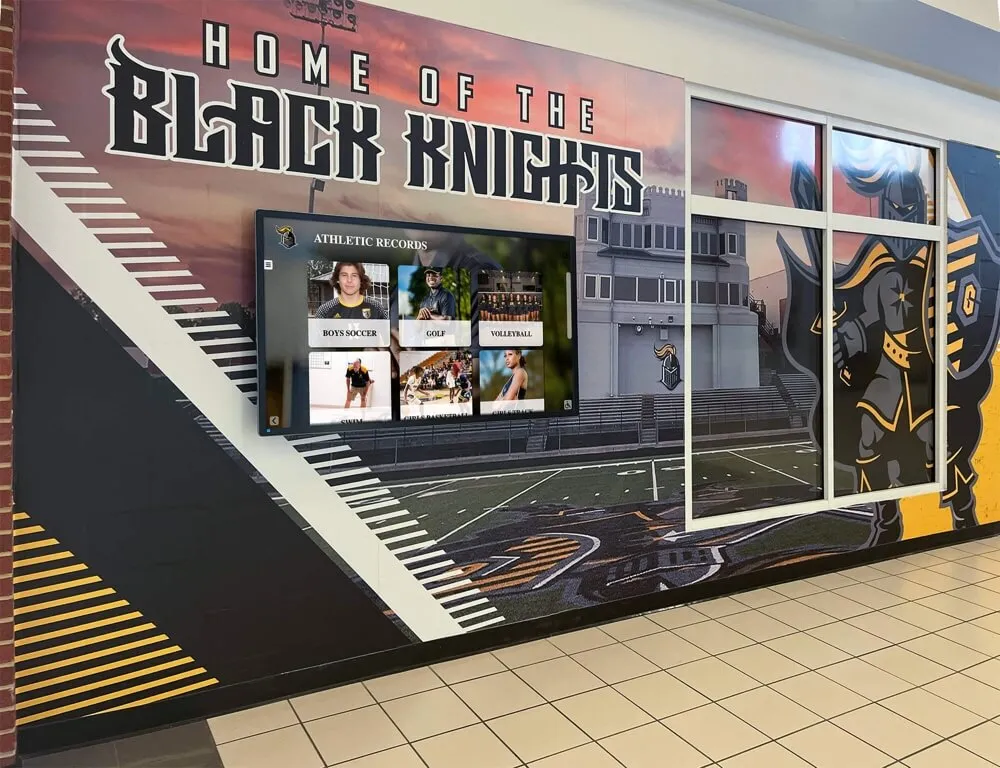
Digital record boards display all-time records across sports with automatic reranking when new records are set. An athletic director enters a new 100-meter dash time through the web dashboard; the board immediately reorders the all-time leaderboard, showing the new record holder in the correct position without any design or layout work.
A well-configured athletic record board covers:
- Multiple sports from a single platform, without separate systems per sport
- Multiple record categories per sport (single-game, season, career, position-specific)
- Unlimited record holders without space constraints—every name in program history remains visible
- Historical records dating back to the school’s founding, not just recent seasons
Touchscreen-based digital record boards handle this use case far better than generic digital signage platforms because the underlying data model is built around ranked performance data, not content blocks.
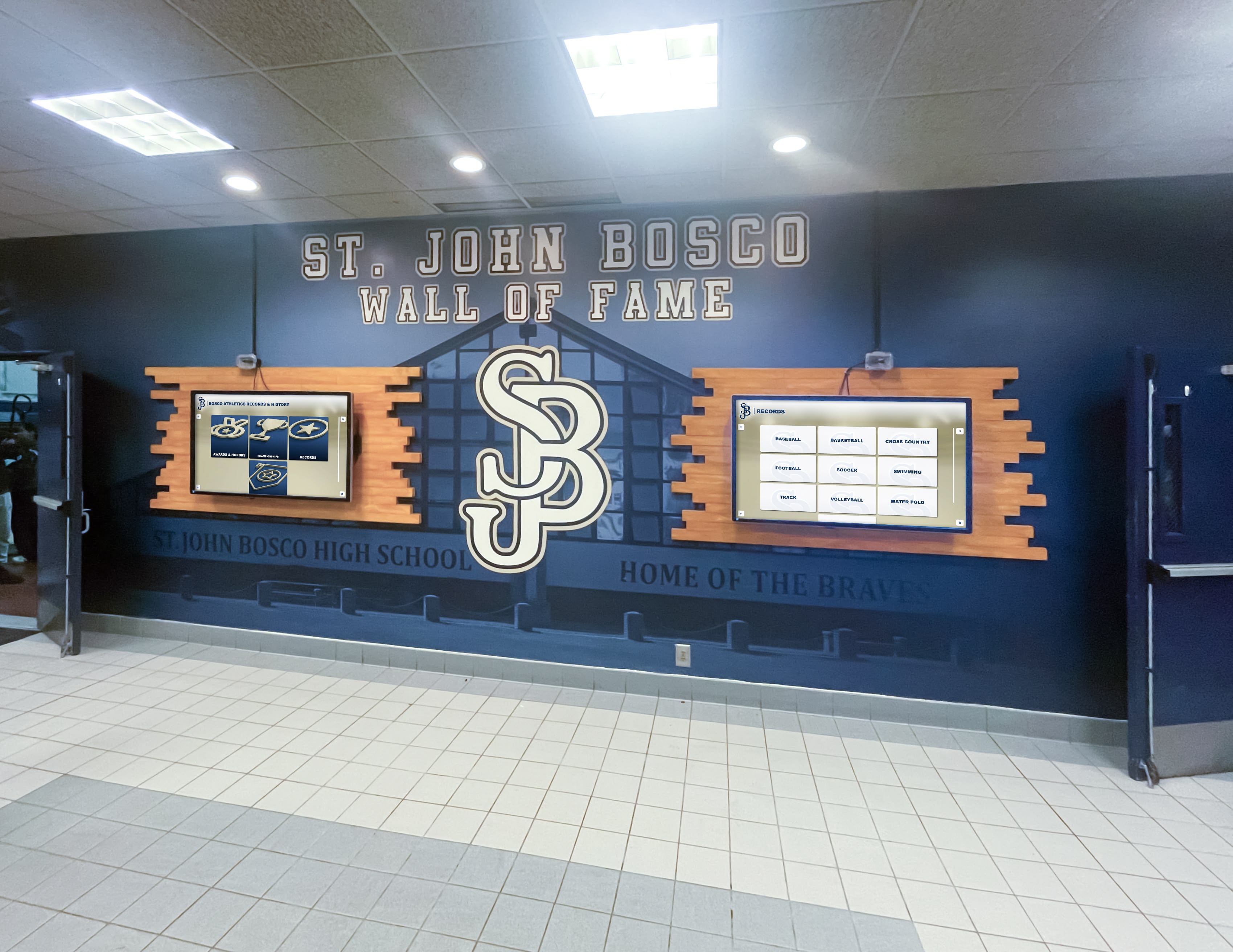
Interactive Hall of Fame and Wall of Fame Displays
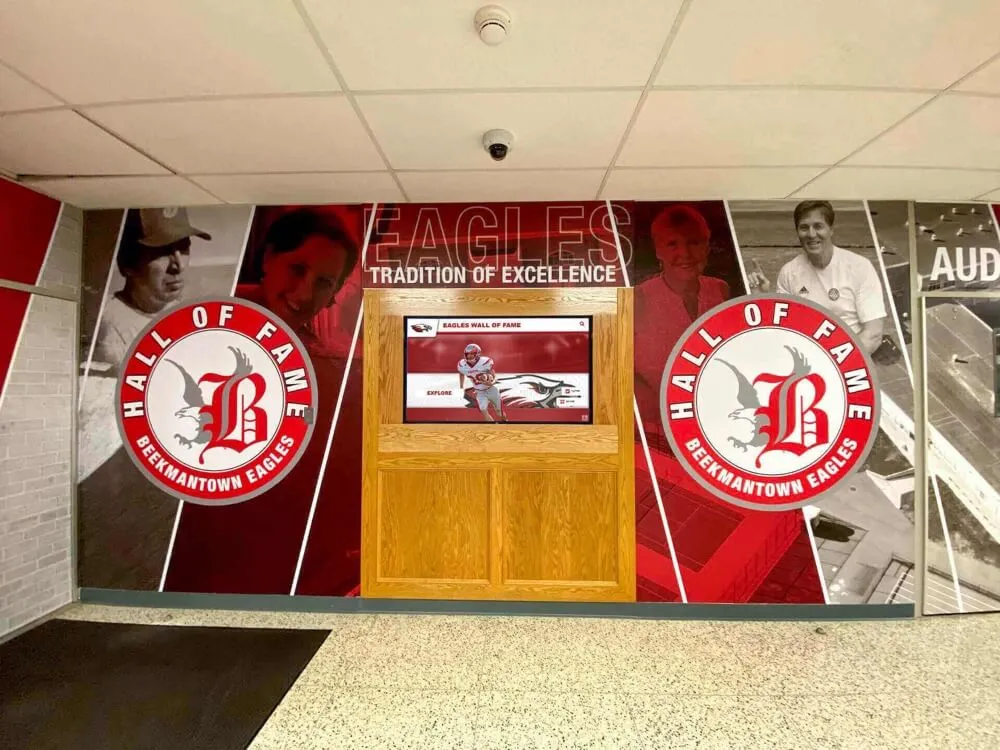
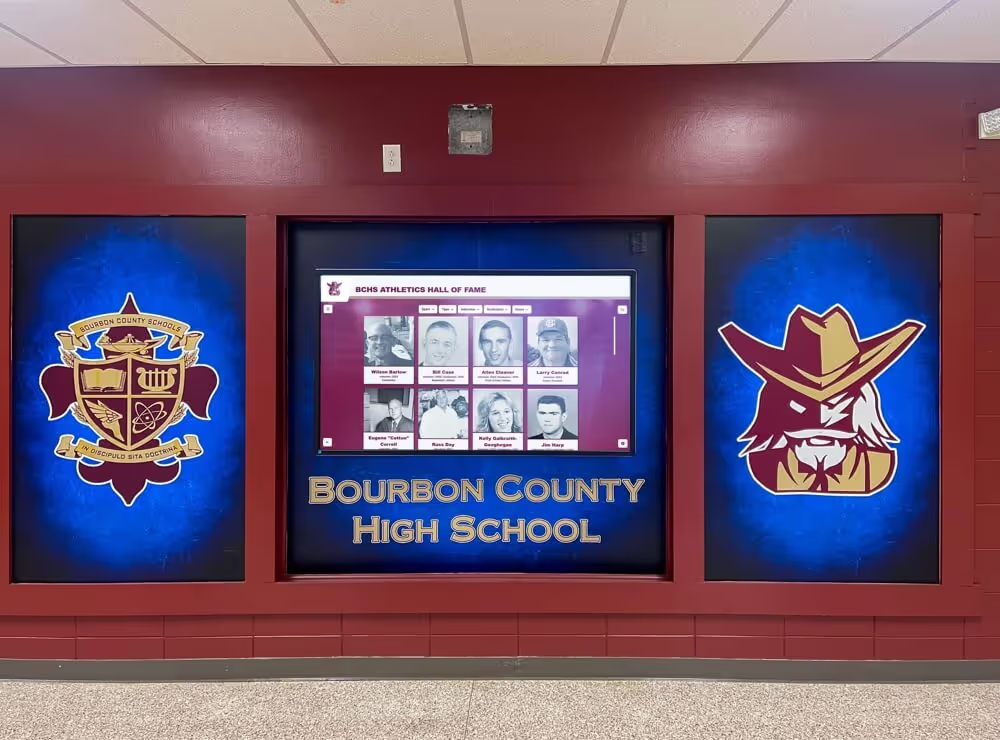
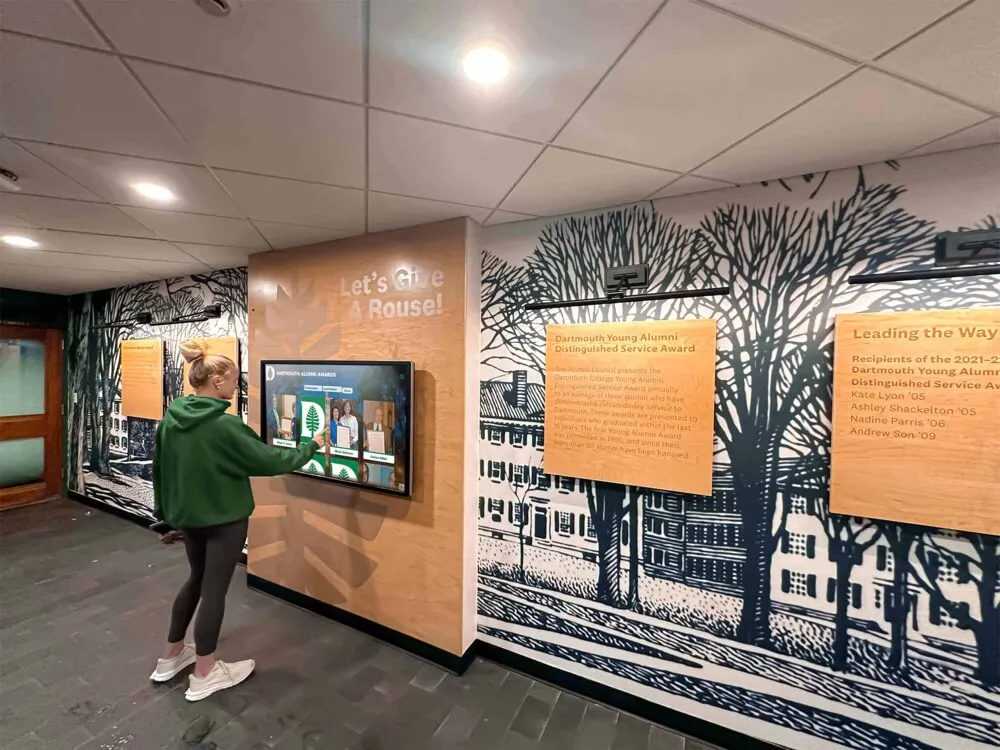
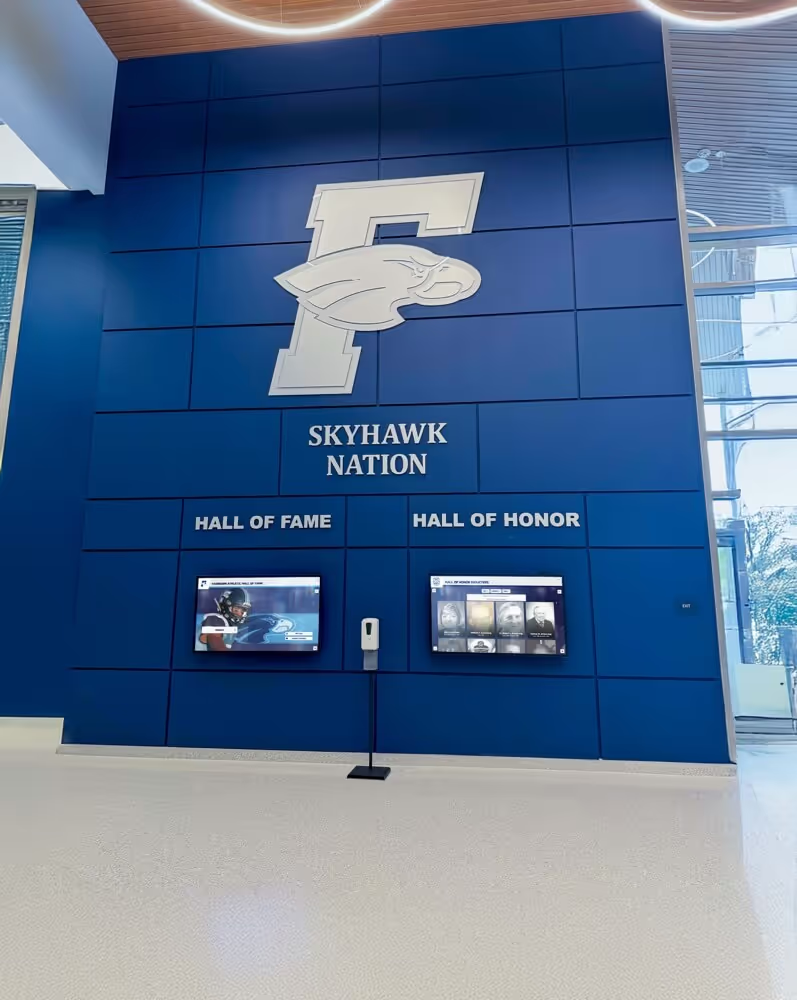
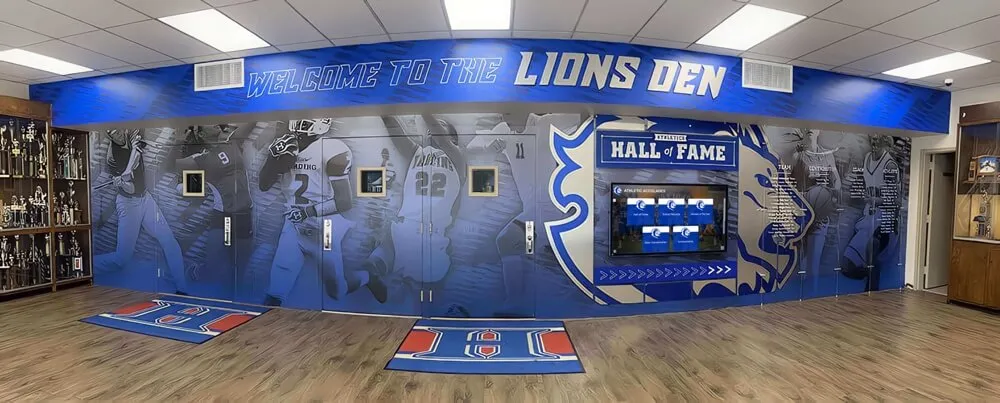
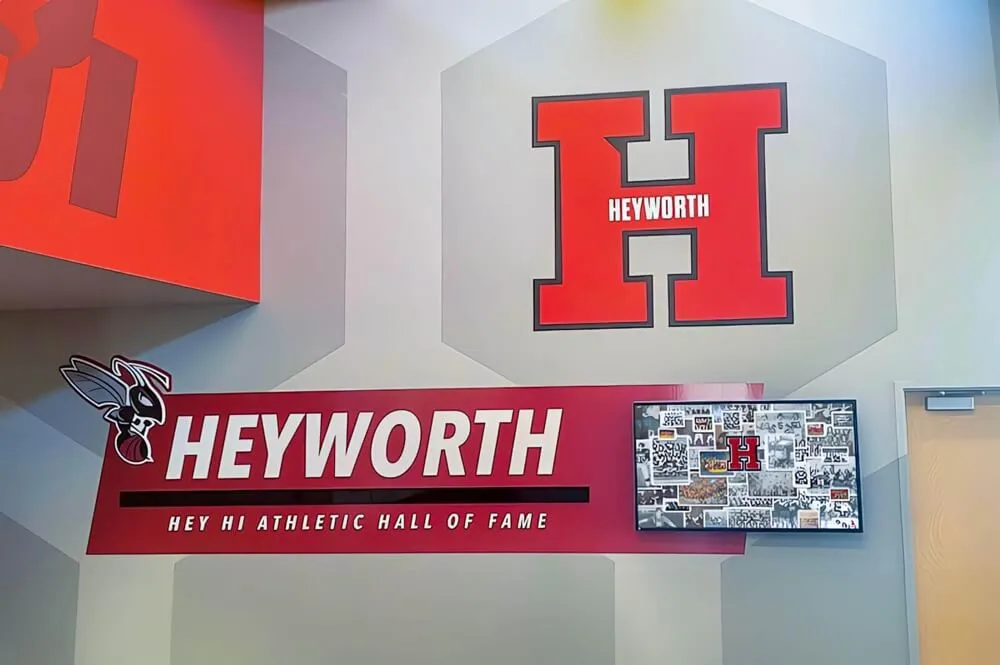
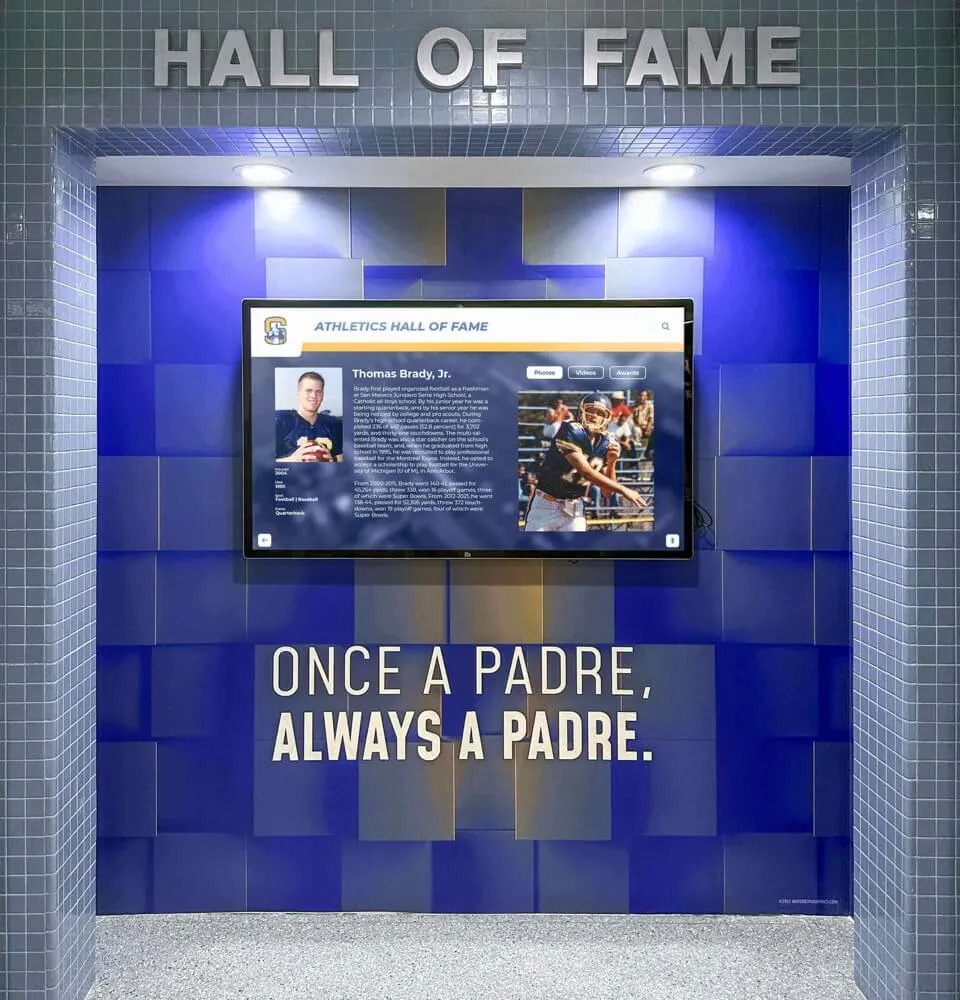
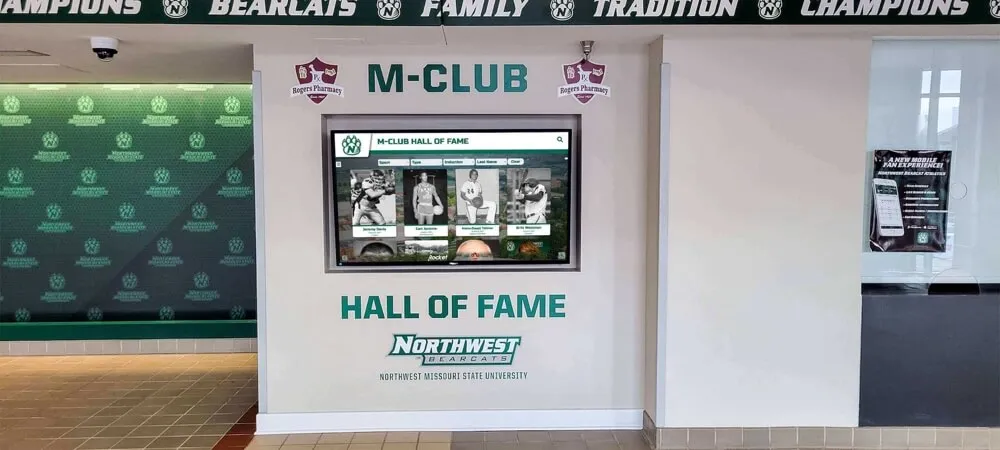
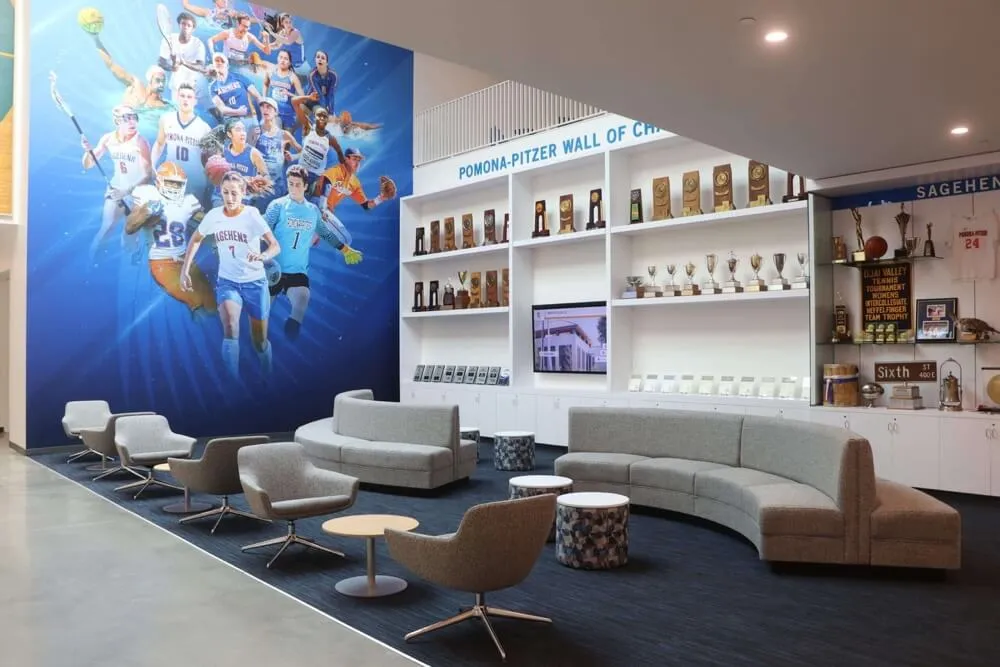
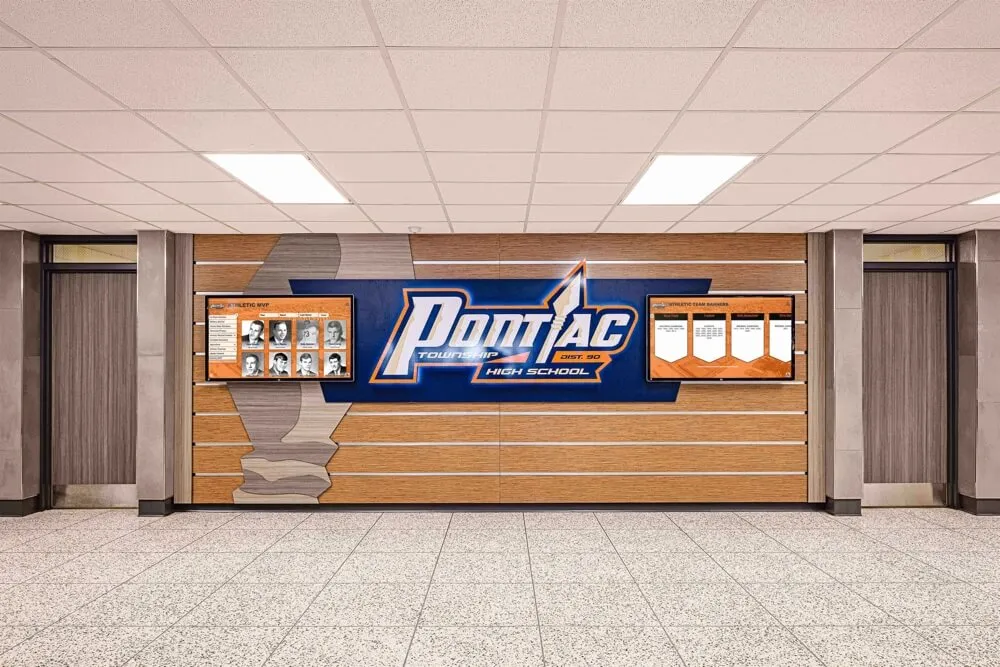
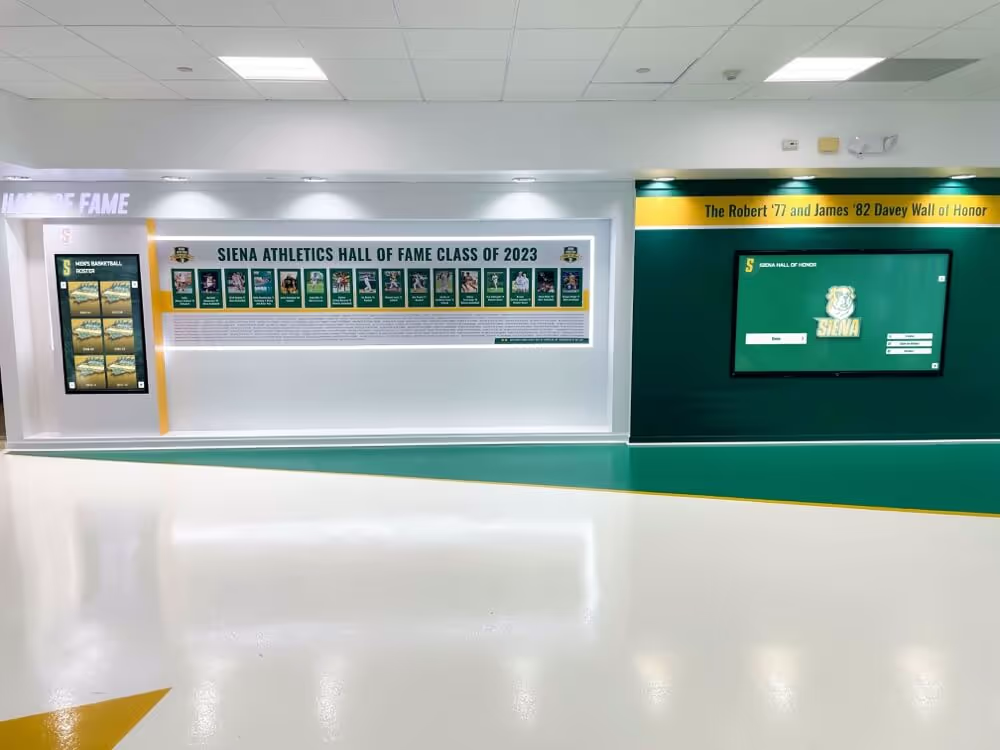
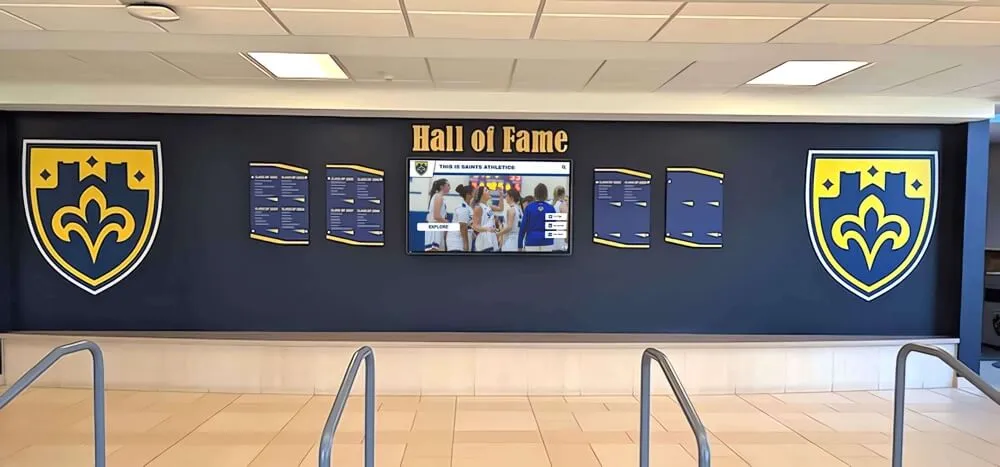
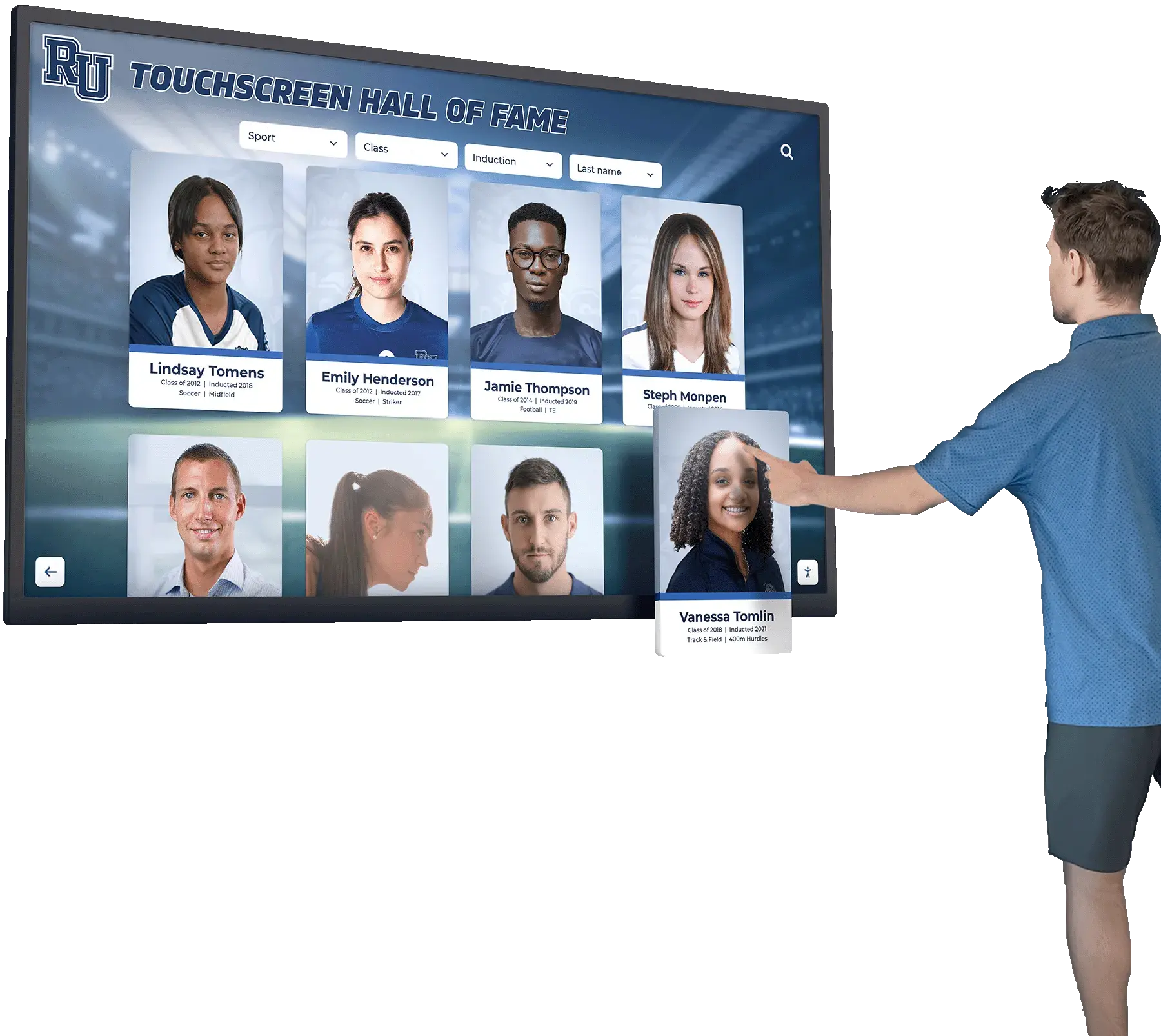
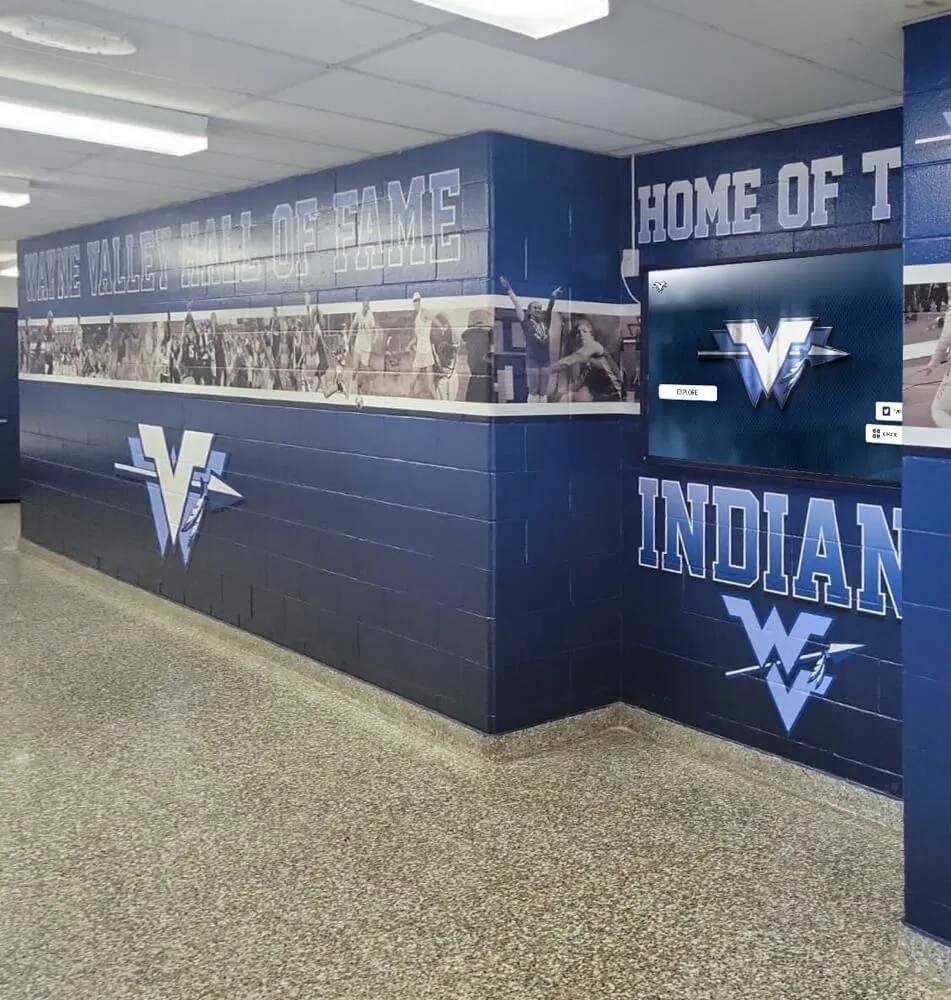
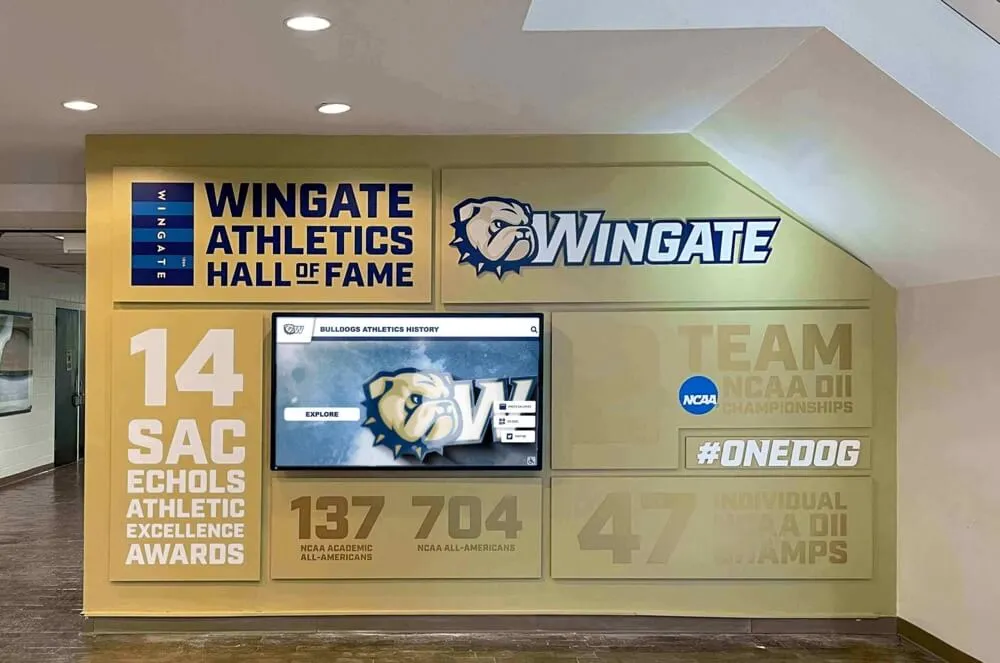

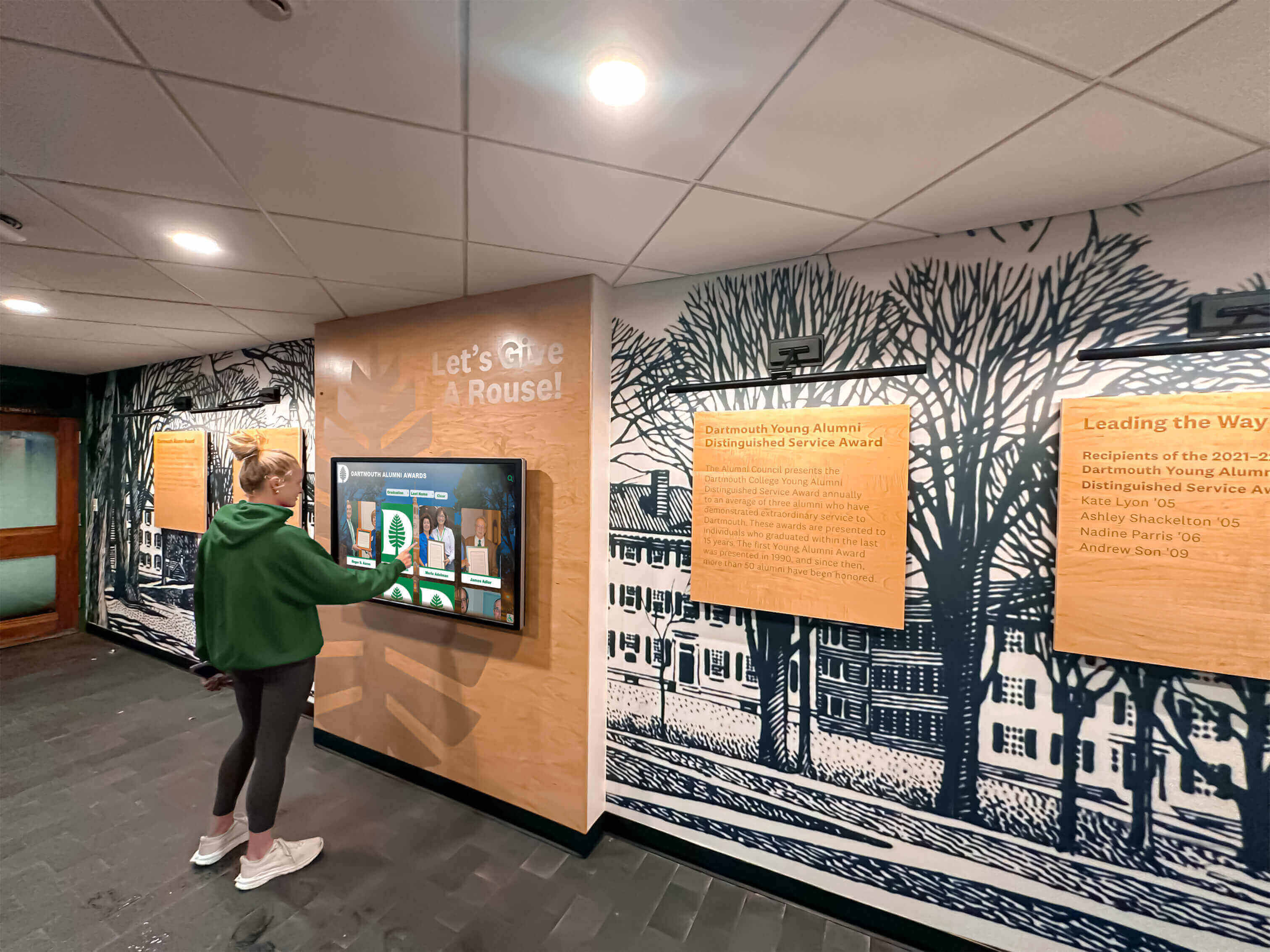
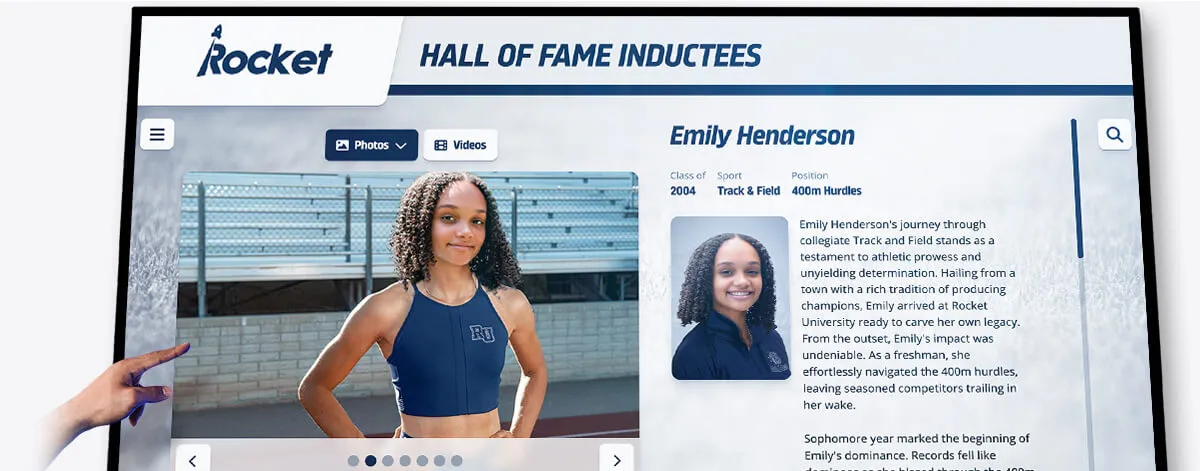
Interactive touchscreen hall of fame walls allow visitors to browse inductees by year, sport, or category; view profile photos and achievement narratives; and surface related entries through search. A physical plaque wall or trophy case cannot offer this depth—and every inductee occupies the same priority level in a physical installation, which means older honorees fade into background as new plaques are added.
Interactive format changes this: any user can surface any profile from any era through search, regardless of when that person was inducted. The alumni of 1978 and the athlete from last spring receive the same access.
Building Directories and Wayfinding
Touch-enabled building directories let visitors search for staff members, departments, or rooms rather than scanning a printed list. Maps can show walking paths from the current location to the searched destination. These displays are common in school main offices, multi-building campuses, and large athletic complexes where first-time visitors would otherwise need to ask for directions.
Donor Recognition Walls
Interactive donor displays allow schools to recognize contributors regardless of gift tier, with searchable listings, tribute text, and giving histories—all without the space constraints of physical plaques. New donors can be added through a web interface within hours of a gift being processed, without any fabrication cost or wait time. Digital donor wall systems have replaced traditional physical recognition walls at many institutions because the economics are fundamentally different at scale.
What to Look for When Buying Interactive Touch Screen Signage
School-specific interactive touchscreen buying guides outline the full evaluation framework. These criteria determine whether a purchase becomes a long-term asset or a frustrating liability.
Hardware Durability
Public-environment touch screens take significantly more wear than consumer electronics. Specify:
- Tempered glass with oleophobic coating to resist fingerprint buildup and surface contamination
- Commercial-grade panel rated for 16+ hours of daily operation with a multi-year commercial warranty
- Operating temperature range suitable for your installation environment—lobbies with exterior doors experience significant temperature fluctuations in cold climates
- Vandal-resistant mounting hardware appropriate for public access areas
Software Completeness
Evaluate the software against your actual use case. Questions to ask during a demo:
- Does kiosk lockdown come standard, or require a separate purchase?
- Who manages content day to day—does it require IT involvement, or can a coach or activity coordinator make updates independently?
- How are software updates delivered—automatically over the network, or through on-site visits?
- What analytics does the platform report—page views, session duration, most-searched names, peak traffic times?
- What happens to content and data if you switch providers?
A thorough interactive touchscreen software guide breaks down the features that separate purpose-built recognition platforms from generic digital signage tools adapted for recognition use cases.
Support Model
Hardware will eventually fail. Software will need updates. Clarify before purchase:
- What is the warranty period for the display panel and touch components?
- Is service on-site, or is the unit shipped for repair?
- What is the expected response time for a software outage?
- Who do you contact when the system goes down on a Saturday before a game?
Vendors who cannot clearly answer these questions before a sale will not be easier to work with after one.
Total Cost of Ownership
The display purchase price is only one line item. Add:
- Annual software platform licensing fees
- Installation labor and site preparation (conduit, electrical, mounting hardware)
- Network infrastructure upgrades if needed
- Initial content development—digitizing historical records, sourcing photos, building profiles
- Ongoing support contracts or extended warranties
School digital signage buying guidance covers budget planning in detail for K-12 and higher education environments, including multi-year cost modeling.
Evaluating Software Platforms: What Separates Good from Adequate
The software platform is where most deployments succeed or fail operationally. A display that works correctly on day one but requires IT involvement for every content update will be neglected within a semester. Administrators who find updates difficult stop making them; stale content defeats the purpose of the display.
Characteristics of platforms that sustain long-term adoption:
Non-technical administration: Staff who manage athletic records, honor rolls, and recognition programs are not software engineers. If adding a new record entry requires anything more complicated than filling out a form and clicking “publish,” expect low adoption rates and outdated content.
Pre-built templates for common use cases: Starting from templates designed for record boards, hall of fame profiles, or donor recognition removes design work from administrators and produces consistent, appropriate results.
Scheduled publishing: Content changes can be staged and scheduled to go live at a specific date and time—useful for announcing hall of fame inductees at induction ceremonies without requiring someone to be at a computer at the moment of announcement.
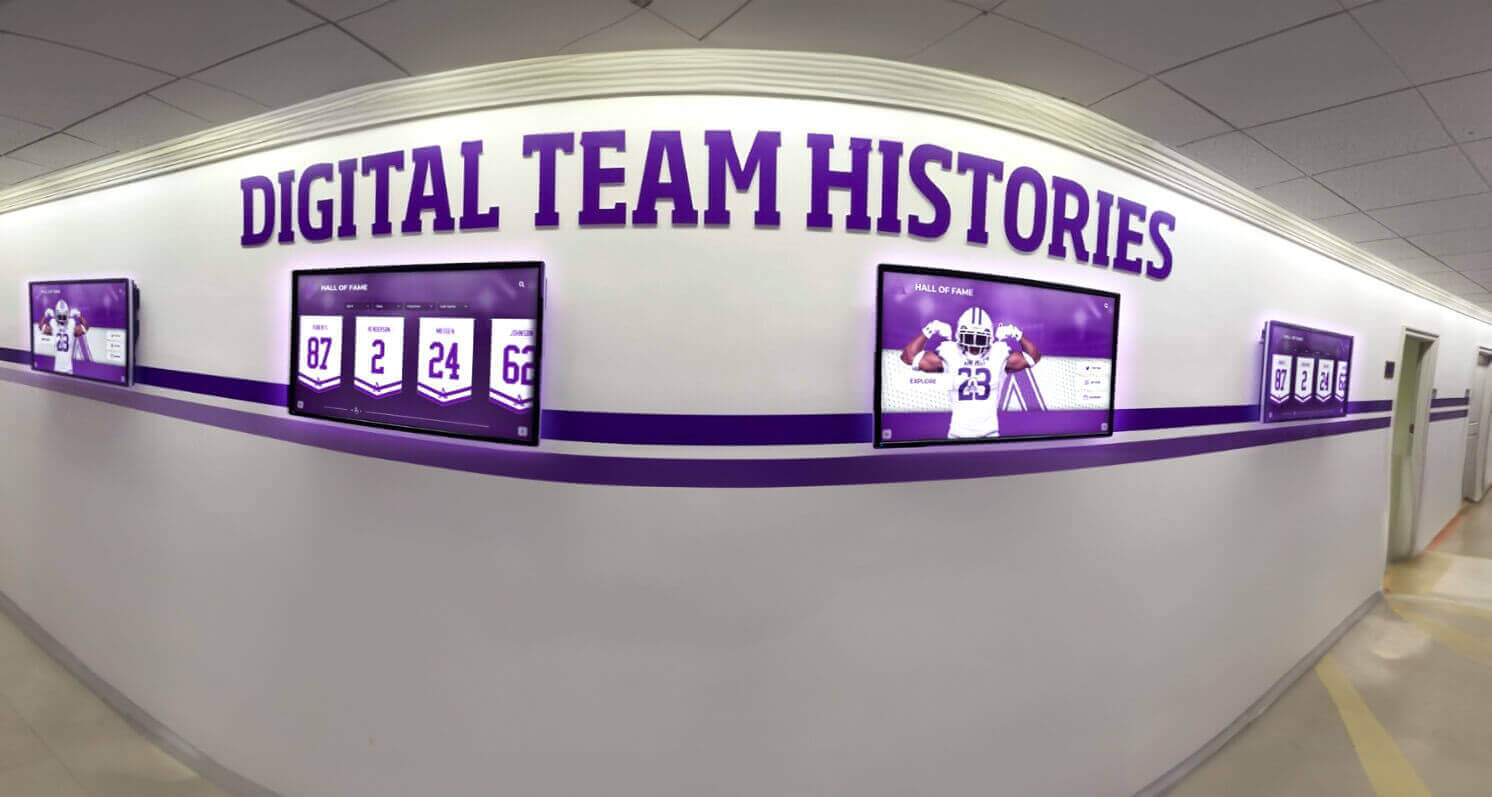
Multi-display management: Organizations with displays in multiple locations—main lobby, gymnasium, training room—need a single dashboard to manage all of them without separate logins or disconnected content libraries.
Analytics reporting: Understanding which content gets the most engagement, when traffic peaks occur, and which searches return no results guides content strategy and helps administrators prioritize updates.
Comprehensive kiosk software comparisons help evaluate platforms against these operational criteria rather than just display feature lists.
For school athletic and recognition applications, Rocket Alumni Solutions provides a CMS built specifically for coaches, athletic directors, and activity coordinators—not IT professionals. Templates for digital record boards, wall of fame profiles, and donor recognition are included standard. Updates require no programming knowledge, and kiosk lockdown is built into the platform.
Common Mistakes When Purchasing Interactive Signage
Buying consumer hardware for a commercial application: Consumer televisions with capacitive overlays added may appear cost-effective. They are not built for 16-hour operation cycles, are not warranted for commercial use, and often cannot run the software required for locked-down kiosk applications. Apparent cost savings disappear when panels fail in the first year.
Evaluating displays without evaluating software: Display hardware from reputable commercial manufacturers performs comparably within the same size and specification tier. What differentiates the deployment experience is the software. Spend more time evaluating the content management workflow than the display specifications.
Ignoring installation complexity: Mounting a 70-inch display on a concrete gymnasium wall requires a structural assessment, conduit for power and data runs, and professional installation. Site preparation costs frequently equal or exceed the display cost. Budget labor and infrastructure from the beginning.
Launching without a content plan: A display goes live with whatever content it contains on launch day. Without a plan—who will add data, from which sources, on what schedule—displays frequently launch sparsely populated and remain that way. Assign content ownership before hardware is ordered, not after installation.
Frequently Asked Questions
What is the difference between interactive digital signage and standard digital signage?
Standard digital signage displays content passively—viewers watch but cannot interact with the screen. Interactive digital signage adds touch input capability, letting users navigate menus, search databases, and explore content at their own direction. The same content that appears on a passive loop for 30 seconds becomes explorable for five minutes when users can tap into it.
What touch screen technology works best for public school environments?
Projected capacitive (PCAP) touch offers the best combination of responsiveness, durability, and multi-touch capability for most public installations. IR overlay frames are a viable option for very large format displays (75-inch and above) or constrained budgets, with acceptable performance for navigation and search interactions.
Do interactive touch screens require internet access to function?
Internet access is required for cloud-based content management—pushing updates, synchronizing databases, and receiving software patches. Some systems support offline operation with locally cached content, but remote management capability is unavailable without network access, and content updates require a physical connection.
What size display works best for a school hallway installation?
Hallway installations typically perform well with 55–65 inch displays when the primary viewing distance is 6–10 feet. Lobby installations with larger open spaces and longer sightlines benefit from 70–75 inch displays. Athletic facilities where the display is viewed from across a gymnasium may require 86-inch panels.
How long should a commercial touch screen display last?
Commercial-grade panels are rated for 50,000–100,000 hours of operation. In practice, most institutions plan for 5–7 year hardware refresh cycles. Software platforms typically continue operating on replacement hardware beyond the original panel’s operational life.
What does kiosk lockdown software actually prevent?
Kiosk lockdown prevents users from exiting the intended application to access the underlying operating system, browser navigation, application launcher, or device settings. It also enforces automatic return to the home screen after idle timeout, preventing displays from remaining on a specific user’s search result indefinitely.
Schools and athletic programs ready to move beyond static record boards and trophy cases can see how Rocket Alumni Solutions approaches interactive touch screen recognition—purpose-built for K-12 and higher education environments, with kiosk lockdown, cloud-based content management, and ADA-compliant display configurations included.
Book a demo to see the platform running on an actual installation.