



Table of Contents
- What is a Fullscreen Kiosk App?
- Browser-Based Kiosk Solutions
- Setting Up Fullscreen Kiosk Mode
- Security and Lockdown Features
- Touch Optimization for Kiosk Websites
- Popular Kiosk App Solutions
- Best Practices for Kiosk Deployment
What is a Fullscreen Kiosk App for Touchscreen Websites?
A fullscreen kiosk app transforms a standard web browser into a locked-down, fullscreen interface designed for public touchscreen displays, digital signage, and interactive kiosks. These solutions enable organizations to deploy web-based content on touchscreen hardware while preventing users from accessing the underlying operating system, browser controls, or unauthorized websites.

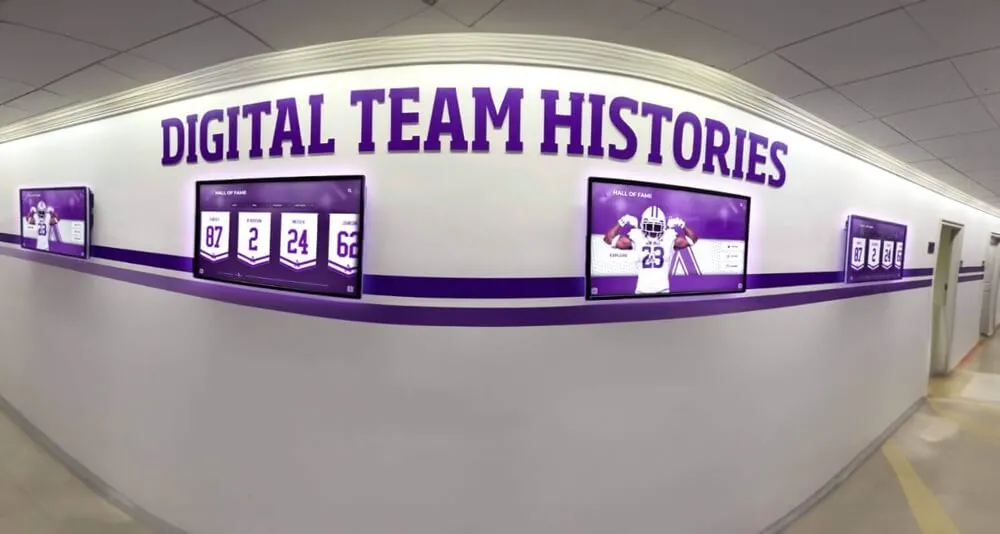
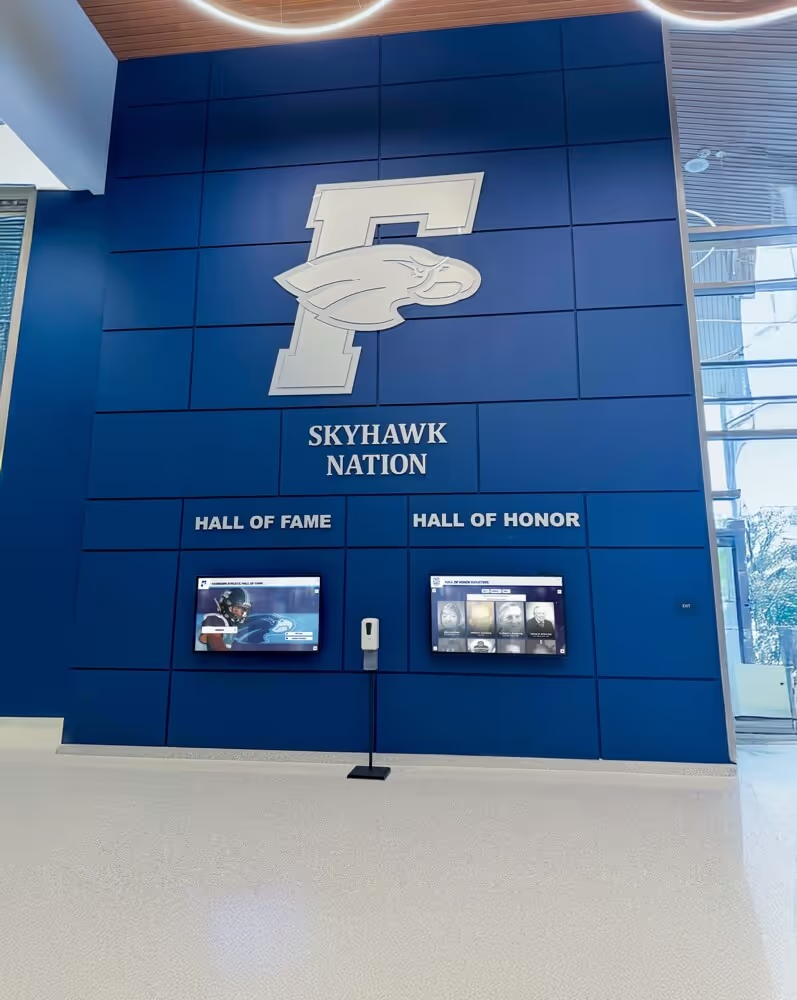
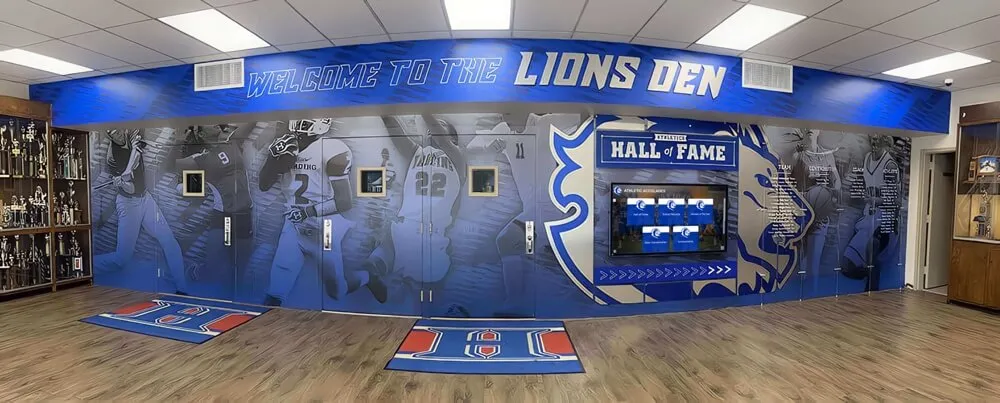
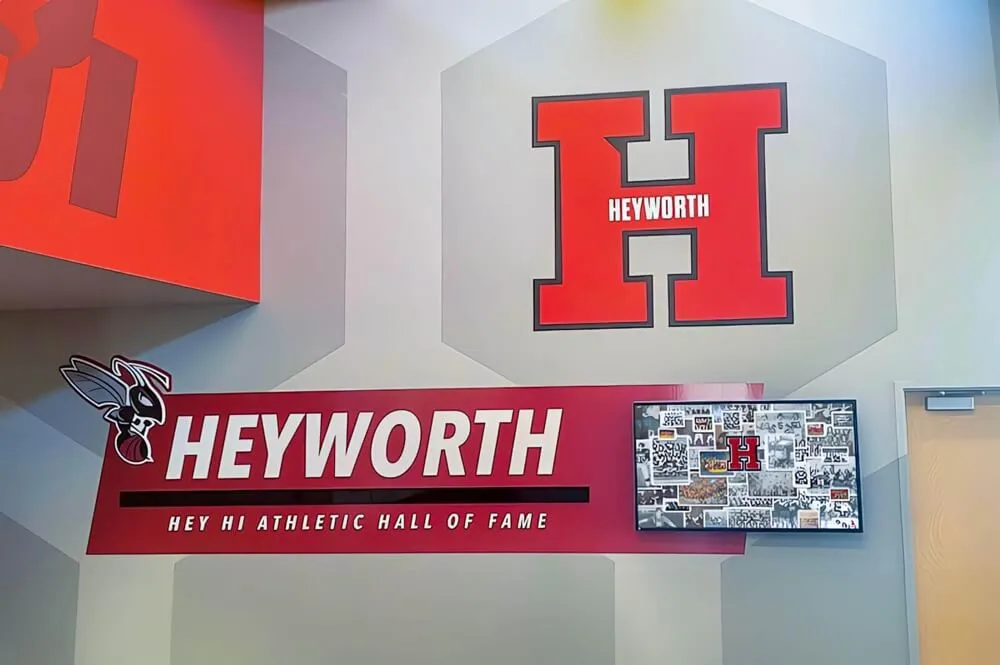
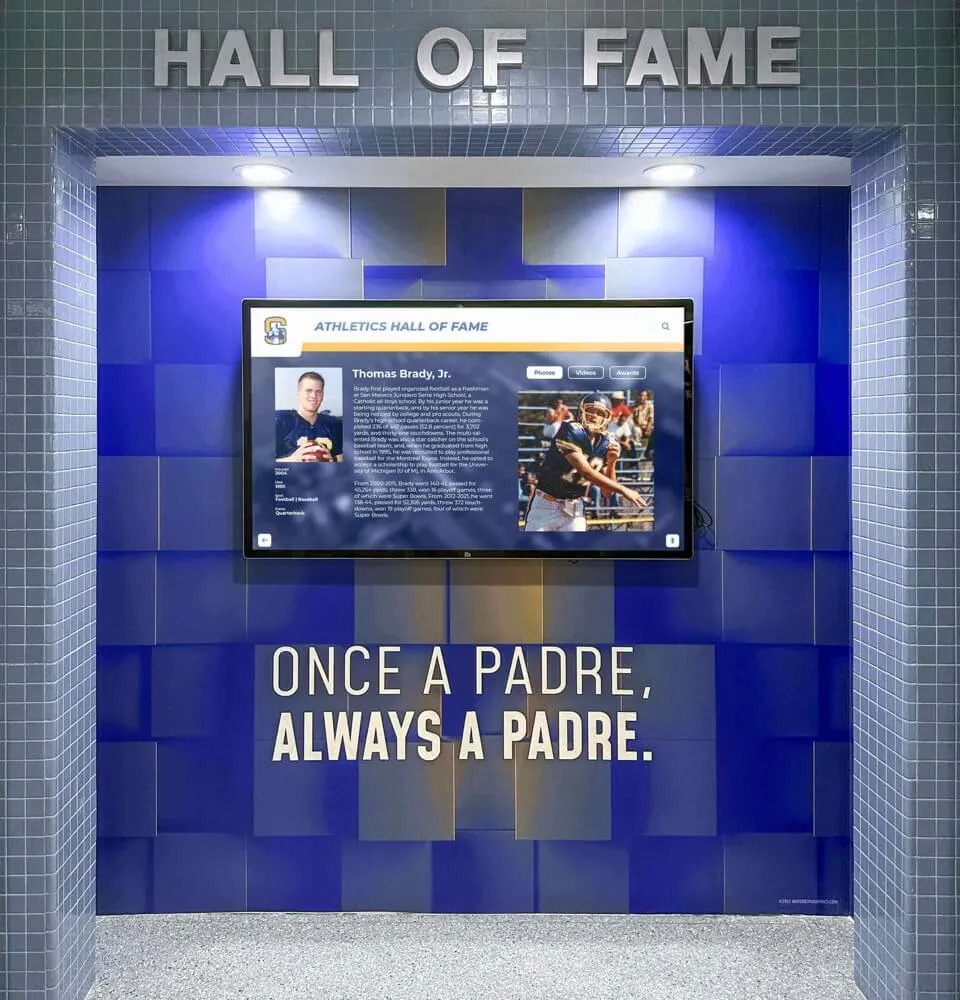
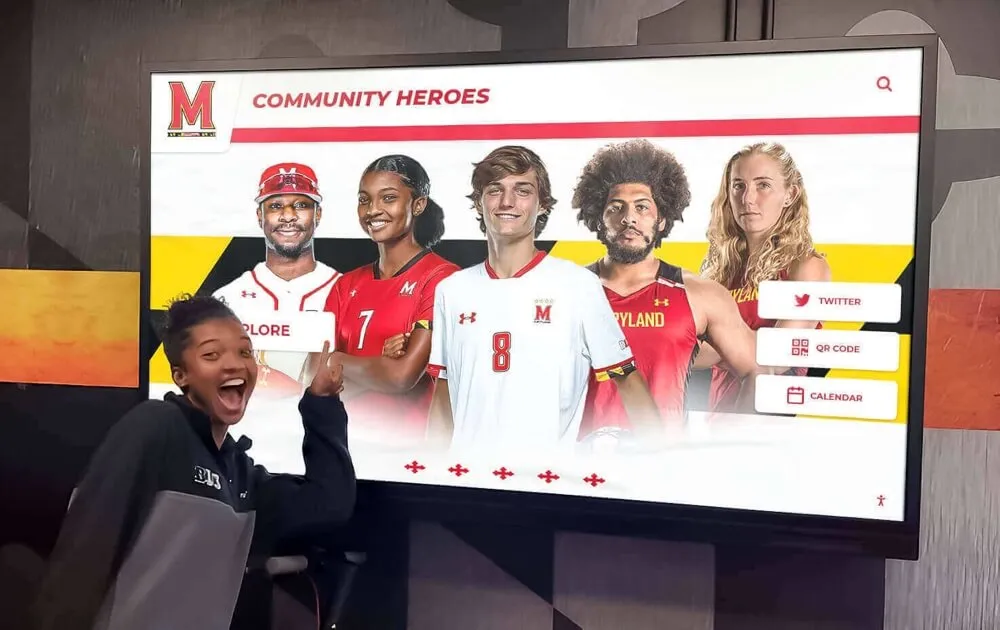
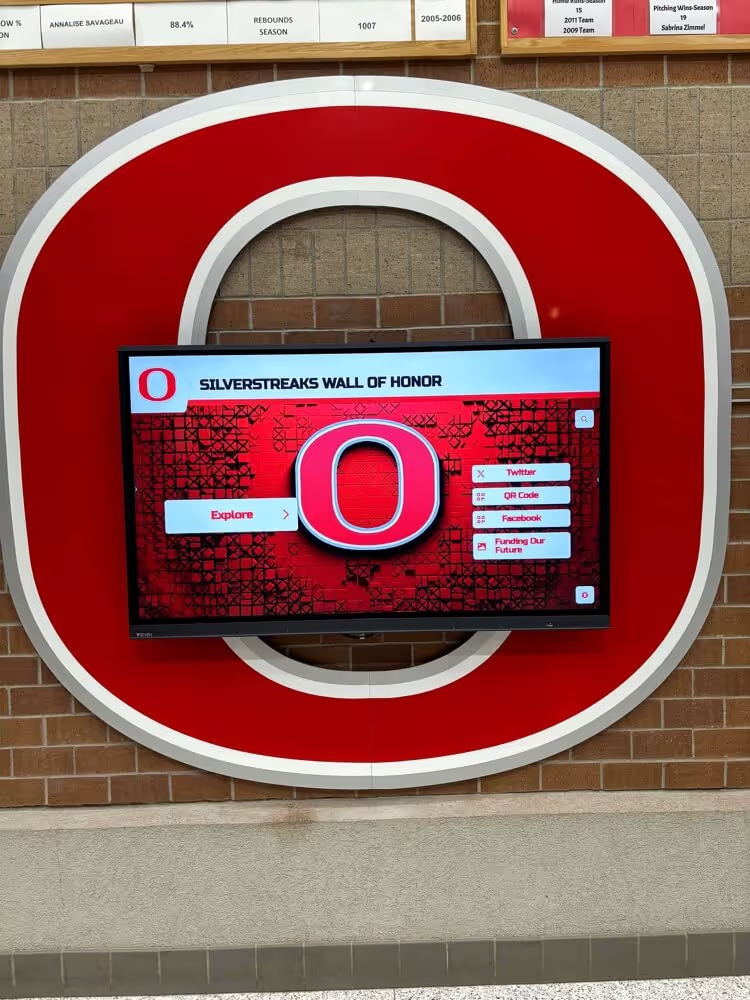
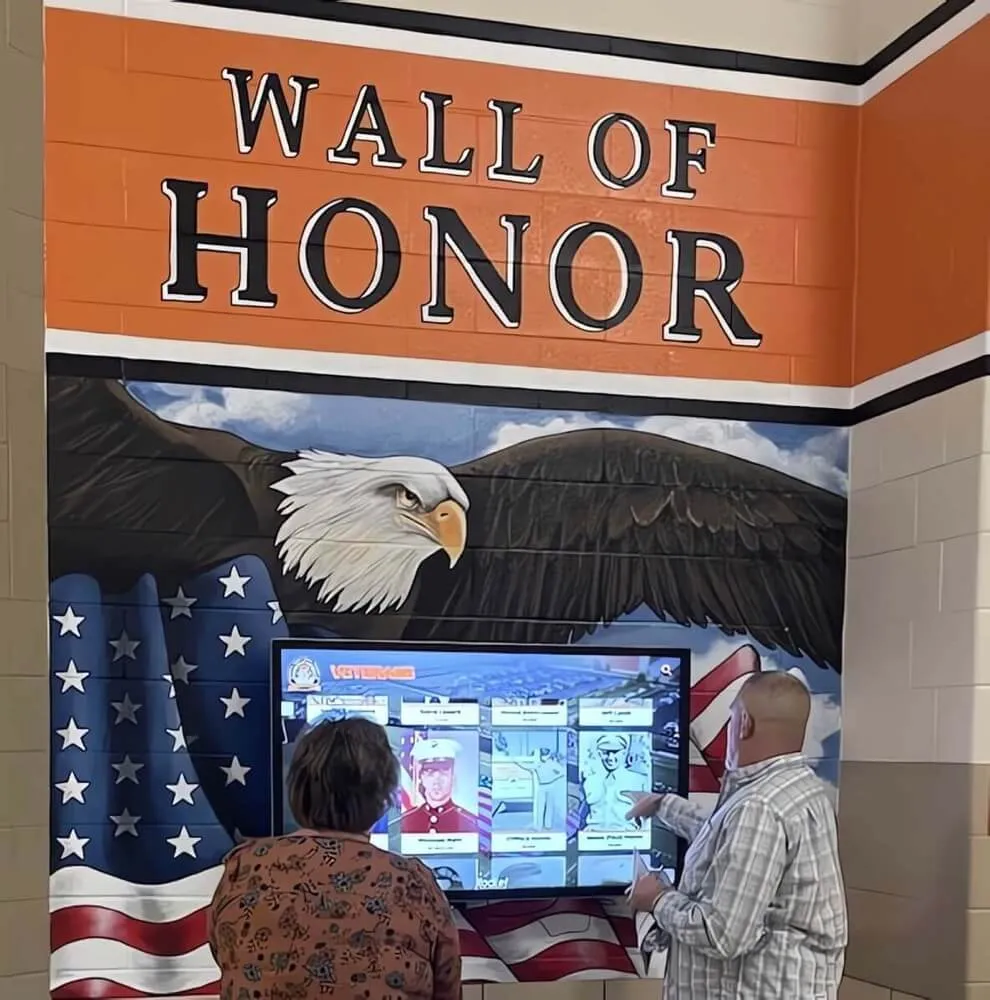
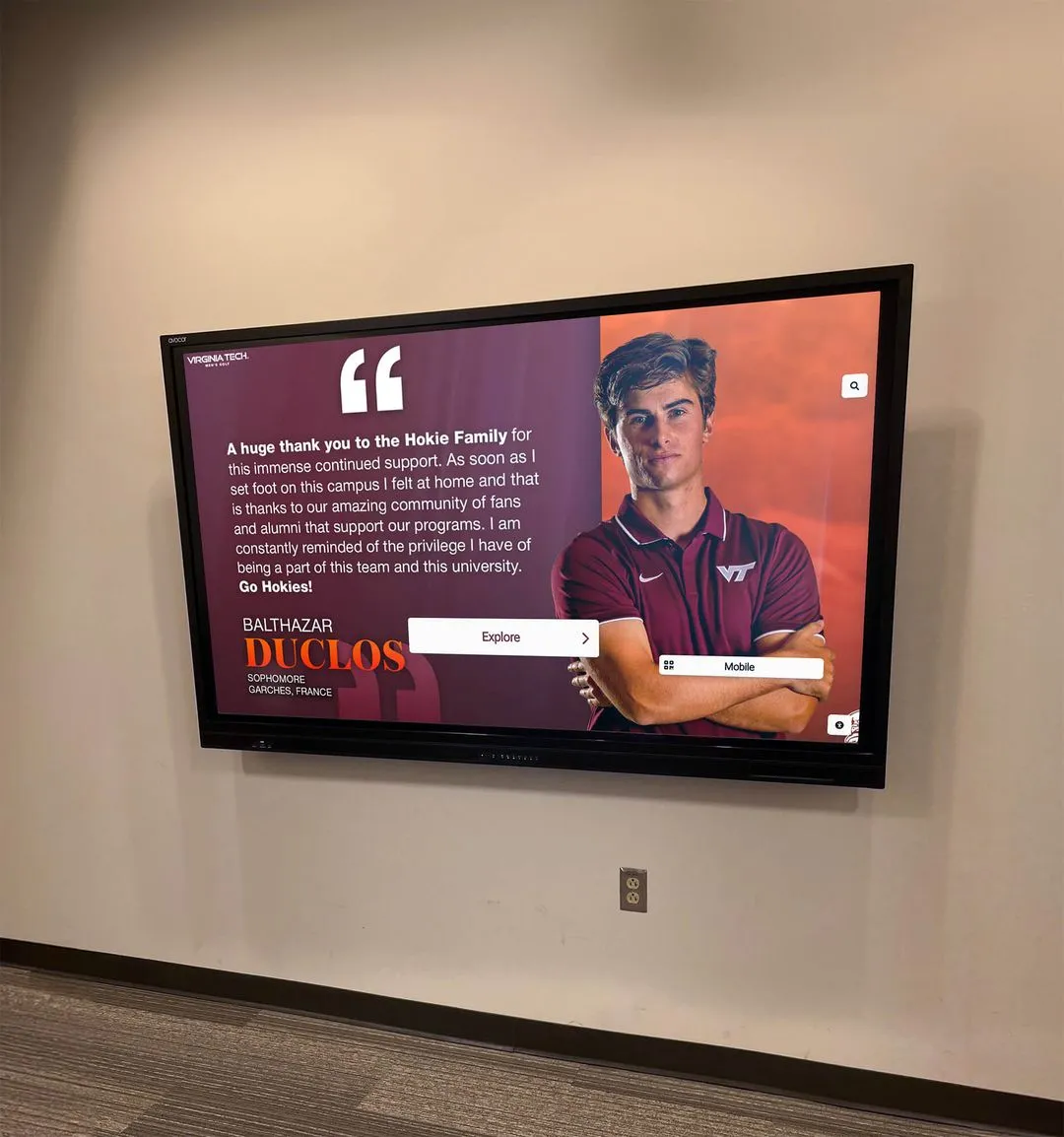
Fullscreen kiosk apps provide secure, browser-based interactive experiences for public touchscreen displays
For schools, athletic programs, museums, and organizations deploying interactive displays, browser-based kiosk solutions offer significant advantages over traditional native applications. Web-based approaches eliminate platform-specific development, simplify content updates, and enable consistent experiences across diverse hardware configurations.
The Rise of Web-Based Kiosk Solutions
Traditional kiosk deployments required custom native applications built specifically for Windows, Android, or other operating systems. Modern fullscreen kiosk apps leverage web technologies to deliver comparable functionality with greater flexibility and reduced development costs.
- 🌐Platform Independence
Web-based kiosk apps run identically on Windows, Android, Linux, and Chrome OS devices, eliminating the need for platform-specific development and reducing maintenance complexity.
- 📱Instant Updates
Content changes deploy immediately without requiring app updates, version management, or user intervention—particularly valuable for time-sensitive information like athletic records and achievements.
- 💰Cost Efficiency
Single codebase serves all devices and platforms, dramatically reducing development costs compared to building separate native applications for each operating system.
- 🔧Simplified Maintenance
Web-based solutions eliminate app store approvals, device-specific testing, and complex update distribution processes that complicate traditional kiosk software.
Common Use Cases for Fullscreen Kiosk Apps
Organizations across industries deploy fullscreen kiosk apps for diverse interactive touchscreen applications:
Educational Institutions
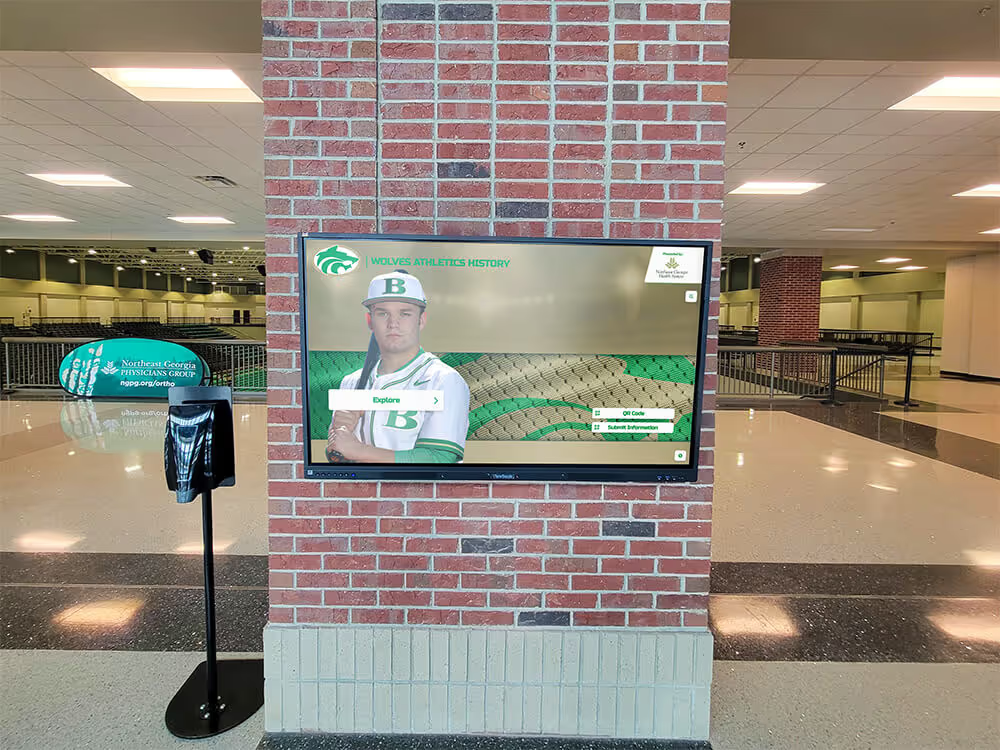
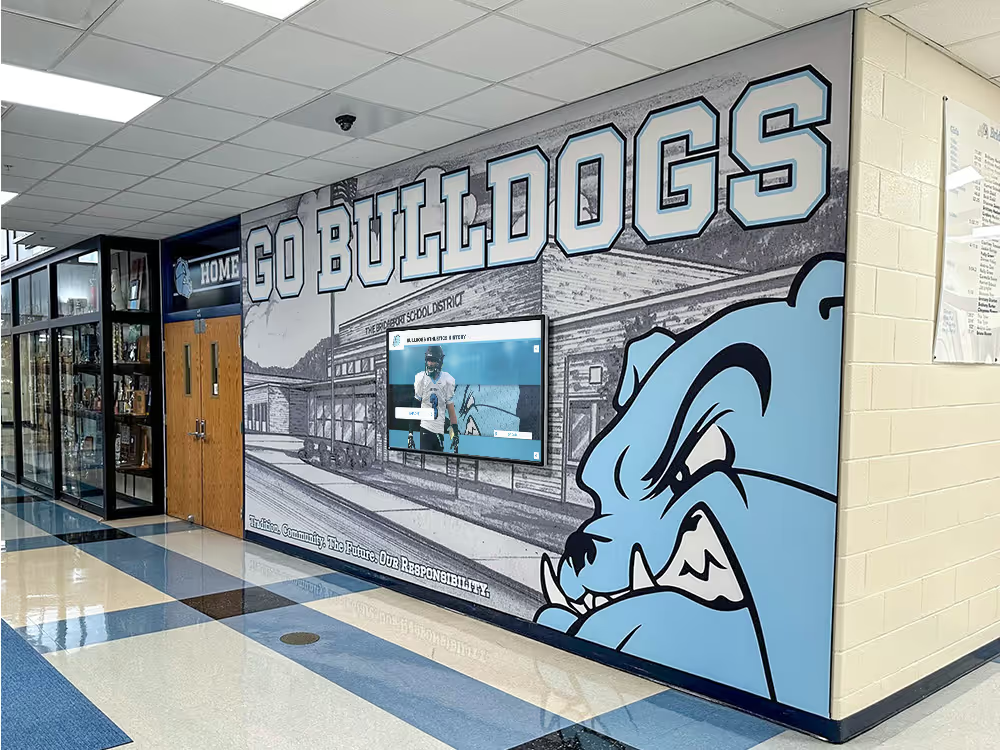
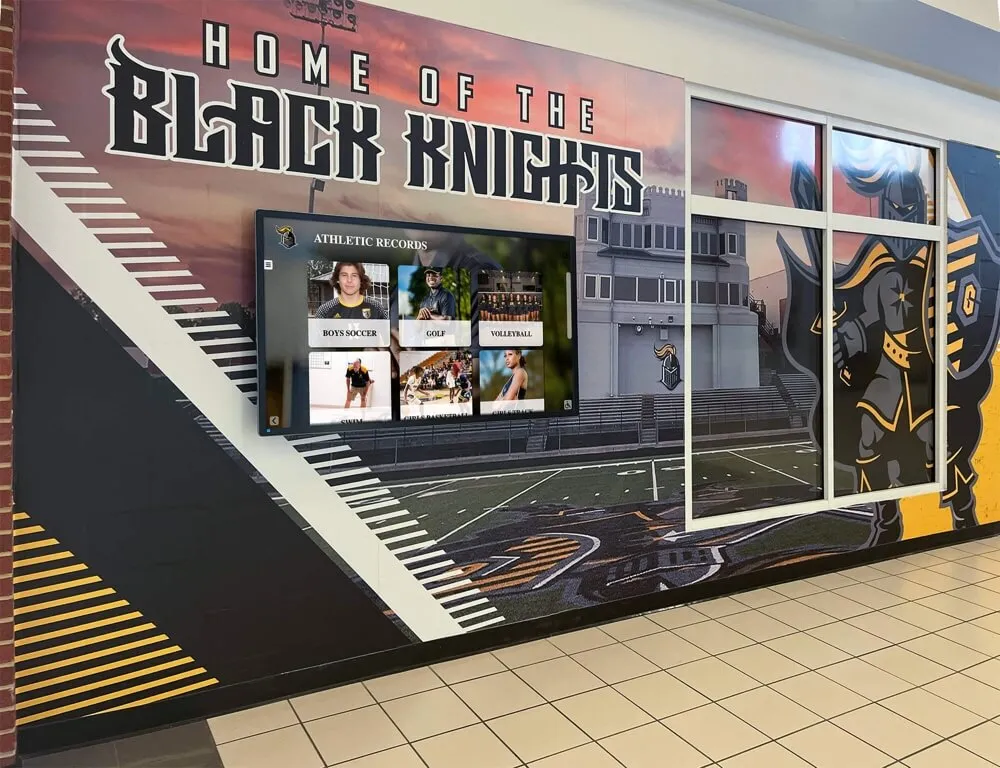
- Athletic Record Boards: Interactive displays showcasing team records, championship history, and athlete achievements
- Campus Wayfinding: Interactive maps and building directories for visitors and new students
- Event Information: Real-time schedules, room availability, and campus event calendars
- Digital Directories: Staff and faculty directories with searchable contact information
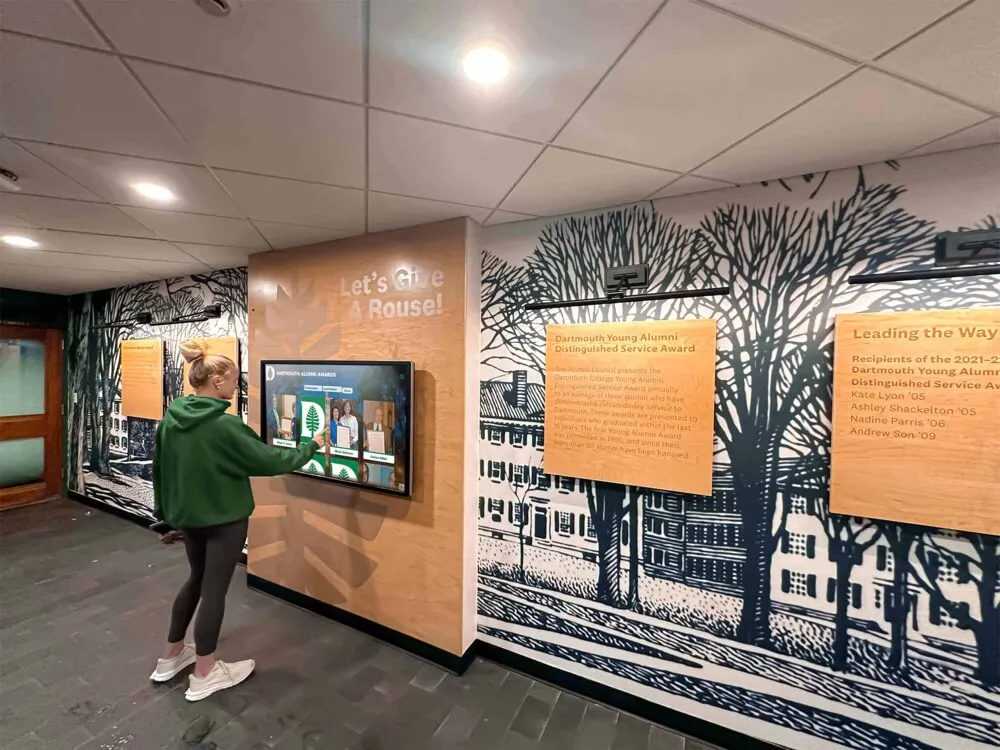
- Alumni Recognition: Interactive halls of fame celebrating notable graduates and donors
Retail and Hospitality
- Product Catalogs: Interactive browsing of inventory with detailed specifications and pricing
- Self-Service Ordering: Food service and retail point-of-sale systems on touchscreen kiosks
- Customer Check-In: Visitor registration and queue management for service industries
- Promotional Displays: Engaging product demonstrations and marketing content
- Loyalty Programs: Account access and rewards redemption at dedicated stations
Solutions like Rocket Alumni Solutions specialize in web-based interactive displays for recognition and engagement, demonstrating how modern web technologies deliver professional kiosk experiences without traditional native app complexity.
Key Requirements for Kiosk-Ready Websites
Effective fullscreen kiosk apps require websites specifically designed for public touchscreen interaction:
- Touch-Optimized Interface Large tap targets, swipe gestures, and touch-friendly navigation designed for fingers rather than mouse pointers
- Auto-Timeout and Reset Automatic return to home screen after inactivity period prevents confusion for subsequent users
- No Authentication Required Public kiosk content accessible without login credentials or password entry
- Responsive Design Content adapts to various screen sizes and orientations common in kiosk deployments
- Minimal External Links Controlled navigation preventing users from leaving intended content areas
- Offline Capability Progressive web app features enabling continued operation during network interruptions
Browser-Based Kiosk Solutions and Approaches
Browser-based kiosk solutions come in several forms, from simple fullscreen modes in standard browsers to specialized kiosk browser applications designed specifically for public touchscreen deployments.
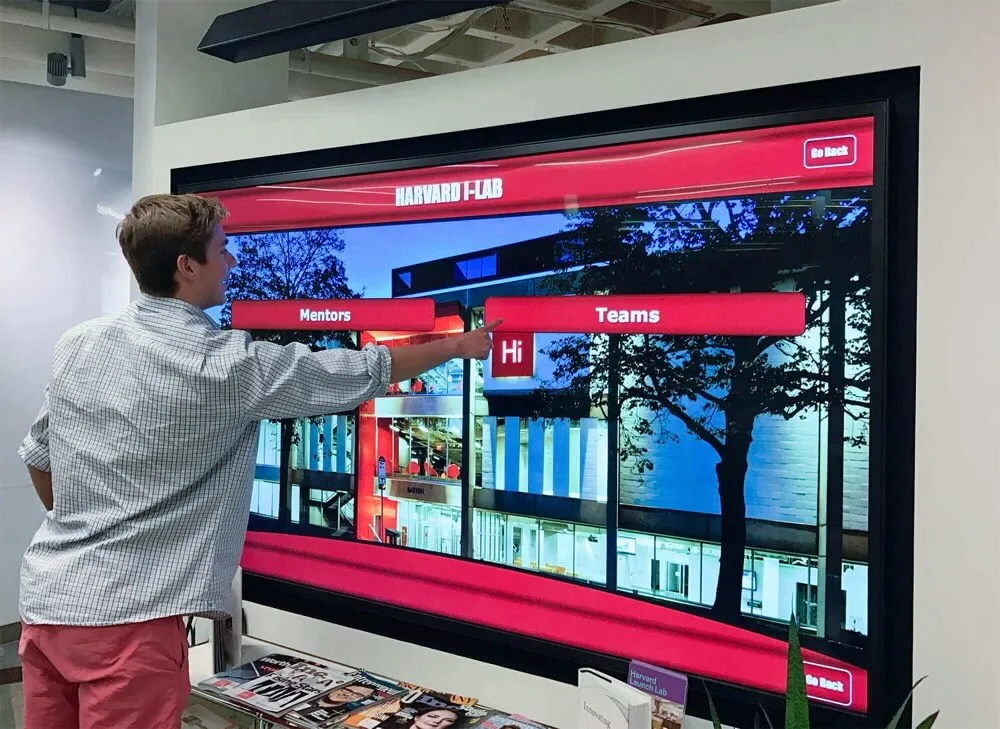
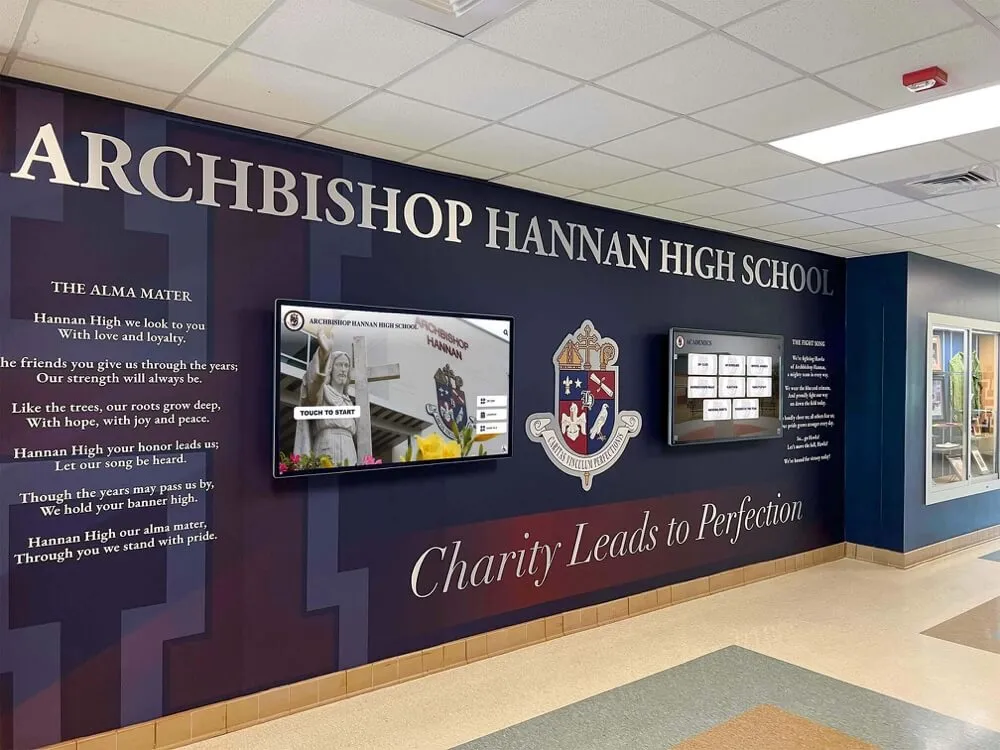
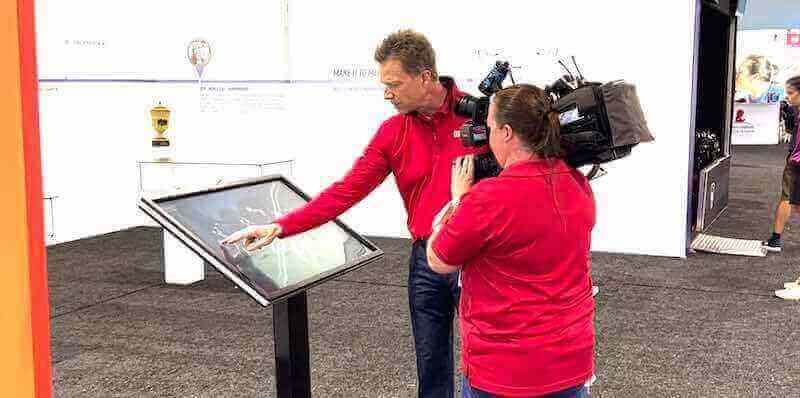
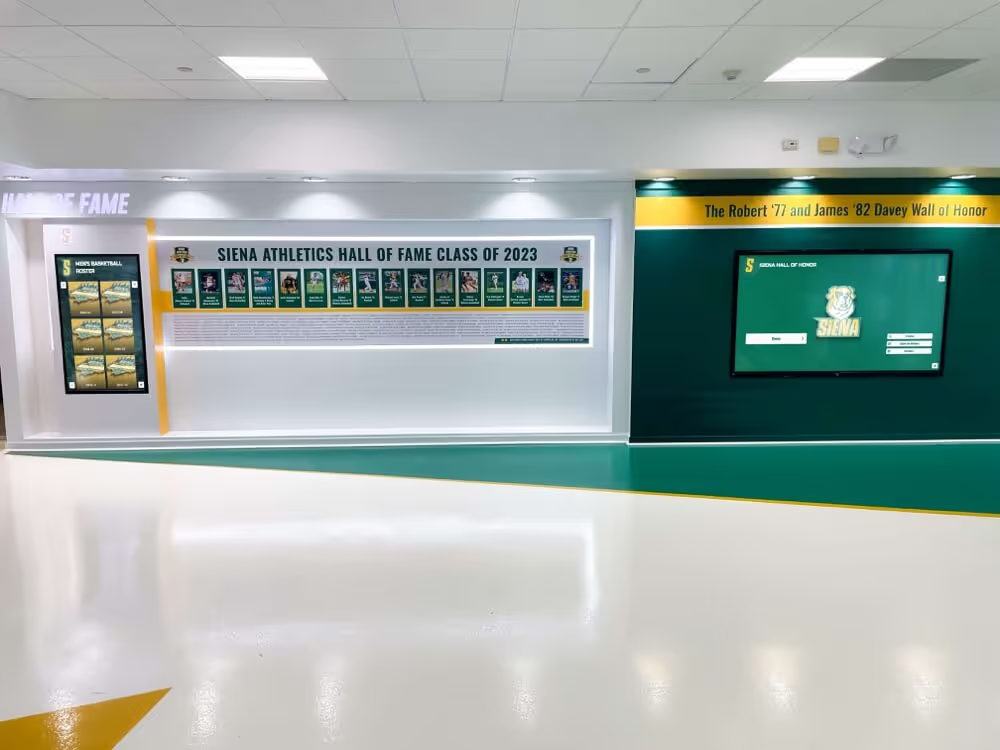
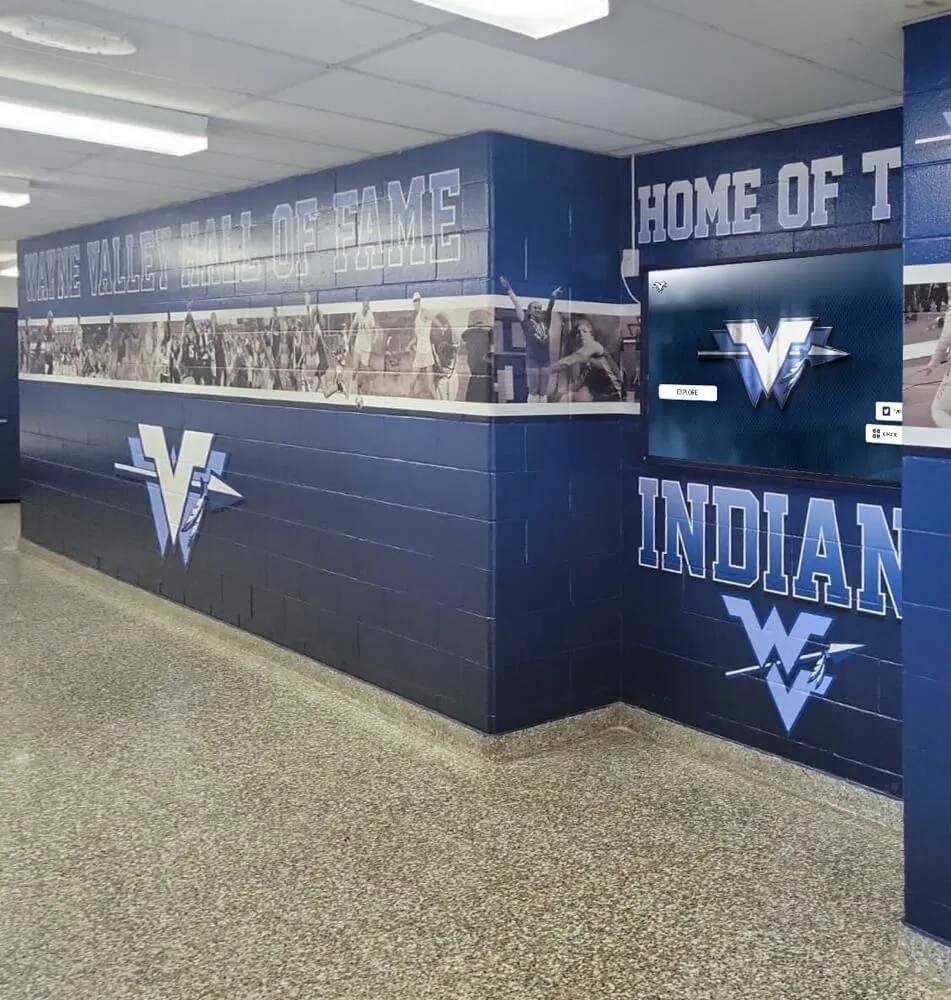
Browser-based approaches offer flexible, cost-effective alternatives to traditional native kiosk software
Native Browser Kiosk Modes
Major web browsers include built-in kiosk features, though with varying capabilities and security levels:
Browser Kiosk Mode Comparison
| Browser | Kiosk Mode | Lockdown Level | Best For |
|---|---|---|---|
| Google Chrome | Yes (--kiosk flag) | Excellent | Professional deployments |
| Microsoft Edge | Yes (Kiosk Mode) | Excellent | Windows devices |
| Firefox | Limited (F11) | Basic | Testing only |
| Safari | Limited (Guided Access) | Moderate | iOS/iPadOS devices |
Google Chrome’s kiosk mode represents the gold standard for browser-based kiosk deployments, offering robust security, true fullscreen display, and extensive configuration options through command-line flags and enterprise policies.
Dedicated Kiosk Browser Applications
Specialized kiosk browsers provide enhanced security and management features beyond standard browsers:
- Fully Kiosk Browser (Android): Popular Android application offering fullscreen web display with motion detection, remote management, and comprehensive lockdown features preventing system access
- KioWare: Enterprise-grade kiosk browser for Windows, Android, and Chrome OS with advanced security, remote monitoring, and multi-location management capabilities
- Porteus Kiosk: Linux-based locked-down browser solution running from USB or CD, providing extremely secure public access without hard drive installation
- SureLock: Multi-platform kiosk lockdown software transforming tablets and computers into secure single-purpose devices for public interaction
Organizations deploying touchscreen kiosk software should evaluate whether dedicated kiosk browsers provide necessary features beyond standard Chrome kiosk mode.
Progressive Web Apps (PWAs) as Kiosk Solutions
Progressive web applications offer compelling advantages for kiosk deployments:
PWA Benefits for Kiosks
- ✓ Installation to Home Screen: PWAs install like native apps while remaining web-based
- ✓ Offline Functionality: Service workers cache content for operation during network outages
- ✓ App-Like Experience: Fullscreen by default without browser chrome or navigation elements
- ✓ Push Notifications: Alert administrators about kiosk issues or required attention
- ✓ Automatic Updates: Service worker updates deploy transparently without user action
PWA Implementation Considerations
- ✓ Manifest File: Defines app name, icons, display mode, and orientation preferences
- ✓ Service Worker: Handles caching strategy, offline functionality, and update management
- ✓ HTTPS Requirement: PWAs require secure connections for installation and service worker operation
- ✓ Browser Compatibility: Excellent support in Chrome/Edge, variable support in Safari
- ✓ Storage Limits: Browser-imposed limits on cached content require strategic asset management
Setting Up Fullscreen Kiosk Mode on Different Platforms
Configuring fullscreen kiosk mode varies by operating system and browser. Proper setup ensures secure, locked-down operation appropriate for public touchscreen deployments.
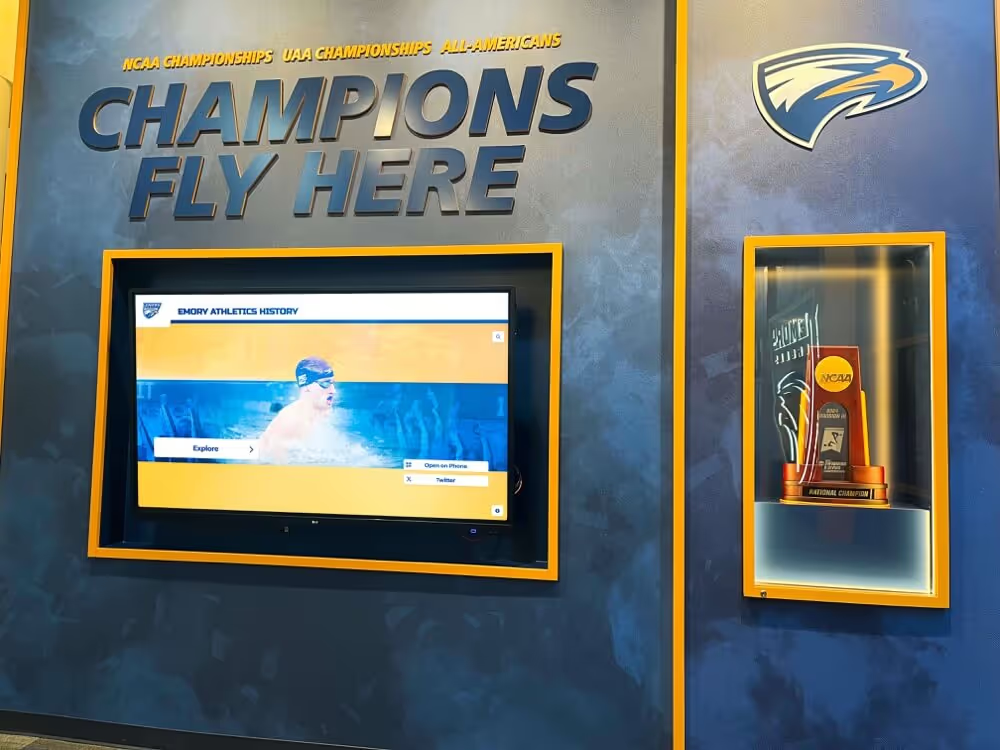
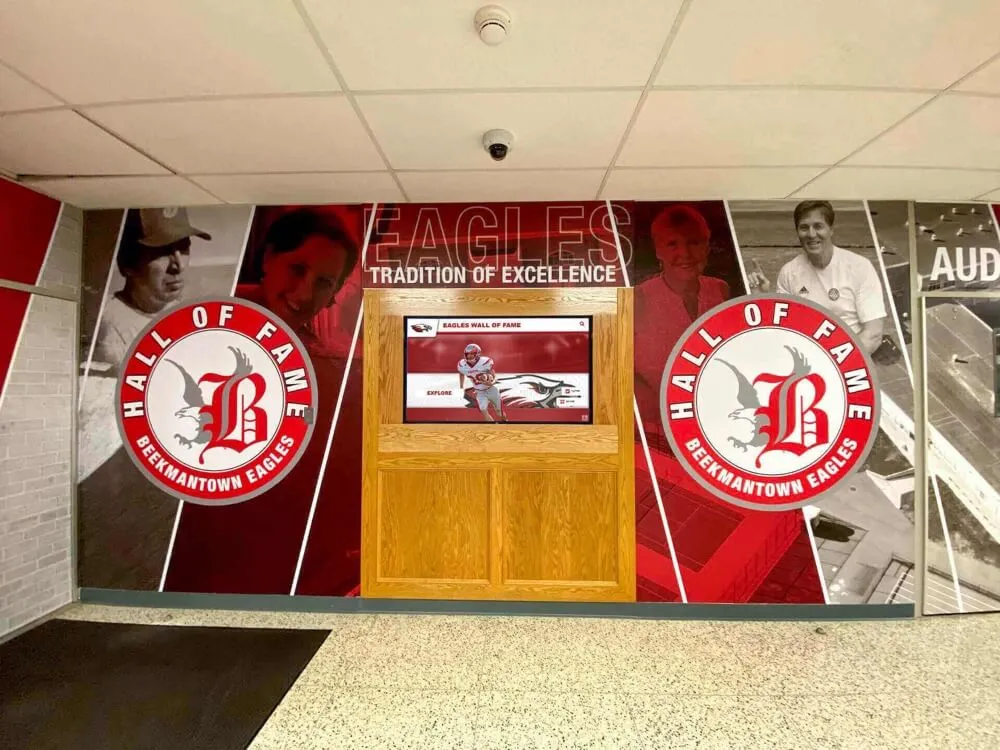
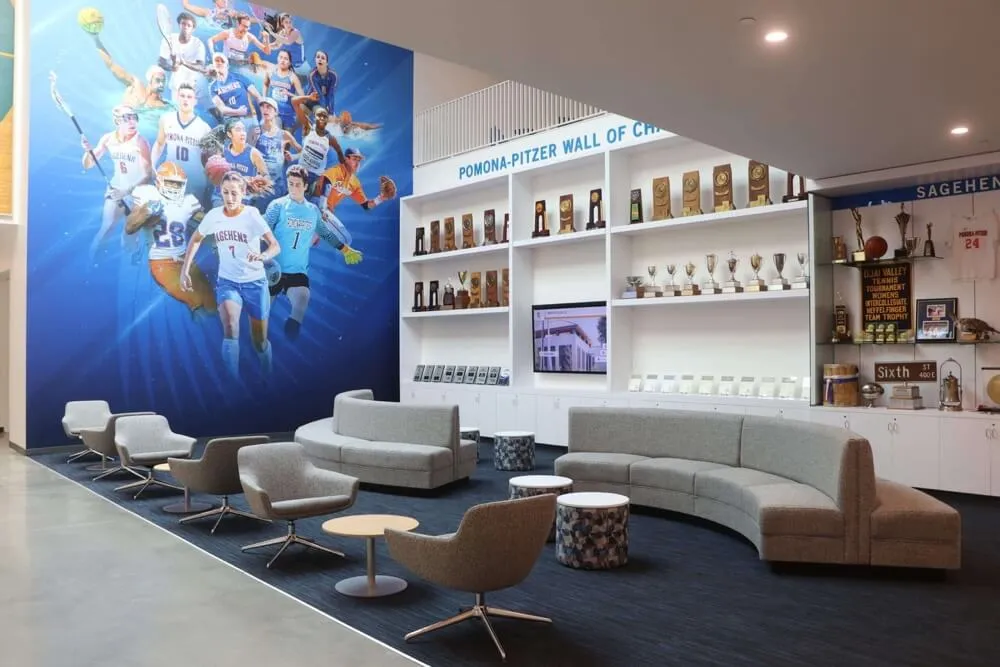
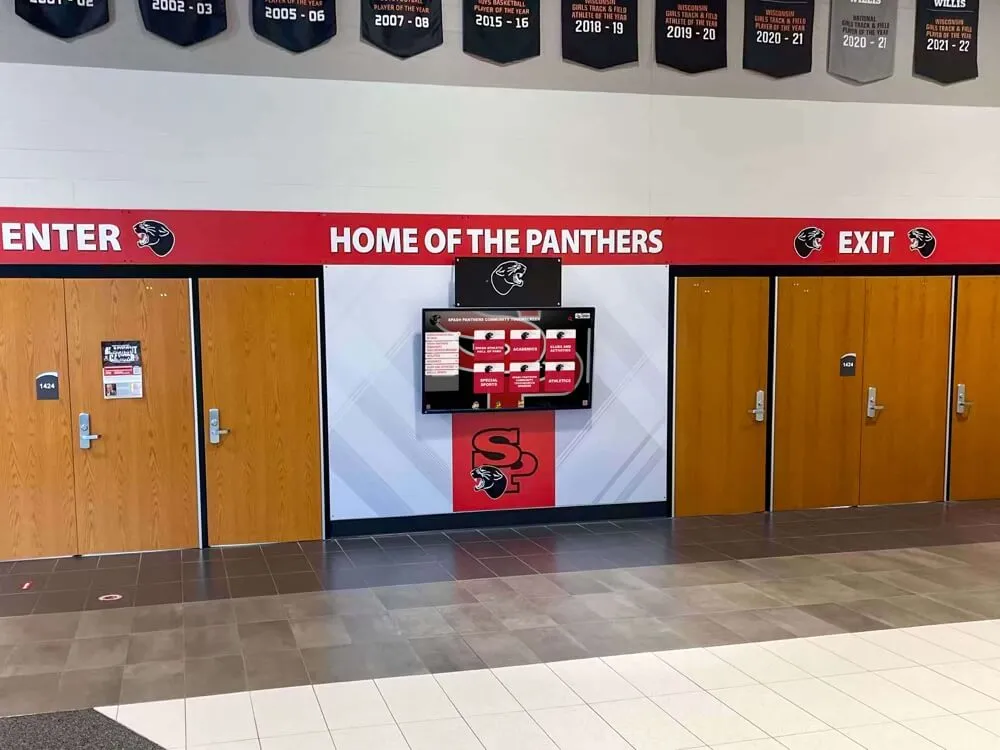
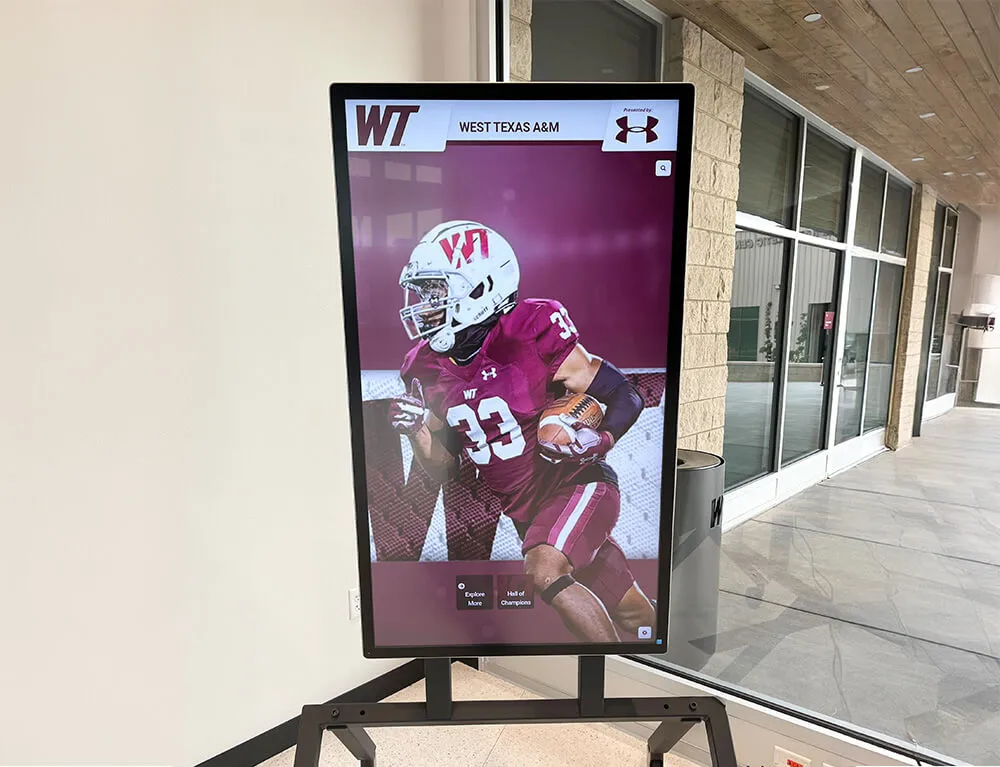
Proper configuration transforms standard browsers into secure, fullscreen kiosk displays
Windows Kiosk Setup with Chrome
Windows devices offer robust kiosk deployment options, particularly when combined with Chrome browser:
Step-by-Step Chrome Kiosk Mode Configuration:
Create Dedicated Kiosk User Account
- Avoid using administrator or personal accounts for kiosk mode
- Set up limited user account without system modification permissions
- Configure auto-login if appropriate for your security requirements
Configure Chrome Kiosk Launch
- Create desktop shortcut to Chrome with command-line flags:
"C:\Program Files\Google\Chrome\Application\chrome.exe" --kiosk --kiosk-printing "https://yourkioskurl.com"- Add to Windows Startup folder for automatic launch on boot
- Consider
--disable-pinchto prevent zoom gestures on touchscreens
Lock Down Windows Environment
- Disable keyboard shortcuts (Win+Tab, Alt+F4, Ctrl+Alt+Del)
- Use Group Policy to restrict system access and settings
- Hide taskbar or set to auto-hide to maximize screen space
- Disable Windows updates during business hours
Configure Touch Keyboard Settings
- Enable automatic on-screen keyboard for text input fields
- Adjust keyboard size and layout for touchscreen usability
- Test keyboard appearance on all form fields
Android Kiosk Configuration
Android tablets serve as cost-effective kiosk hardware with excellent touch support:
Native Android Kiosk Mode
- Single App Mode: Android Enterprise supports locking devices to single application
- Chrome Kiosk Setup: Configure Chrome with managed configuration settings
- Screen Pinning: Pin browser to screen preventing navigation away from app
- MDM Solutions: Mobile device management platforms provide enterprise kiosk control
Fully Kiosk Browser Approach
- Quick Setup: Install Fully Kiosk Browser from Google Play Store
- URL Configuration: Set start URL and allowed domains for browsing restrictions
- Security Settings: Enable kiosk mode, disable system buttons and notifications
- Remote Management: Configure remote admin interface for monitoring and control
Organizations managing interactive kiosk software across multiple Android devices benefit from centralized management through enterprise mobility management (EMM) platforms.
Chrome OS and Chromebooks
Chrome OS devices provide purpose-built kiosk capabilities with simplified management:
- Public Session Kiosk Apps: Configure Chromebooks to launch specific web apps in fullscreen mode without user accounts or sign-in requirements
- Managed Guest Sessions: Enable controlled browsing sessions that reset completely between users, ideal for public access scenarios
- Chrome Device Management: Centrally manage multiple kiosk Chromebooks through Google Admin Console with remote configuration updates
- Auto-Launch and Auto-Reset: Configure devices to automatically start kiosk mode on boot and reset after inactivity periods
iOS/iPadOS Guided Access
Apple tablets utilize Guided Access for kiosk functionality:
iPad Kiosk Setup Process
1. Enable Guided Access
- • Open Settings → Accessibility
- • Navigate to Guided Access section
- • Toggle on and set passcode
- • Configure time limits and restrictions
2. Open Kiosk Website
- • Launch Safari browser
- • Navigate to kiosk URL
- • Tap share icon, select "Add to Home Screen"
- • Open installed web app
3. Activate Guided Access
- • Triple-click home or power button
- • Circle areas to disable touch
- • Disable hardware buttons as needed
- • Tap "Start" to lock into app
4. Configure Auto-Reset
- • Install guided access automation shortcuts
- • Configure inactivity timeout
- • Set home screen return behavior
- • Test complete user session flow
Security and Lockdown Features for Public Kiosks
Security considerations are paramount for public touchscreen kiosks. Proper lockdown prevents unauthorized access to systems, protects user privacy, and ensures kiosks remain focused on intended functions.
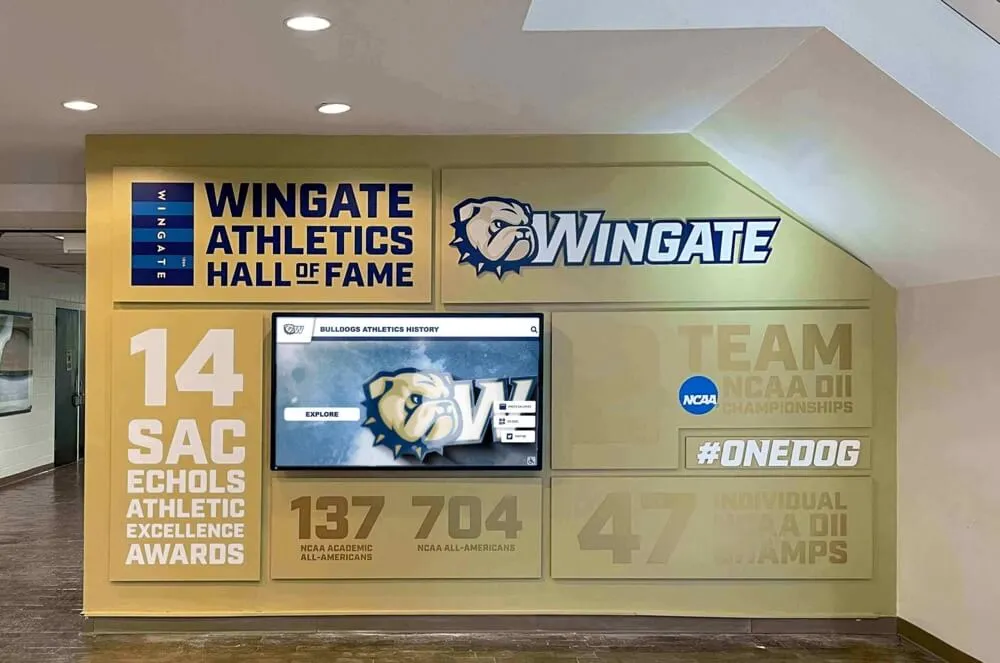
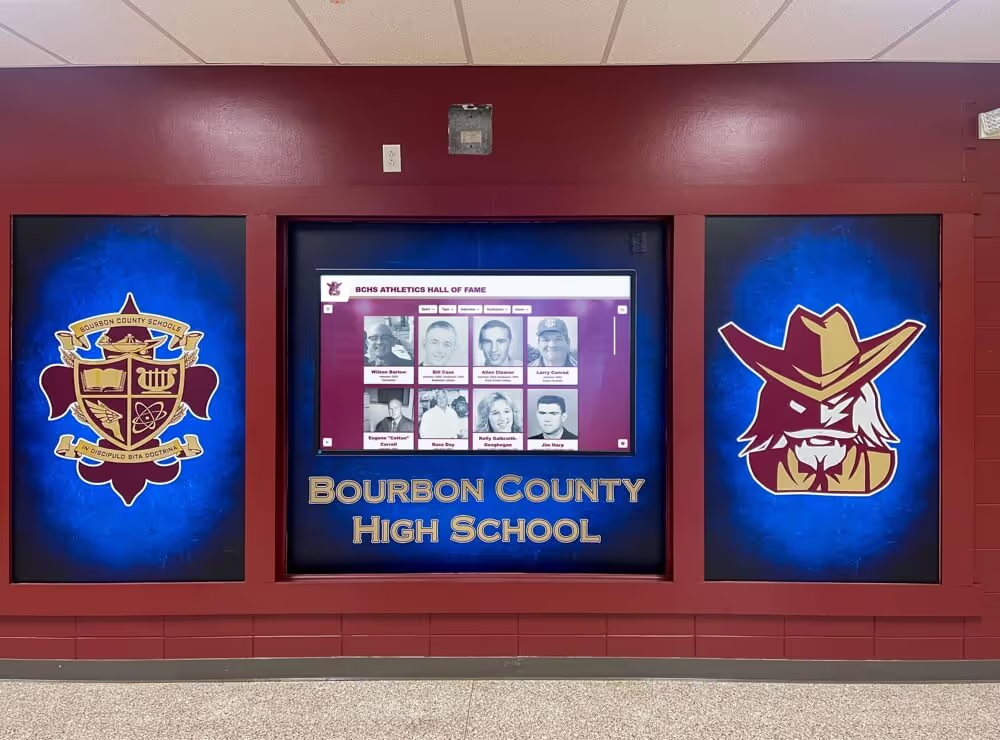
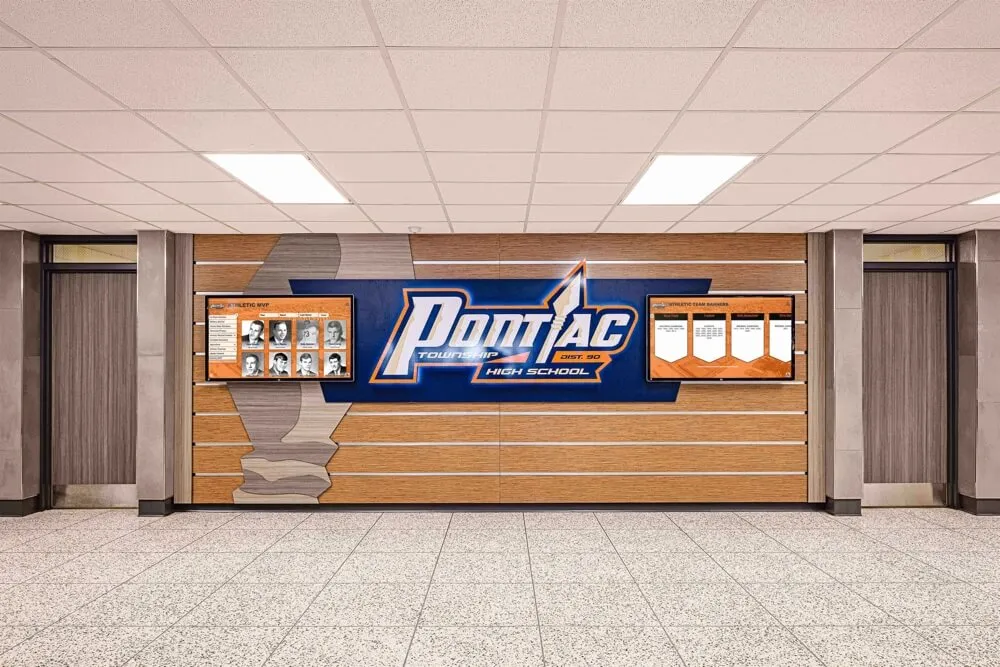
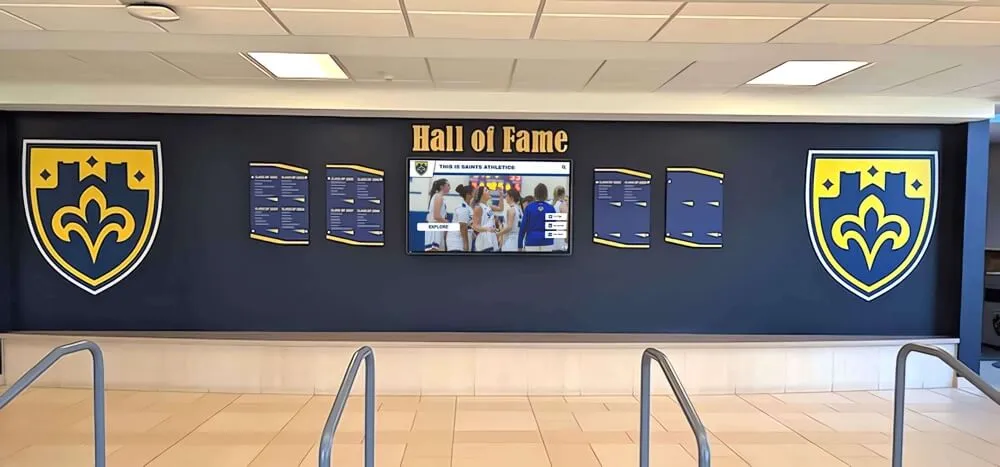
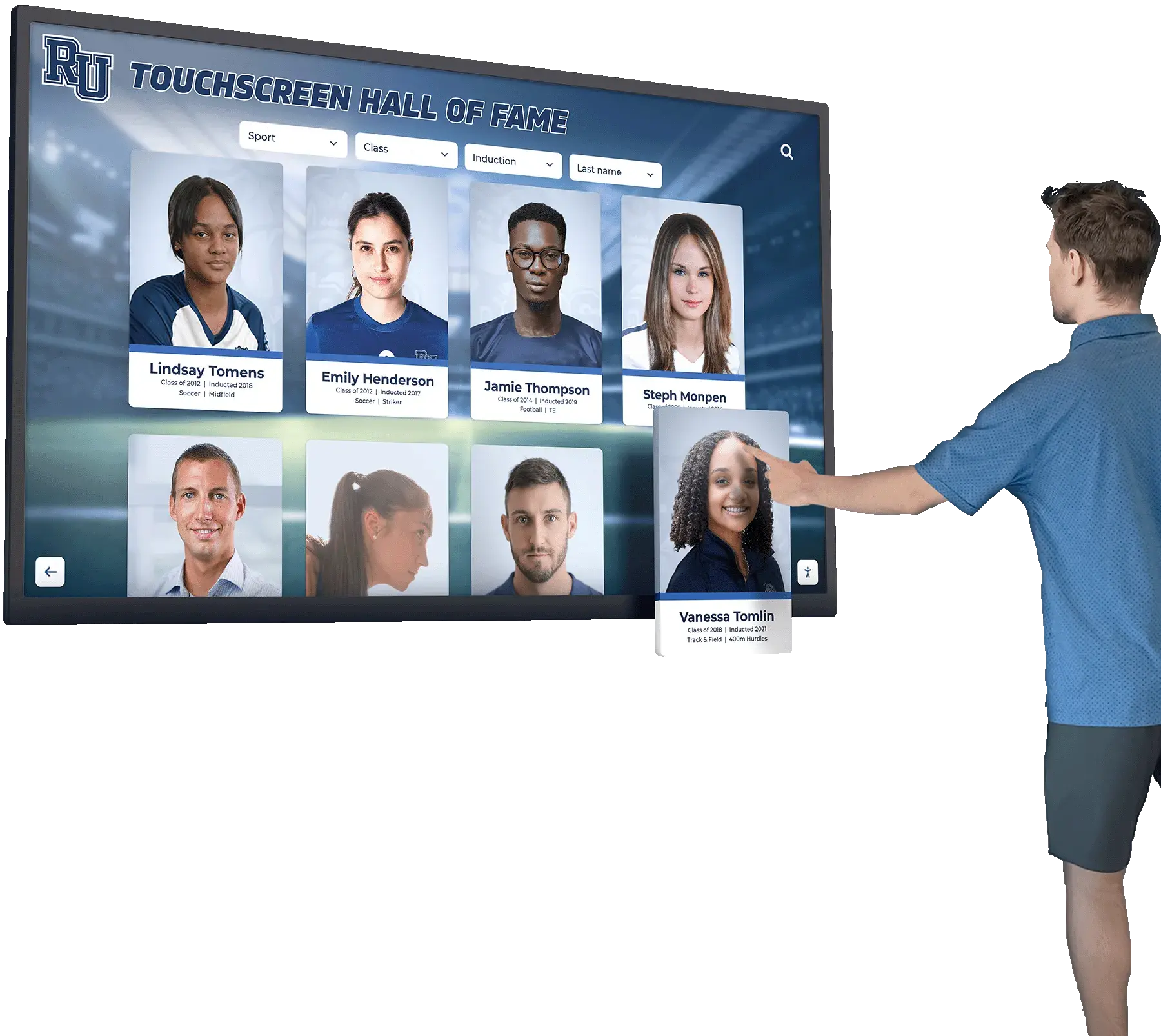
Comprehensive security measures protect public kiosks from misuse and unauthorized access
Essential Security Measures
Public kiosk deployments require multiple layers of security protection:
- Keyboard Shortcut Blocking Disable Alt+F4, Alt+Tab, Ctrl+Alt+Del, Win key, and other shortcuts that could allow kiosk escape
- Right-Click Prevention Block context menus and right-click functionality preventing access to browser developer tools and system functions
- URL Allowlisting Restrict navigation to approved domains only, preventing users from browsing to unauthorized websites
- Session Auto-Reset Clear browsing data, cookies, and form history after inactivity timeout to protect subsequent user privacy
- File Download Blocking Prevent users from downloading files that could introduce malware or consume storage space
- Peripheral Control Disable USB ports, external storage access, and other peripherals that could be exploited
Browser Security Configuration
Chrome kiosk mode offers extensive security configuration through command-line flags:
Recommended Chrome Kiosk Security Flags:
chrome.exe --kiosk "https://yourkiosk.com"
  --no-context-menu
  --disable-pinch
  --disable-translate
  --disable-infobars
  --disable-session-crashed-bubble
  --disable-features=TranslateUI
  --disable-file-system
  --disable-notifications
These flags disable right-click menus, zoom gestures, browser notifications, translation prompts, and file system access—all potential security vulnerabilities in public kiosk deployments.
Remote Monitoring and Management
Enterprise kiosk deployments benefit from centralized monitoring:
Monitoring Capabilities
- ✓ Device Status Tracking: Monitor online/offline status of all kiosk devices
- ✓ Screenshot Capture: View current screen display remotely for troubleshooting
- ✓ Usage Analytics: Track interaction patterns and popular content areas
- ✓ Error Reporting: Automatic alerts when kiosks encounter technical issues
- ✓ Health Monitoring: Track system resources, storage, and performance metrics
Remote Management Features
- ✓ Configuration Updates: Push new settings to devices without physical access
- ✓ URL Changes: Update displayed websites across all or selected kiosks
- ✓ Restart Commands: Remotely reboot frozen or misbehaving devices
- ✓ Schedule Management: Configure operating hours and automated maintenance windows
- ✓ Group Policies: Apply settings consistently across multiple locations or device types
Organizations using touchscreen software with security features should implement comprehensive monitoring for reliable long-term operation.
Network Security Considerations
Kiosk network configuration impacts both security and reliability:
- Network Segmentation: Place kiosk devices on isolated network segments separate from sensitive institutional systems to limit potential security breach impact
- Firewall Rules: Implement strict outbound filtering allowing only necessary connections to kiosk website domains and required services
- HTTPS Enforcement: Require encrypted connections for all kiosk traffic preventing man-in-the-middle attacks and eavesdropping
- VPN Tunneling: For multi-location deployments, consider VPN connections ensuring secure communication with central management systems
Touch Optimization for Kiosk Websites
Touch-optimized design differentiates successful kiosk deployments from frustrating user experiences. Websites designed for mouse interaction require significant adaptation for effective touchscreen operation.
Touch Target Sizing and Spacing
Human fingers are significantly less precise than mouse pointers, requiring larger interactive elements:
Touch Target Size Guidelines
Minimum Sizes
- • Buttons: 44x44 pixels minimum
- • Links: 44 pixels tall with padding
- • Form Fields: 48 pixels minimum height
- • Toggle Controls: 44x44 pixels minimum
Optimal Sizes
- • Primary Buttons: 60x60 pixels or larger
- • Navigation Elements: 56 pixels tall
- • Interactive Cards: 80+ pixels minimum dimension
- • Icon Buttons: 56x56 pixels optimal
Spacing Requirements
- • Between Targets: 8-16 pixels minimum
- • Edge Margins: 16+ pixels from screen edges
- • Vertical Spacing: 12+ pixels between stacked elements
- • Grid Layouts: 16 pixel gutters between columns
Touch Gesture Support
Modern touchscreens support various gestures that enhance kiosk navigation:
- Swipe Navigation: Implement swipe gestures for browsing galleries, paginated content, and horizontal navigation—feels natural on touchscreens
- Pull-to-Refresh: Consider pull-down gesture for content refresh on information displays that update periodically
- Long Press Actions: Enable long-press for secondary actions like viewing additional information or accessing contextual menus
- Pinch-to-Zoom Disabling: Generally disable pinch-to-zoom on public kiosks to maintain consistent layout and prevent confusion
Visual Feedback and Interaction Cues
Touch interactions lack hover states common in mouse-driven interfaces, requiring alternative feedback mechanisms:
Interactive Element Indicators
- Visual Distinction: Buttons and interactive elements clearly distinguishable from static content through color, borders, or shadows
- Tap Animations: Provide immediate visual response to touch—ripple effects, color changes, or subtle animations confirm input
- Active States: Show clear visual change when element is currently being touched
- Disabled States: Clearly indicate when interactive elements are temporarily unavailable
Loading and Progress Indicators
- Immediate Feedback: Show loading indicators immediately when actions will take time
- Progress Visibility: For longer operations, display progress percentage or estimated time
- Prevent Double-Taps: Disable buttons during processing to prevent accidental duplicate submissions
- Success Confirmation: Provide clear feedback when actions complete successfully
Organizations creating content for digital recognition displays should prioritize touch-optimized design ensuring intuitive interaction for all users.
Typography and Readability for Touch Displays
Text legibility becomes critical on touchscreen kiosks viewed from standing distance:
- Minimum Font Sizes Body text minimum 16-18px, headings 24-32px+, and navigation elements 18-20px for standing-distance readability
- High Contrast Ratios Maintain WCAG AAA standards (7:1 minimum) for text contrast ensuring readability in varied lighting conditions
- Generous Line Spacing Use 1.5x line height or greater improving readability and making text blocks less intimidating
- Limited Line Length Constrain text blocks to 60-70 characters per line optimal for reading comprehension
- Readable Fonts Choose clear sans-serif typefaces designed for screen display rather than decorative or script fonts
- Sentence Case Preference Use sentence case for readability; all-caps text harder to read and appears aggressive
Popular Kiosk App Solutions and Platforms
Organizations deploying fullscreen kiosk apps can choose from various solutions ranging from basic browser kiosk modes to comprehensive specialized platforms designed specifically for public touchscreen deployments.
Purpose-Built Recognition and Engagement Platforms
Specialized solutions like Rocket Alumni Solutions offer turnkey kiosk experiences optimized for specific use cases:
Rocket Alumni Solutions — Best for Recognition Displays ⭐
Key Features
- ✓ Web-based platform eliminating native app development
- ✓ Touch-optimized interfaces designed for public interaction
- ✓ Pre-built templates for athletic records, halls of fame, donor recognition
- ✓ Content management system for non-technical staff updates
- ✓ Mobile companion apps extending engagement beyond kiosk
Deployment Advantages
- ✓ Works with any kiosk browser or fullscreen mode
- ✓ Platform-independent (Windows, Android, Chrome OS, iOS)
- ✓ Automatic content updates without kiosk reconfiguration
- ✓ Proven success across schools, universities, athletic programs
- ✓ Comprehensive support from implementation through operation
Ideal For: Educational institutions, athletic departments, museums, corporate facilities, and organizations prioritizing interactive touchscreen experiences showcasing achievements and building community engagement.
General-Purpose Kiosk Software Platforms
Multi-purpose kiosk solutions serve various applications beyond recognition:
- KioWare: Enterprise-grade kiosk lockdown software for Windows, Android, and Chrome OS supporting custom branding, remote management, and extensive security features—starting at $300+ per device
- Fully Kiosk Browser: Popular Android kiosk browser offering motion detection, remote management, and customizable lockdown—$25 single license or volume pricing available
- SureLock: Multi-platform lockdown solution transforming devices into single-purpose kiosks with peripheral control and application allowlisting—subscription-based pricing
- Intuiface: No-code interactive experience platform enabling custom kiosk applications without programming—$60+ monthly per display
Organizations evaluating options should review comprehensive touchscreen kiosk software buying guides considering features, pricing, and deployment requirements.
Free and Open-Source Options
Budget-conscious deployments can leverage free solutions with varying feature sets:
Chrome Kiosk Mode (Free)
- ✓ Cost: Free with Chrome browser
- ✓ Platforms: Windows, Mac, Linux, Chrome OS
- ✓ Setup Complexity: Moderate—requires command-line configuration
- ✓ Security: Excellent when properly configured
- ✓ Best For: Simple fullscreen web kiosks without advanced management needs
Porteus Kiosk (Free)
- ✓ Cost: Free for basic version
- ✓ Platforms: Any x86 PC (bootable Linux)
- ✓ Setup Complexity: Moderate—requires bootable media creation
- ✓ Security: Excellent—boots fresh each time
- ✓ Best For: Public access computers requiring maximum security
Best Practices for Kiosk Deployment and Operation
Successful kiosk deployments require careful planning, proper hardware selection, strategic placement, and ongoing maintenance ensuring reliable operation and positive user experiences.
Hardware Selection for Kiosk Deployments
Choosing appropriate hardware significantly impacts long-term satisfaction:
Kiosk Hardware Specifications
Display Requirements
- • Screen Size: 32"-65" for standing kiosks
- • Resolution: 1920x1080 minimum, 4K preferred
- • Touch Technology: Capacitive for accuracy
- • Brightness: 300+ cd/m² for ambient light
- • Orientation: Portrait or landscape based on content
Computing Power
- • Processor: Intel i3/i5 or equivalent ARM
- • RAM: 8GB minimum for smooth browser performance
- • Storage: 128GB SSD for fast boot/loading
- • Operating System: Windows 10/11, Android, Chrome OS
- • Network: Ethernet preferred over WiFi
Enclosure Features
- • Durability: Commercial-grade construction
- • Cable Management: Concealed wiring
- • Ventilation: Adequate cooling for 24/7 operation
- • Security: Lockable access panels
- • Accessibility: ADA-compliant mounting height
Organizations should review detailed hardware selection guides for digital displays before purchasing equipment.
Strategic Placement and Installation
Kiosk location dramatically affects usage and engagement:
- High-Traffic Areas: Position kiosks where people naturally congregate—building entrances, lobbies, cafeterias, waiting areas—maximizing visibility and spontaneous interaction
- Comfortable Standing Zones: Ensure adequate space for users to interact without blocking corridors or creating congestion in high-traffic areas
- Lighting Considerations: Avoid direct sunlight causing glare, and ensure adequate ambient lighting for screen visibility without being too bright
- Power and Network Access: Verify reliable electrical outlets and network connectivity (wired Ethernet strongly preferred) before finalizing placement
Maintenance and Monitoring Procedures
Proactive maintenance prevents issues before they impact users:
Regular Maintenance Tasks
- ✓ Weekly Cleaning: Clean touchscreen with appropriate cleaning solution removing fingerprints and smudges
- ✓ Content Review: Verify displayed content remains current and all links/features function properly
- ✓ Visual Inspection: Check for physical damage, loose cables, or hardware issues requiring attention
- ✓ Performance Check: Test responsiveness, loading times, and overall system performance
- ✓ Log Review: Check error logs and monitoring systems for issues requiring investigation
Periodic System Updates
- ✓ Monthly OS Updates: Apply security patches and system updates during maintenance windows
- ✓ Browser Updates: Keep Chrome or kiosk browser updated to latest stable version
- ✓ Configuration Backup: Document and backup kiosk configuration settings quarterly
- ✓ Hardware Inspection: Deep clean fans, check ventilation, inspect cables every 3-6 months
- ✓ User Testing: Periodically observe actual users and gather feedback on experience
Organizations managing digital recognition displays should establish comprehensive maintenance schedules ensuring reliable long-term operation.
User Experience Optimization
Continuous improvement based on actual usage enhances kiosk value:
- Analytics Review Analyze usage patterns identifying popular content, interaction difficulties, and opportunities for improvement
- User Observation Periodically observe users interacting with kiosk to identify confusion, frustration, or unexpected behavior patterns
- Feedback Collection Provide easy mechanism for users to report problems or suggest improvements directly from kiosk
- Content Freshness Update content regularly to encourage repeat visits and maintain community interest in kiosk displays
- Accessibility Testing Ensure kiosk remains accessible to users of all abilities through appropriate height, reach, and interface design
- Performance Optimization Monitor loading times and responsiveness, optimizing content delivery for fast, smooth interaction
Ready to Deploy Your Fullscreen Kiosk Solution?
Transform any touchscreen into an engaging interactive experience with web-based kiosk solutions. Rocket Alumni Solutions provides purpose-built platforms optimized for recognition, engagement, and community building—perfect for schools, athletic programs, and organizations seeking professional touchscreen displays without complex native app development.
Conclusion: The Future of Browser-Based Kiosk Applications
Fullscreen kiosk apps leveraging web technologies represent the future of interactive touchscreen deployments. Browser-based solutions eliminate platform fragmentation, simplify content updates, reduce development costs, and enable consistent experiences across diverse hardware configurations—advantages that traditional native applications cannot match.
For educational institutions deploying interactive athletic record boards, museums creating engaging exhibits, retail environments implementing self-service systems, or corporate facilities providing wayfinding and information access, web-based kiosk approaches deliver professional results without the complexity and expense of traditional native app development.
The combination of modern browser capabilities, robust kiosk mode features, improved web standards, and specialized platforms like Rocket Alumni Solutions means organizations can deploy sophisticated touchscreen experiences with minimal technical expertise and ongoing maintenance requirements.
As web technologies continue advancing—improved offline capabilities through Progressive Web Apps, enhanced touch gesture support, better performance through modern JavaScript frameworks—the advantages of browser-based kiosk solutions will only increase. Organizations investing in web-based approaches position themselves for long-term success with flexible, maintainable, cost-effective interactive touchscreen deployments.
Whether creating digital recognition displays, information kiosks, self-service applications, or engaging interactive experiences, fullscreen kiosk apps built on web technologies deliver the functionality, security, and user experience that modern deployments demand—without the limitations of traditional native application approaches.
Consider exploring how advanced touchscreen software solutions and DIY kiosk approaches can transform your organization’s approach to interactive displays and public engagement through accessible, web-based technologies.